2-13
Paper Handling
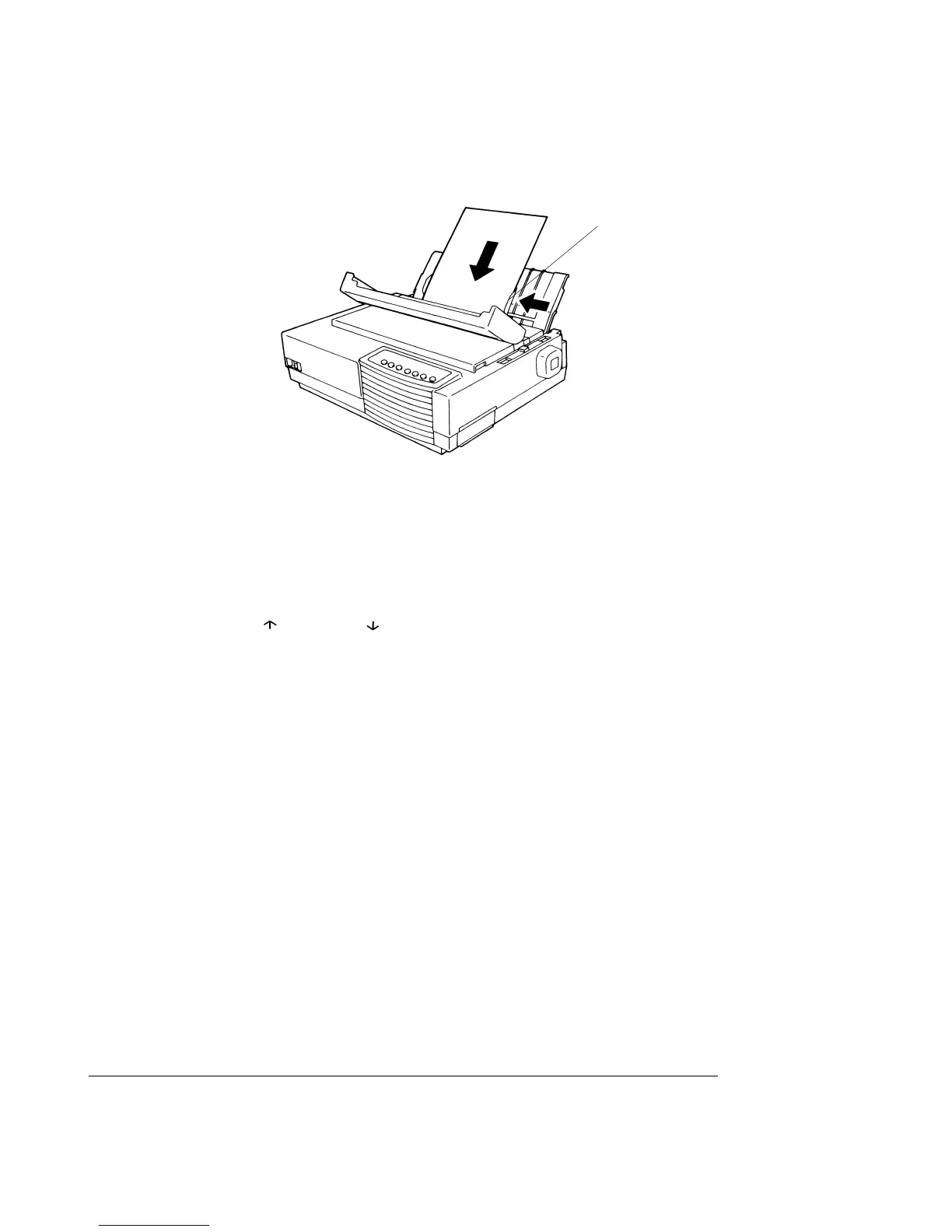
Loading a Sheet of Paper
6. If you want to slightly adjust the Top-of-Form position, the first line on which printing
can start, adjust the Top-of-Form position of the paper using control panel buttons. Press
the Set-Up/Quit and the To p buttons at the same time. The M1 and M2 indicators flash
alternately with the DEC and PPX24 indicators, indicating Top-of-Form Adjustment
mode. Press the button or the button. The paper will move forward or backward
in 1/60-inch increments. Press the Set-Up/Quit button after adjusting the position. Note
that this adjustment is temporarily saved. It will not be active at next power-up of the
printer. For permanent adjustment, see the section “Feeding and Positioning Paper” later
in this chapter.
7. Place the printer in the Ready state. Print a sample page and check the page margins.
Make the following adjustments, as necessary:
• Horizontal alignment. Readjust the paper guides if required.
• Top-of-form setting. Use the printer Set-Up mode (see Chapter 4, “Using Set-Up
Mode,”) or the TOF Adjustment mode (see the section, “Feeding and Positioning
Paper,” later in this chapter).
• Margin settings. Use your software or the printer Set-Up mode (see Chapter 4,
“Using Set-Up Mode.”)
Ejecting Single Sheets
If you print using software, each sheet is ejected automatically upon the completion of the
page printing. To manually eject sheets of paper:
• Press the FF/Load button to execute a forward form feed.
• Turn the platen knob.
33
33
3


 To Next Page