BDVR Manual 60 Version 1.2
VIII.BACKUP
1. USB Memory Stick Backup
1. Insert a USB Memory Stick into the USB connection port on the front panel.
Note: Make sure the USB device has enough unused space before commencing backups.
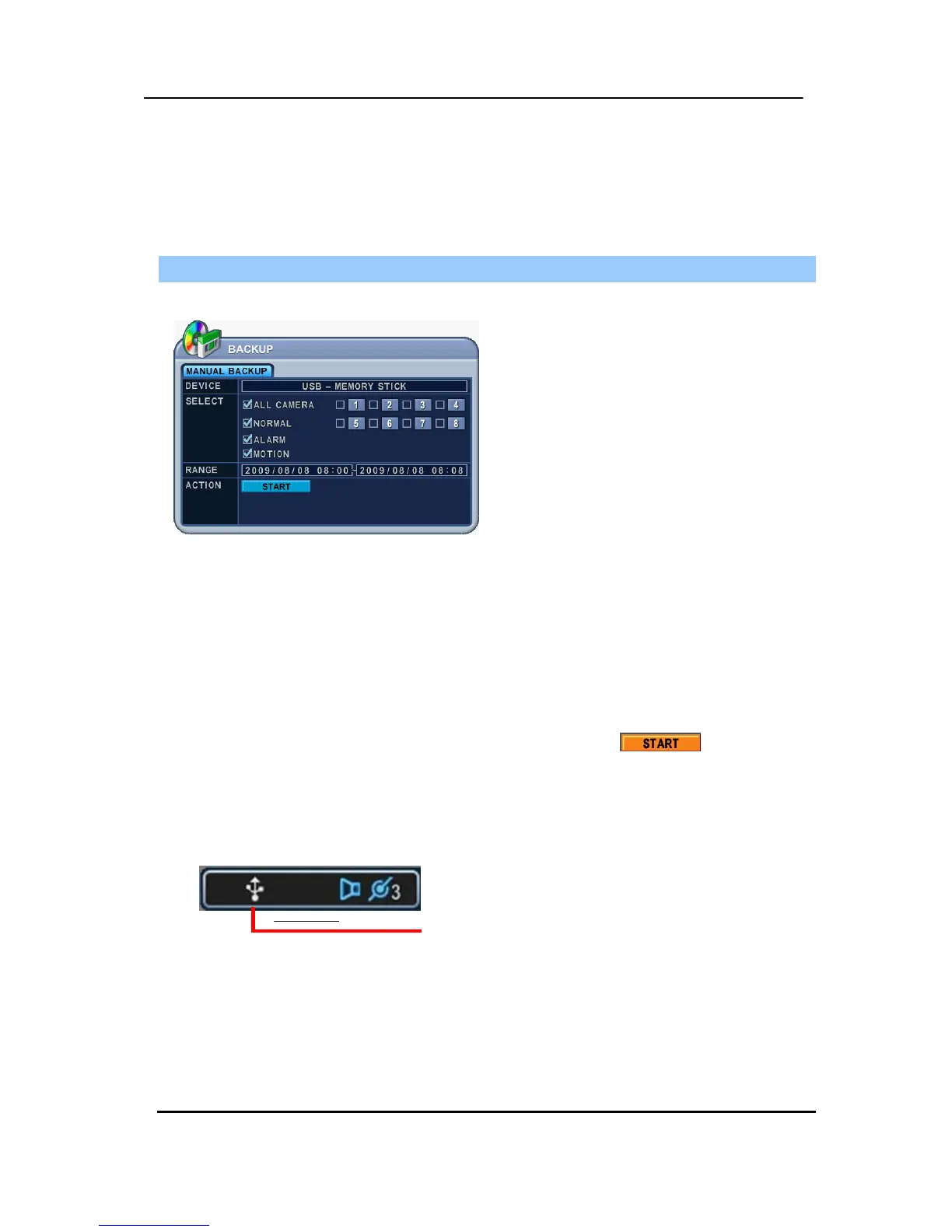
2. Press the [BACKUP] button on the front panel to display the backup menu.
3. Use the [-, +] button to change selected device: USB - Memory Stick.
4. Select the data for BACKUP.
(1) NORMAL: Normal Recording Data
(2) ALARM: Alarm Recording Data
(3) MOTION: Motion Recording Data
The illustration above has selected ALL CAMERA, NORMAL, ALARM and
MOTION data.
5. Enter the digits as required in 24-hour format and move to .
6.
Press the [ENTER] button to start the BACKUP.
* USB icon is highlighted in blue during the backup.
• If there is not enough space on the USB memory stick, the system does not proceed with
the backup.
USB Memory Stick
z The backup progress indicator is displayed at the bottom of the window. While the
system is in a backup session, please do not attempt to use the playback function.
7. After the backup process is finished, the USB icon is highlighted in white.


 To Next Page