BDVR Manual 96 Version 1.2
(1) ADD to CMS List
Please follow these steps to make a Virtual DVR.
1) NAME: Enter Virtual DVR title to display on the CMS window.
* Auto Arrange:
- Check this option to have the CMS arrange cameras with any of the events
occurring from a virtual DVR with registered cameras. Cameras with events are
automatically moved to channel 1, then arranged in order of priority.
* Auto Insert & Arrange:
- Check this option to have the CMS add, prioritise and arrange cameras with any
of the events occurring from any cameras.
* Alarm / Motion / Video Loss:
- Check these options to have cameras with Alarm/Motion triggers or Video Loss to
be prioritised and arranged automatically in either Auto Arrange or Auto Insert &
Arrange.
2) ADD VIRTUAL DVR: Click “Add Virtual Set” button to make a Virtual DVR. Avoid
overlapping similar names for Individual Sets.
3) Save changes and exit the menu : Select “OK”
4) Exit the menu without change : Click “Cancel”
z APPLY: Is used for changing the name of selected Virtual DVR.
(2) DEL VIRTUAL DVR: Delete the selected virtual DVR from CMS list.
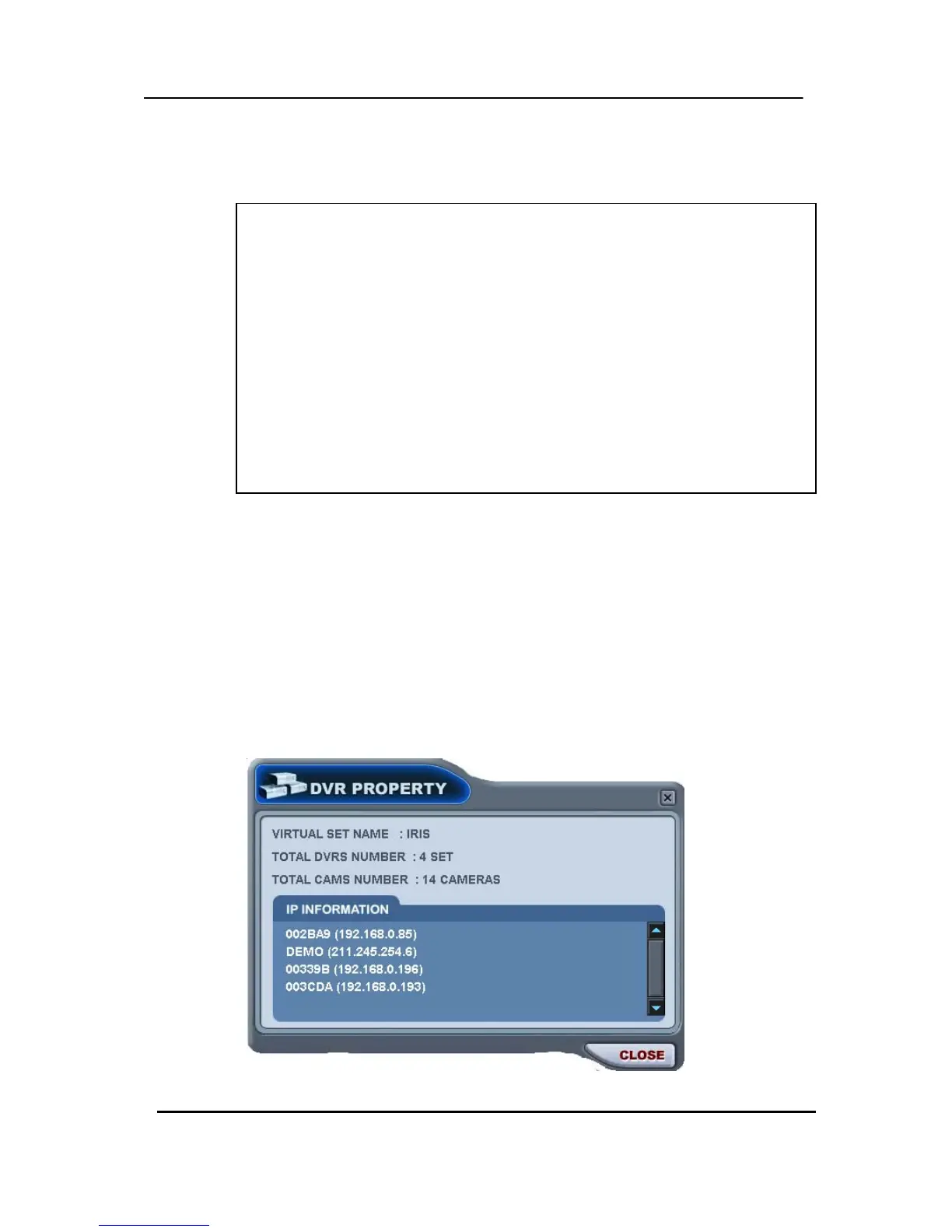
(3) PROPERTY: This menu provides information such as Virtual Set Name, total number of
connected DVR’s, total number of selected Cameras and IP information of connected DVR’s.


 To Next Page