25 DIGITAL VIDEO RECORDER
2. Display Option
2.1. Display Setup
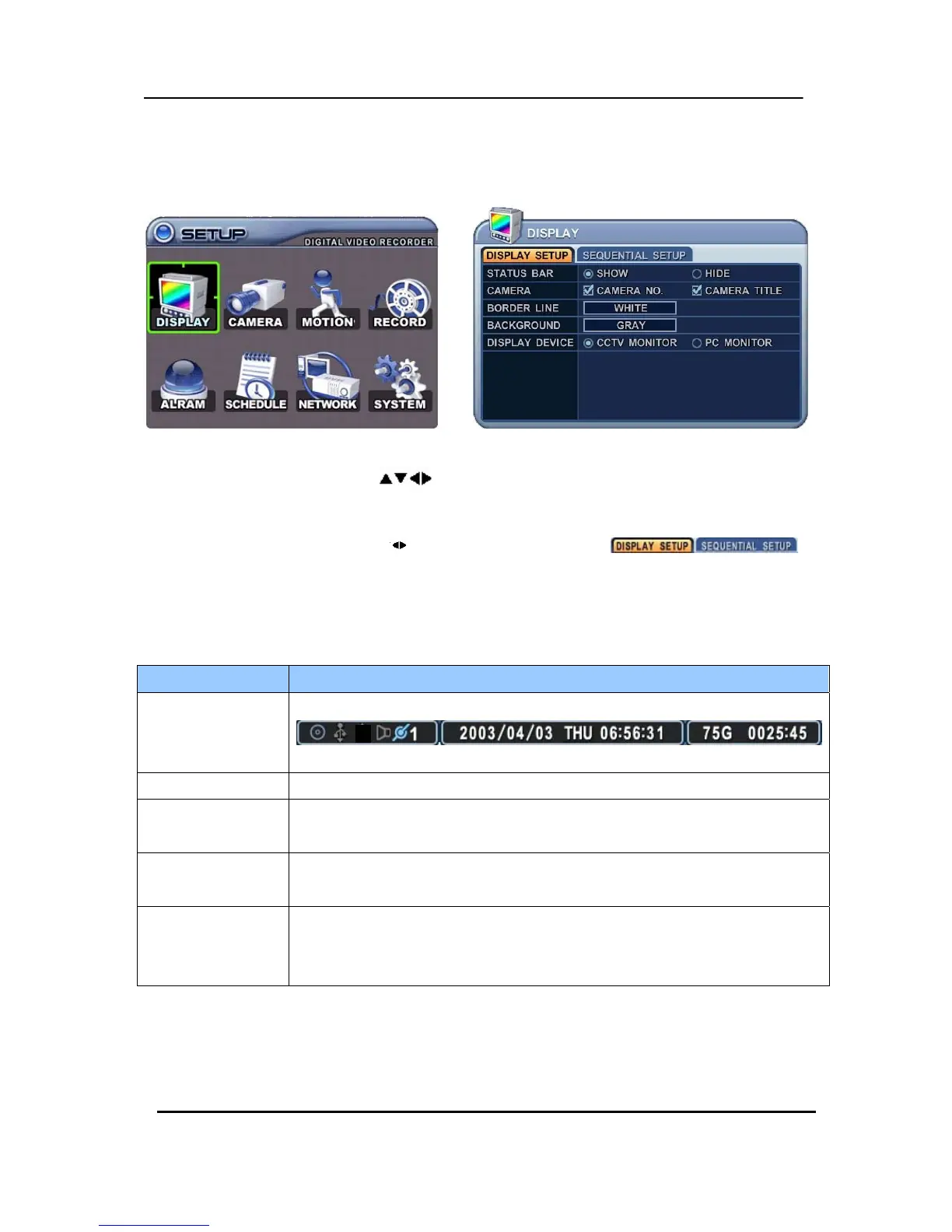
1. Use Direction buttons [
] to select “DISPLAY” menu. Then, press [ENTER]
button to display “DISPLAY SETUP”.
2. Use Left/Right buttons [
] to select on TAP menu ( ).
Selected items changed [ORANGE] color..
3. Use Down [T] button to specify.
4. Use [-, +] button to change the values
ITEM ADJUSTMENT
STATUS BAR
y Select “Show” or “Hide” below status bar on Main Monitor.
CAMERA
y Select On-Screen-Display information for Camera Number and Title.
BORDER LINE
y Select Board Line between cameras.
[WHITE Æ GRAY Æ DARK GRAY Æ BLACK]
BACKGROUND
y Select Background color on NO VIDEO status.
[GRAY Æ DARK GRAY Æ BLACK Æ BLUE Æ WHITE]
DISPLAY DEVICE
ySelect On-Screen-Display coordinates on Monitor.
- CCTV: Displays properly at CCTV Monitors
- VGA : Displays properly at VGA Monitors.
5. Save changes and exit the menu, press [ENTER] button.
Exit the menu without making changes, press [CANCEL] button.


 To Next Page