48 DIGITAL VIDEO RECORDER
9.4. DISK
ITEM ADJUSTMENT
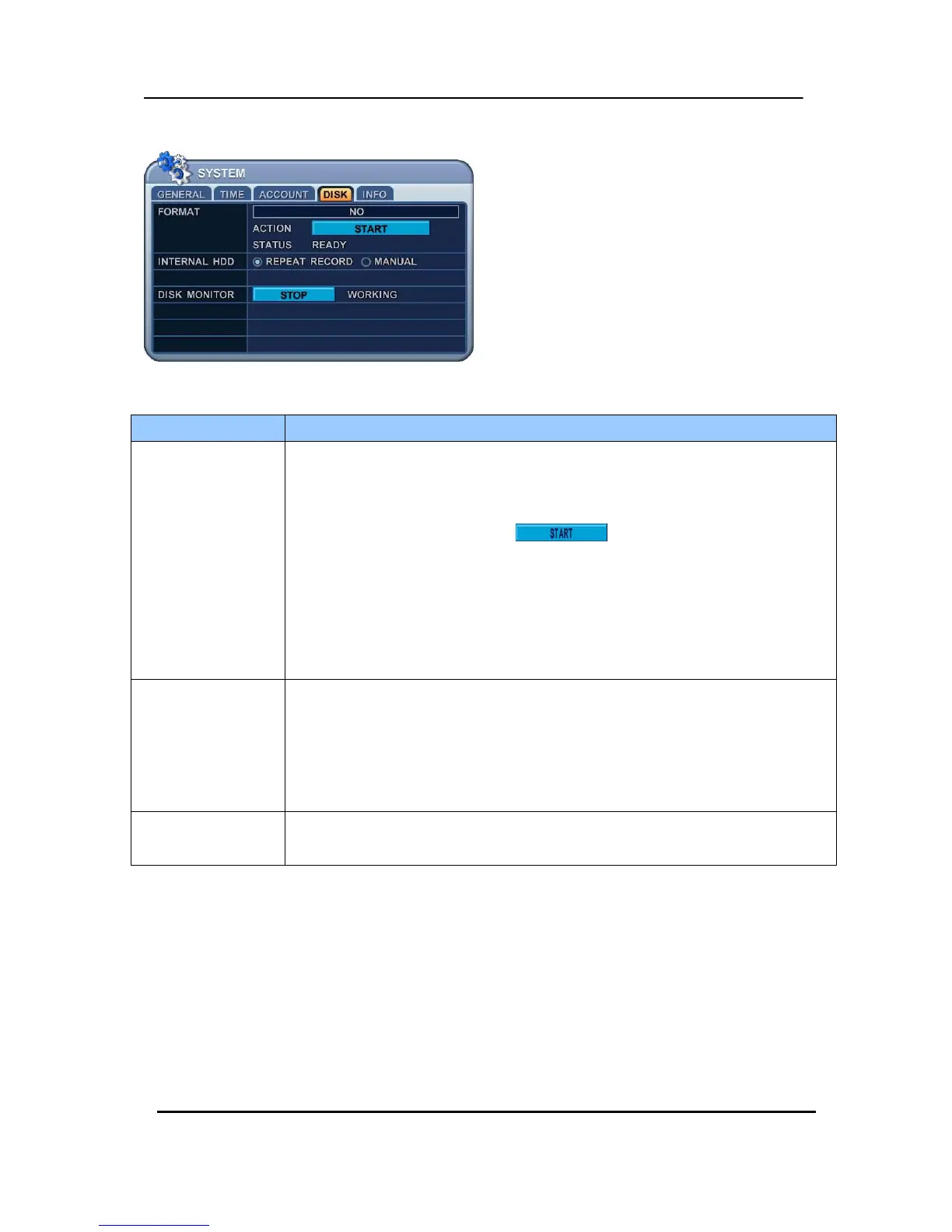
FORMAT
1. Stop the DVR completely before the disk format.
2. Use [-, +] button to change select device..
Internal HDD, RACK-CD/RW or DVD RW, USB (Front), USB(Rear)
3. Use down button [T] to move
, then press [“+” or “ –“] button
to start formatting.
4. Formatting will begin, and the progress will be displayed at the bottom of the
window. Please not that it takes 10~30 seconds for format a HDD.
5. When formatting is finished, it will display COMPLETE, and also SUCCESS at
the bottom of the window.
INTERNAL HDD
Select the record policy of the internal hard disk drive. By default, the hard disk
drive will overwrite from the beginning when it becomes full.
y REPEAT RECORD: It starts to overwrite HDD from the oldest file of Internal
HDD when the Hard Disk is full.
y MANUAL: It stops recording after HDD is full.
DISK MONITOR
y It stops automatically if HDD failure happens. It starts to “Monitoring” again after
DVR reboot . (Use [-, +] button to stop or start)


 To Next Page