29 DIGITAL VIDEO RECORDER
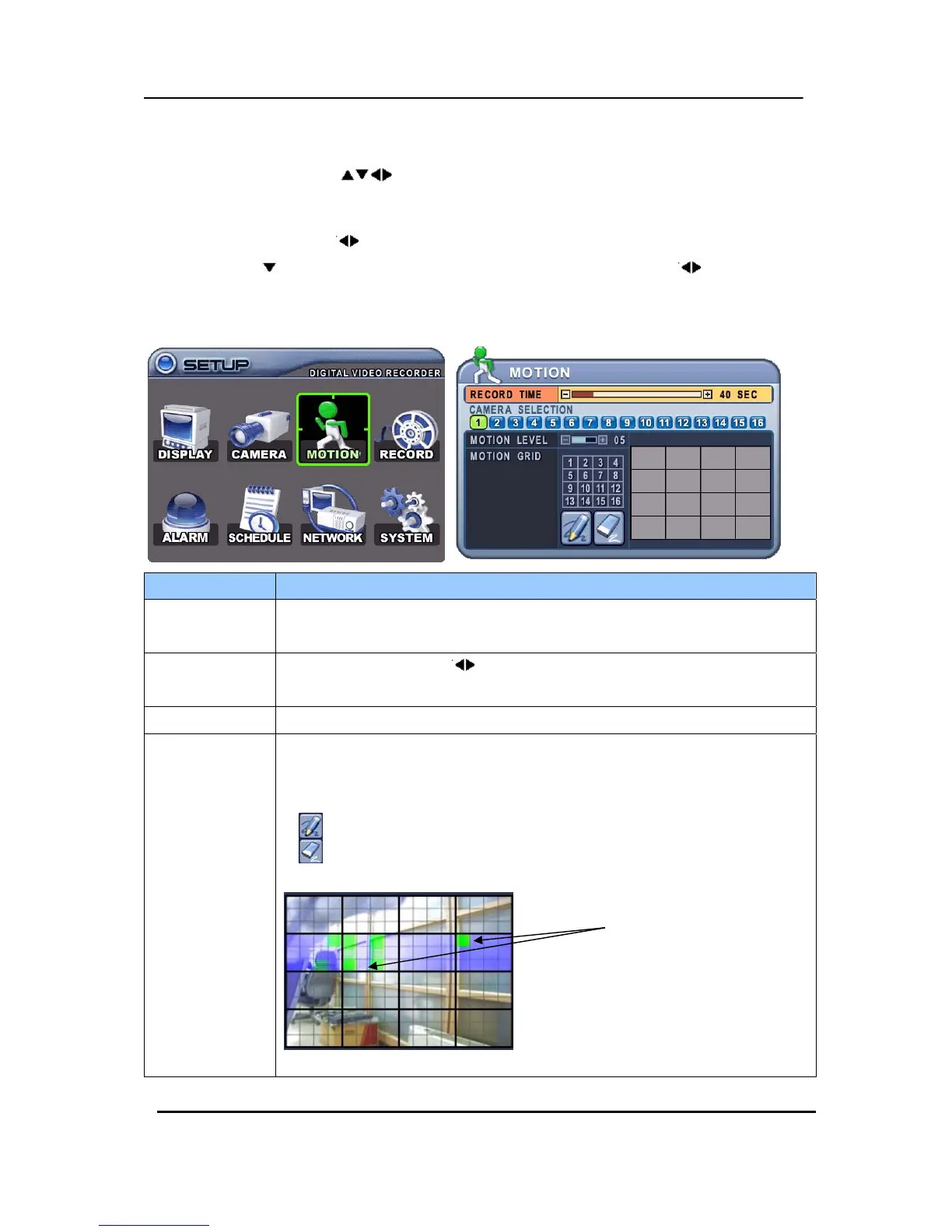
4. Motion Recording
1. Use Direction buttons [ ] to select “MOTION” menu. Then, press [ENTER] button to
display “MOTION”.
2. Use Left/Right buttons [
] or Number button to select the Camera you wish to configure.
3. Use Down [
] button to move specified menu and use Left/Right buttons [ ] to select other
item.
4. Use [-, +] button to change the value.
ITEM ADJUSTMENT
RECORD TIME
y Determines the duration of recording when motion is detected.
[10SEC ~ 300SEC]
CAMERA
SECTION
y Use Left/Right buttons [
] or Number button to select the Camera you wish
to configure.
MOTION LEVEL y Level 1: Low sensitivity~ Level 20: High sensitivity.
MOTION GRID
y Use this menu to setup Zones for the motion detection The screen shown
below will overlay the current video image.
y It is divided into 16 Grid and selected by Number button on IR Remote.
y : Select All.
y : : Clear All.
y Motion detected zones will be changed to GREEN Color.
Motion Detected zones


 To Next Page