27 DIGITAL VIDEO RECORDER
3. Camera Setup
1.
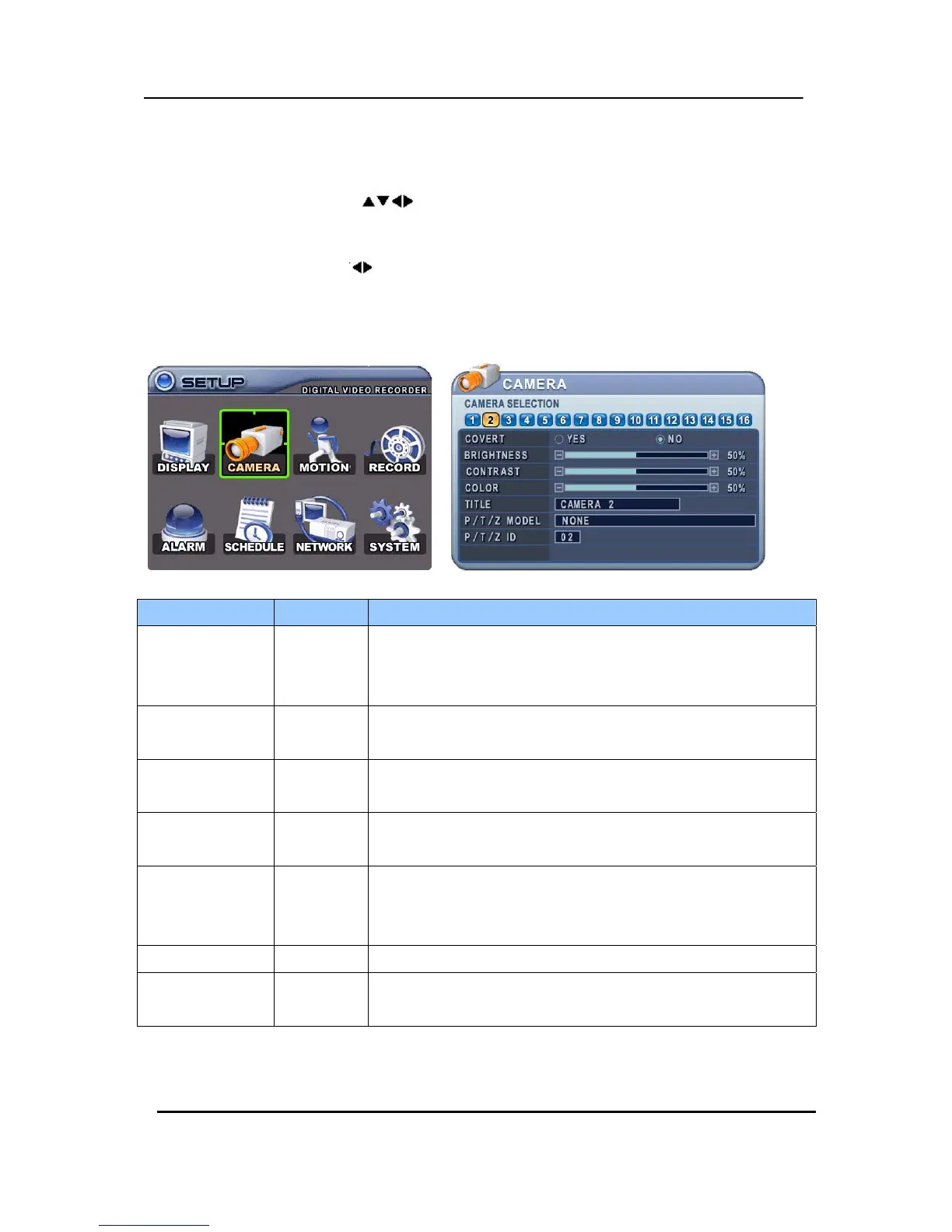
Use Direction buttons [ ] to select “CAMERA” menu. Then, press [ENTER] button to
display “CAMERA”.
2. Use Left/Right buttons [
] or Number button to select the Camera you wish to configure.
3. Use Down [T] button to move specified menu and use Left/Right buttons [WX] to
select other item.
4. Use [-, +] button to change the value.
ITEM DEFAULT ADJUSTMENT
COVERT
No y If the Covert Mode is “YES”. Selected camera is invisible from
all live displays, playback and Network while continuing to record.
Covert cameras are viewable after change into “NO” .
BRIGHTNESS
50% y The brightness of each camera can be adjusted by pressing [-,+]
buttons.
CONTRAST
50% y The contrast of each camera can be adjusted by pressing [-,+]
buttons.
COLOR
50% y The color of each camera can be adjusted by pressing [-,+]
buttons.
CAMERA TITLE
Camera # y A combination of 12 digits and alphabets can be entered to label
each camera. Press appropriate Numeric button to type camera
title. It’s up to 12 characters. See Next chart.
P/T/Z MODEL None y Select P/TZ camera model to control.
P/T/Z ID
Camera No y Select appropriated channel for the PTZ camera. Camera ID
means Camera address.
5. Save changes and exit the menu, press [ENTER] button.
Exit the menu without making changes, press [CANCEL] button.


 To Next Page