31 DIGITAL VIDEO RECORDER
5. Basic Recording (Normal Recording)
The DVR comes with a certain preset settings from the factory. Therefore once the
DVR is installed, immediate recording is possible after pressing the record buttons. By
default, audio alarm, motion recording are off.
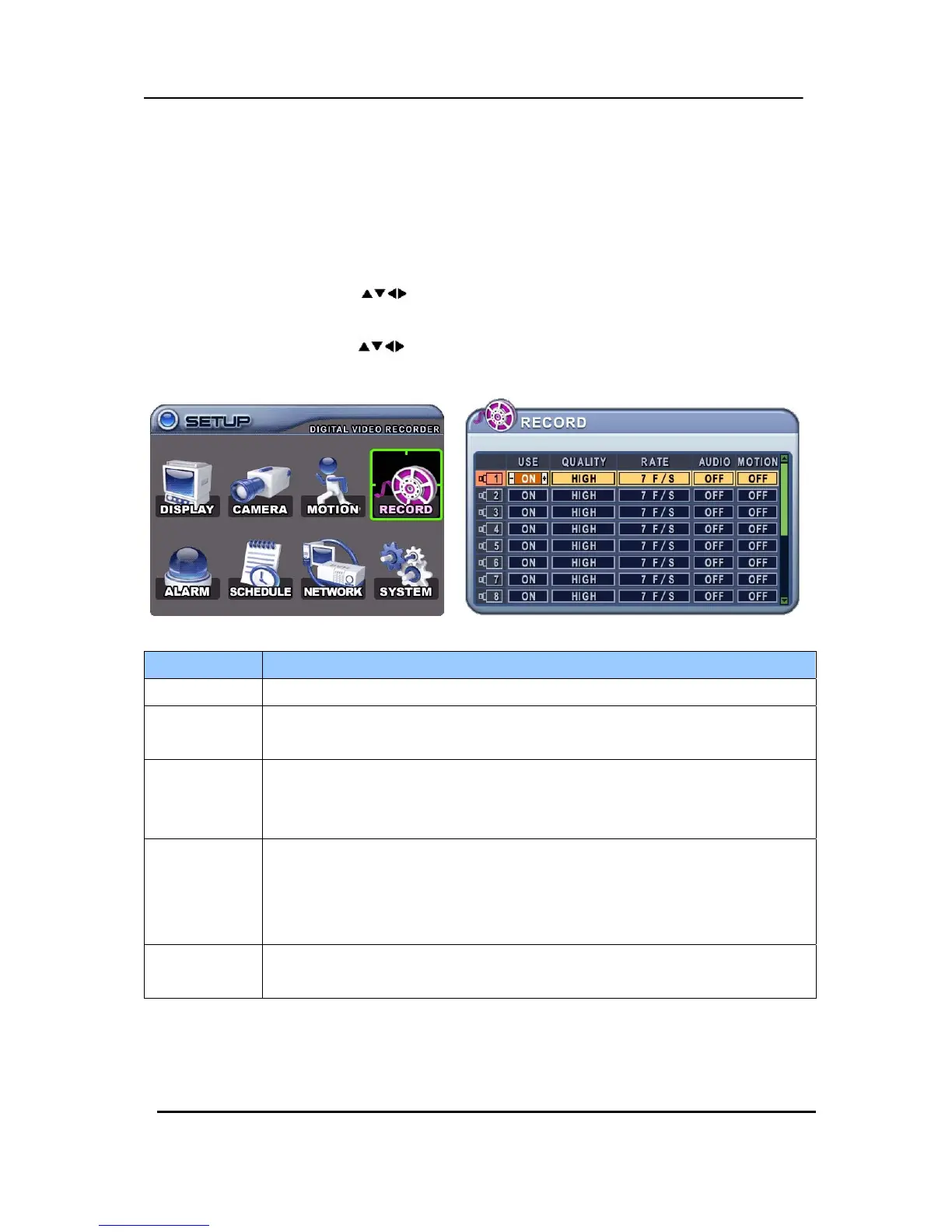
1. Use Direction buttons [
] to select “RECORD” menu. Then, press [ENTER] button to
display “RECORD”.
2. Use Direction buttons [
] to select the Camera you wish to configure.
3. Use [-, +] button to change the value.
ITEM ADJUSTMENT
USE y Enable or Disable Recording on a per camera.
QUALITY
y Specify the record picture quality for each camera.
ULTRA Æ SUPER Æ HIGH Æ MIDDLE ÆLOW
RATE
y Select recording speed for each camera.
: Recording resolutions is changed to Frame, Field and CIF mode.
<Refer to System >
AUDIO
ySelect audio recording: ON or OFF.
The audio data is always recorded in real time unlike the video data that can be
recorded in various modes including real time. There may be a slight delay in
synchronization of the audio to video
MOTION
ySelect Motion Recording ON or OFF. Camera does not record under normal
conditions. It is discussed on Motion Recording Section.
<Note> Press [MENU] button on each Item at first line to apply all setting for the rest channel.
5. Save changes and exit the menu, press [ENTER] button.
6. Press [REC] button. Then, the red REC LED lights on the front panel and recording starts.


 To Next Page