English
-33-
To configure print settings for a single image / all images.
1. Press the
button, then use the four-way controller ( ) to select the desired
image you want to print.
2. Press the MENU button. Use the four-way controller (
) to select [DPOF], then
press the OK button.
3. Use the four-way controller (
) to select
by your preference, then press the OK
button.
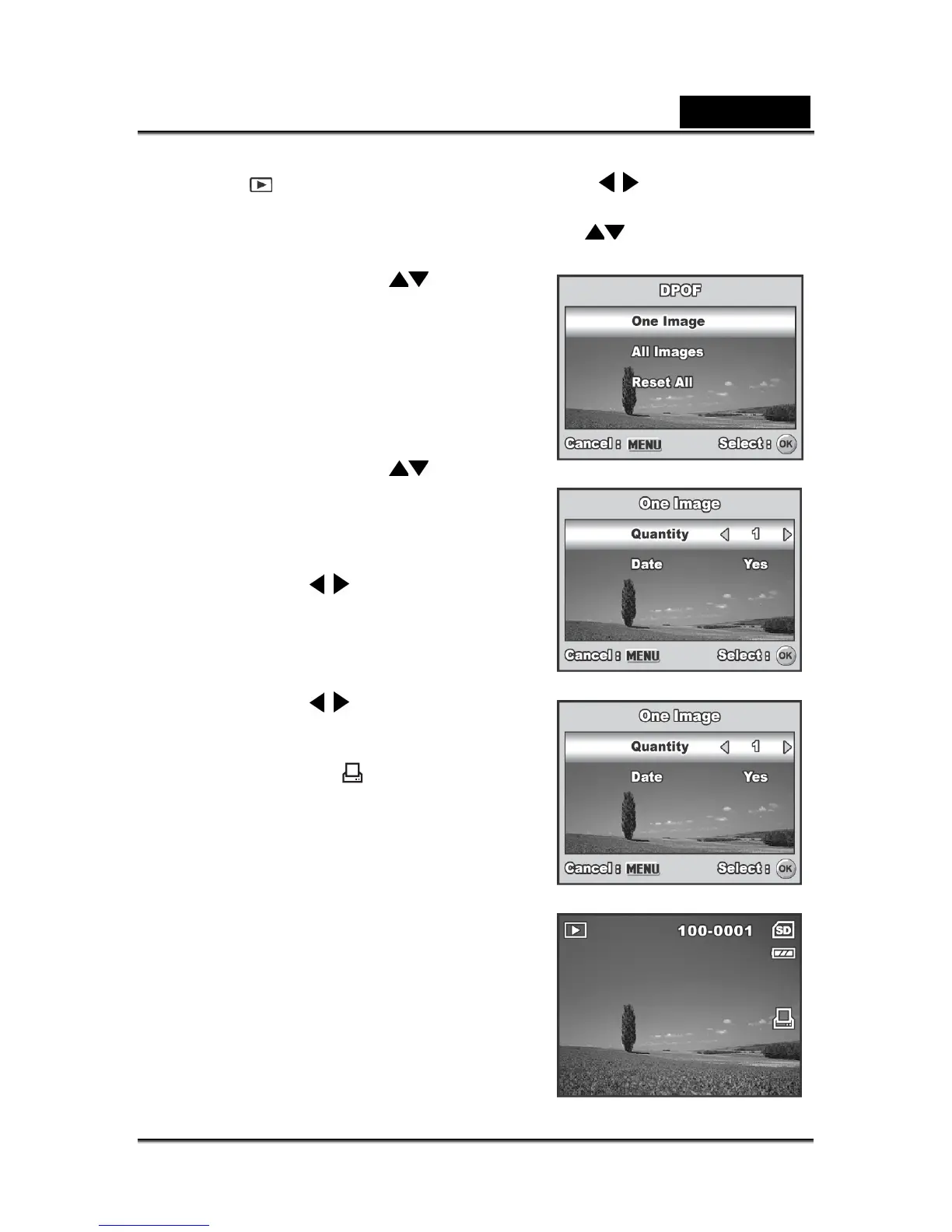
[One Image]: To configure print
settings for a single image.
[All Images]: To configure print
settings for all images.
[Reset All]: Resets all DPOF settings.
4. Use the four-way controller ( ) to select
by your preference, then press the OK
button.
[Quantity]: Allows you to select image
quantity (0~10). Use the four-way
controller (
) to set the image
quantity.
[Date]: The date of recording can be
printed directly on the images. Select
[Yes] or [No] with the four-way
controller (
).
5. Press the MENU button to return to the
image playback mode.
The print icon is marked on the
displayed image.
To cancel the DPOF settings for a
single image, go back to step 3 to
select [One Image] and select 0 in
[Quantity] in the next step. For
resetting all the DPOF settings, go
back to step 3 to select [Reset All].



 To Next Page