General Motors Tech2 User Guide
102
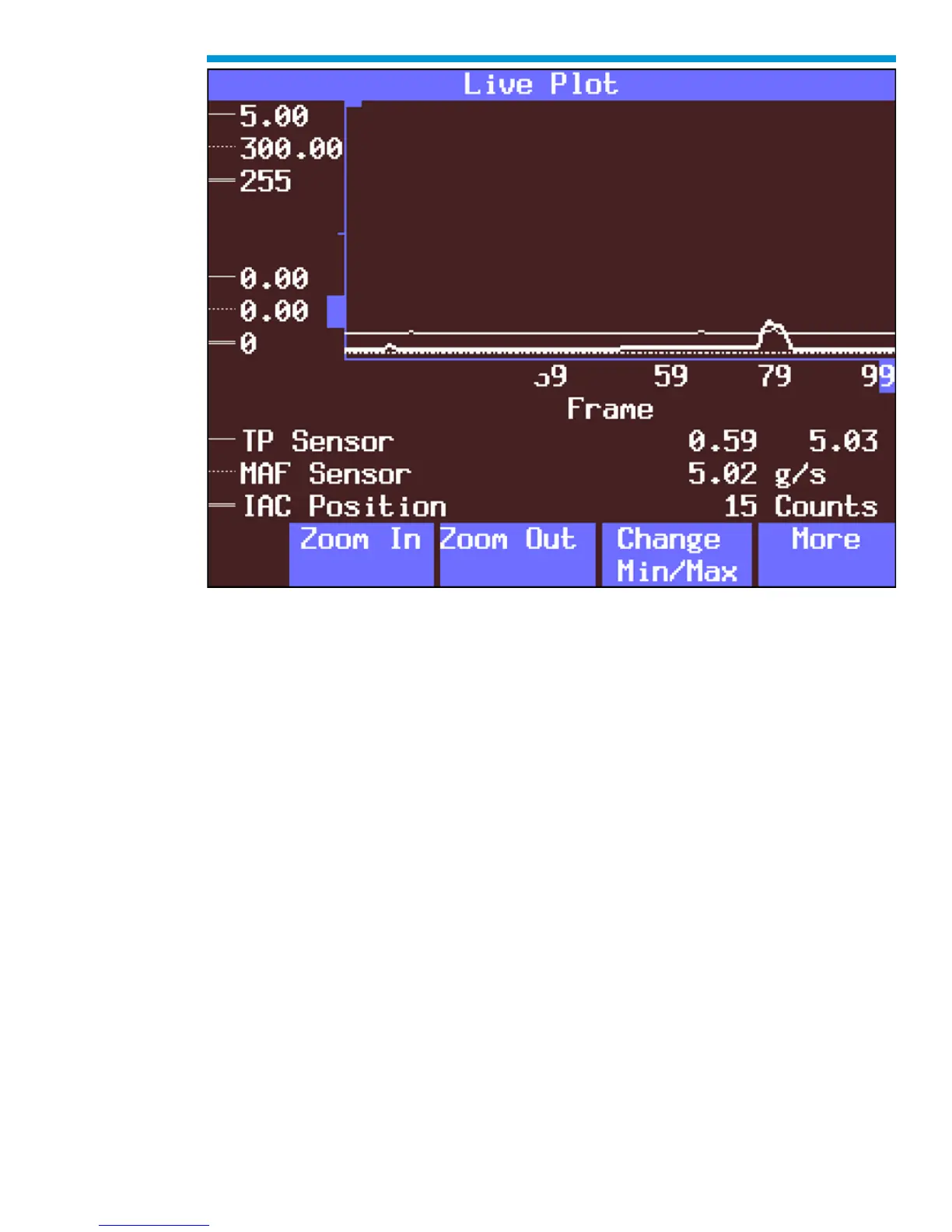
Live Plot screen soft key options
5. Using soft keys, the min/max values of a highlighted data parameter can be edited in
several ways.
a. Selecting Change Min/Max allows the minimum and maximum values of a data
parameter to be changed.
b. Edit Min and Edit Max enables the keypad to be used to set the minimum and
maximum values respectively. The value also can be assigned a positive or
negative value.
c. Selecting Learn and Learn All allows the Tech2 to learn the min/max values of a
highlighted parameter or of all selected parameters.
d. Selecting Restore Default restores the default min/max values of the highlighted
parameter.
6. To stop the plot function for analysis, select Pause. Resume will restart the Live Plot.
7. To switch the display mode from Live Plot display back to a text display, select the
‘More’ soft key twice from the Live Plot graph and then select Data List.
8. From the Snapshot standby mode, the Live Plot function also is available by selecting
the ‘More’ soft key. While viewing Live Plot, a snapshot also can be triggered the same
way it is in the Snapshot mode.


 To Next Page