General Motors Tech2 User Guide
34
Notice: Always use the Tech2 NAO power supply (P/N 300113) when connecting the
Tech2 to a computer. It is also acceptable to connect the power cable to the vehicle
cigarette lighter.
How to Connect the Tech2 to a Computer
Follow the steps below for the typical Tech2 connection to a computer.
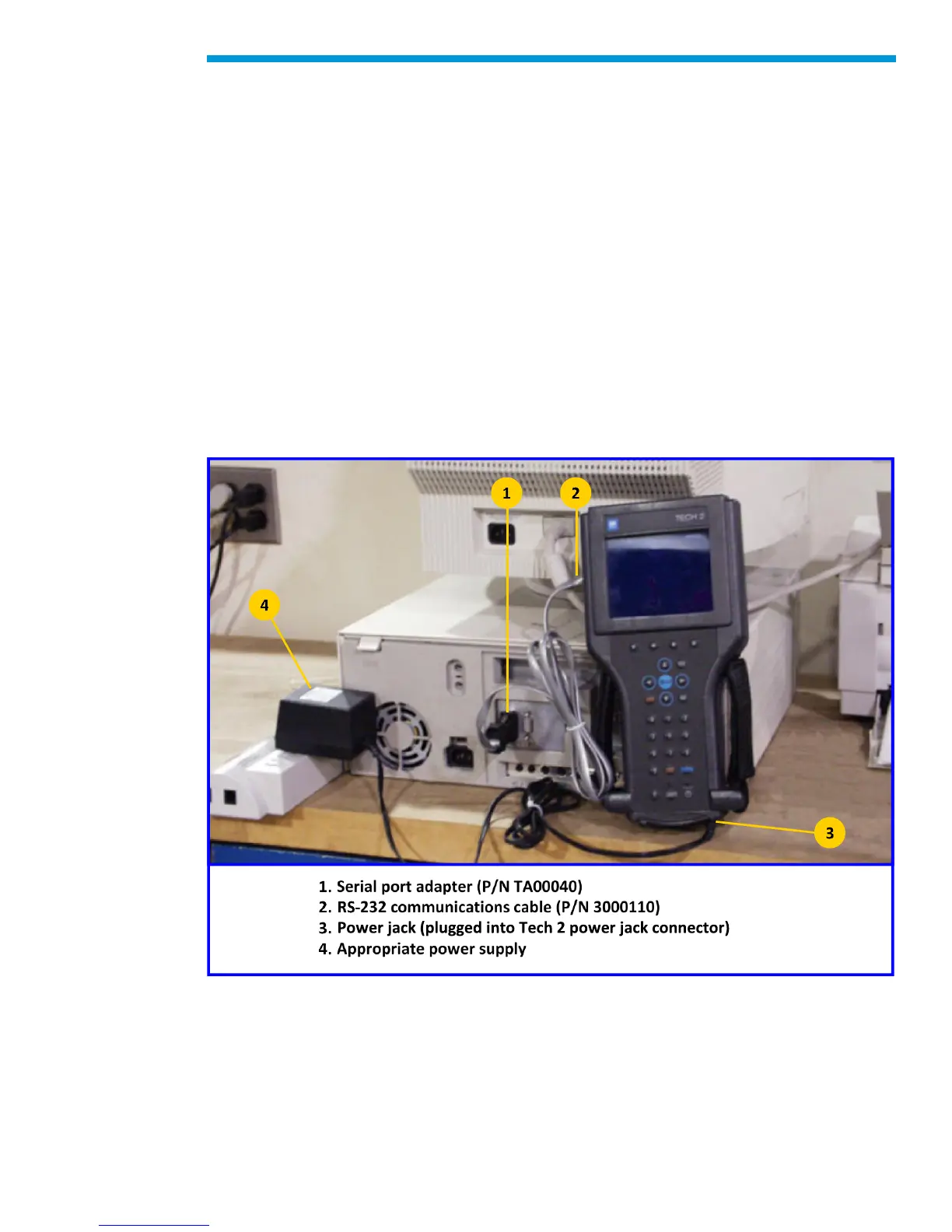
1. Plug the serial port adapter (P/N TA00040) into the serial port marked “A” or “1” on the
back of the computer or to the USB port using the USB serial adapter.
2. Plug the Tech2’s RS-232 cable into the serial port / USB port adapter and connect the
appropriate power supply.
3. After power is supplied to the Tech2 and the [PWR] button is pressed, the Tech2 start-
up display should appear on the Tech2 screen.
Note: Not all USB to serial port adapters are compatible with the Tech2. ACDelco
recommends using the Keyspan brand USB to serial port adapter.
Typical Tech2 connection to a computer (rear view)


 To Next Page