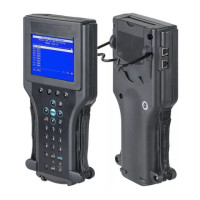
General Motors Tech2 User Guide
111
5. At the “Select Diagnostic Tool for Download” screen, select Tech2 and “Standard” to
install the newest software on the scan tool. After confirming the selection, select Next.
A message will appear indicating the PC is reading the contents of the diagnostic tool.
6. The PC will display a “Confirm Software Change” screen showing what the Tech2
currently contains and what it will contain after the download. Click Next to continue.
Important: Clicking NEXT at the “Confirm Software Change” screen will initiative the
download. Be sure the correct file has been selected before clicking NEXT.
7. A “Performing the Software Download” screen appears to display the progress of the
download.
8. When the download is complete, a “Download Finished” screen appears. Select Close
to close the application. The scan tool now contains the latest software.


 To Next Page