3-4 CHAPTER 3. CRAFT ROBO CONTROLLER
PREFACE
CH 3. CRAFT ROBO CONTROLLER
CH 1. PRIOR TO USE
APPENDIX A
CH 2. CONNECTION AND PREPARATION
INDEX
CONTENTS
CH 4. CUTTING DATA SAVED ON SD CARD
PREFACE CONTENTS CH 1. PRIOR TO USE
CH 2. CONNECTION AND PREPARATION
CH 3. CRAFT ROBO CONTROLLER
CH 4. CUTTING DATA SAVED ON SD CARD
APPENDIX A INDEX
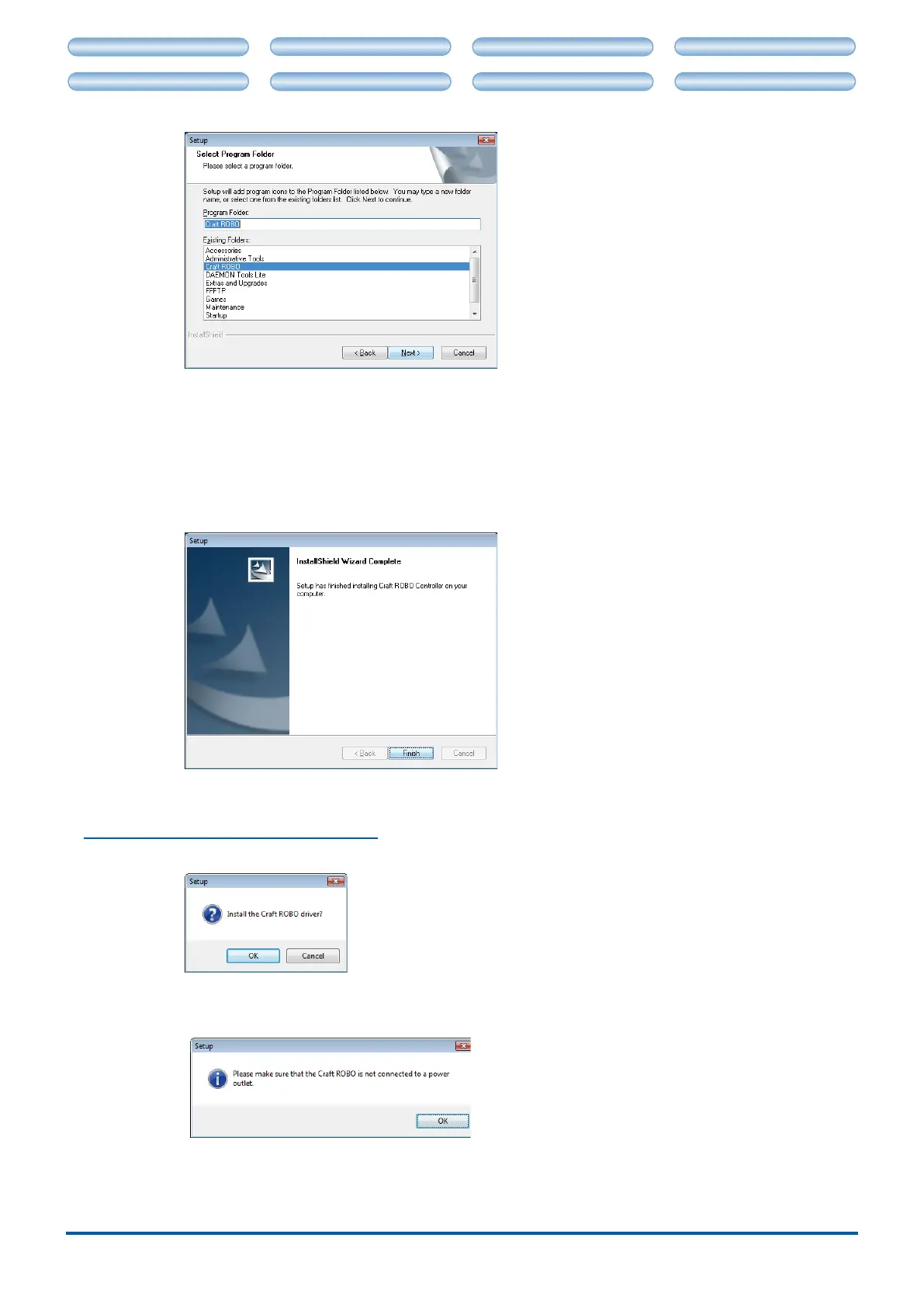
Select the program folder in which the program icon is to be placed.
To place the program icon in a new folder, enter a new folder name in "Program Folder." To
add the program icon to an existing folder, select one from the list of "Existing Folders." A new
folder named "Craft ROBO" is prepared by default. If there is no need to change the default
folder, click [Next]. File copying starts.
(4) When the system has nished copying les, a "InstallShield Wizard Complete" screen is
displayed indicating that installation is complete. Click [Finish] to complete the installation.
The system will then proceed to install the "Craft ROBO driver".
Installing the Craft ROBO Driver
(1) When the installation of the Craft ROBO Controller is nished, the screen below is displayed.
Click [OK] to continue.
(2) The screen below is displayed.
Make sure that the Craft ROBO is not connected to your computer, and click [OK] to continue.
(3) The screen below is displayed.








 To Next Page