CHAPTER 3. CRAFT ROBO CONTROLLER 3-3
PREFACE
CH 3. CRAFT ROBO CONTROLLER
CH 1. PRIOR TO USE
APPENDIX A
CH 2. CONNECTION AND PREPARATION
INDEX
CONTENTS
CH 4. CUTTING DATA SAVED ON SD CARD
PREFACE CONTENTS CH 1. PRIOR TO USE
CH 2. CONNECTION AND PREPARATION
INDEXAPPENDIX A
CH 4. CUTTING DATA SAVED ON SD CARD
CH 3. CRAFT ROBO CONTROLLER
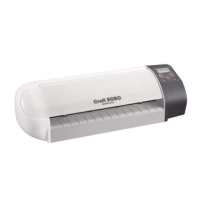
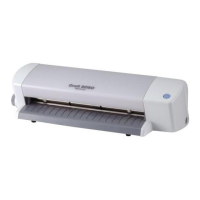
(3) Select your model.
Click [Yes] or [No] to continue.
The installer of "ROBO Master," the software used for Print & Cut, starts up.
When the installation of ROBO Master is nished or cancelled, the installer of the Craft ROBO
Controller start up.
Installing the Craft ROBO Controller
(1) When the installer starts up, the screen shown below is displayed rst.
Click [Next] to proceed.
(2) Next, a "Choose Destination Location" screen will be displayed.
Select the folder in which the Controller is to be installed.
Unless the folder shown by default does not have sufcient free space, it is normally not
necessary to change it. If there is no need to change the default folder, click [Next] to proceed.
(3) Next, a "Select Program Folder" screen will be displayed.


 To Next Page
 Loading...