Hermiankatu 6-8G, 33720 Tampere, Finland
©2019 Grundium. All rights reserved.
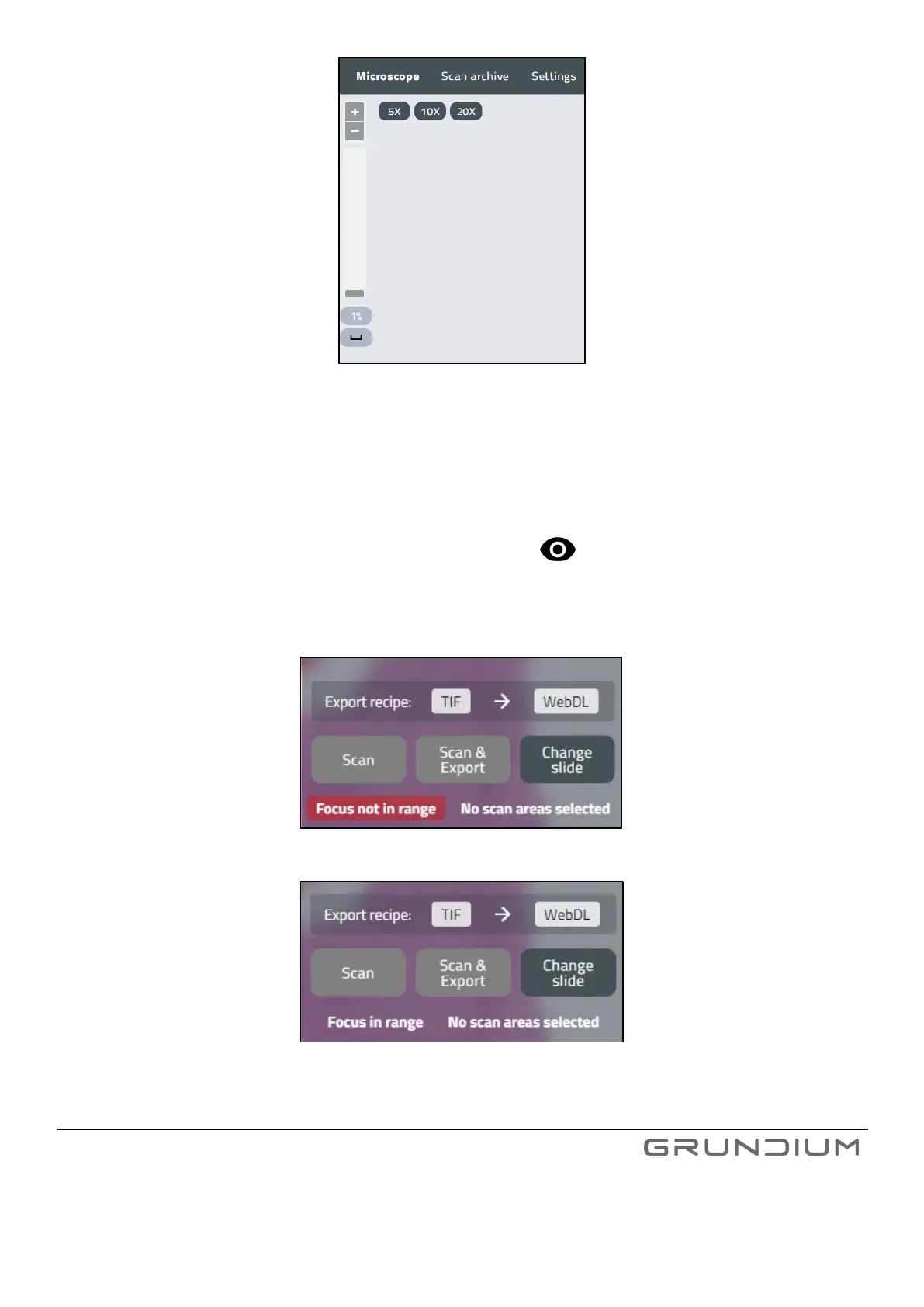
Image 10 Zooming options
Tip: The image is saved automatically to the scanner’s hard drive. If you want to give the image a specific name,
write the name in the File name field.
7. For best results, scanner’s mechanical focus needs to be adjusted for each sample, especially if slide
thickness has even slightly changed. To do this, press Start and pick a target area using the crosshair
cursor or zoom in to 100%. Use the focus knob on the scanner to adjust the focus. Quick tip dialog will
assist you with knob directions. Focus is properly adjusted, when Focus in range is shown on screen.
Image 11 Information in Navigator -box when Focus not in range.
Image 12 Information in Navigator -box when Focus in range.


 To Next Page