Video standard: Set DVR’s video system (PAL or NTSC are optional)
Resolution: Set output resolution
System time: Set DVR’s current system date &time, time format
HDD full: Stop: when the hard disk is full, stop recording
Choose overwrite: when the hard disk is full, overwrite the earliest recording files..
DVR No: Using under the situation that one remote controller controls many DVRs. Only click “ADD” on remote
control and enter local number, the related DVR can respond.
Re: when “Local No “is “0”, the same series of DVRs will response
Transparency: Adjust the transparency or operating menu
Tour: Set screen tour display, shows tour was opens. Single screen, four screens, eight screens, nine screens,
sixteen screens etc. separate mode and mixed mode tour are optional.
5.2.2 Record
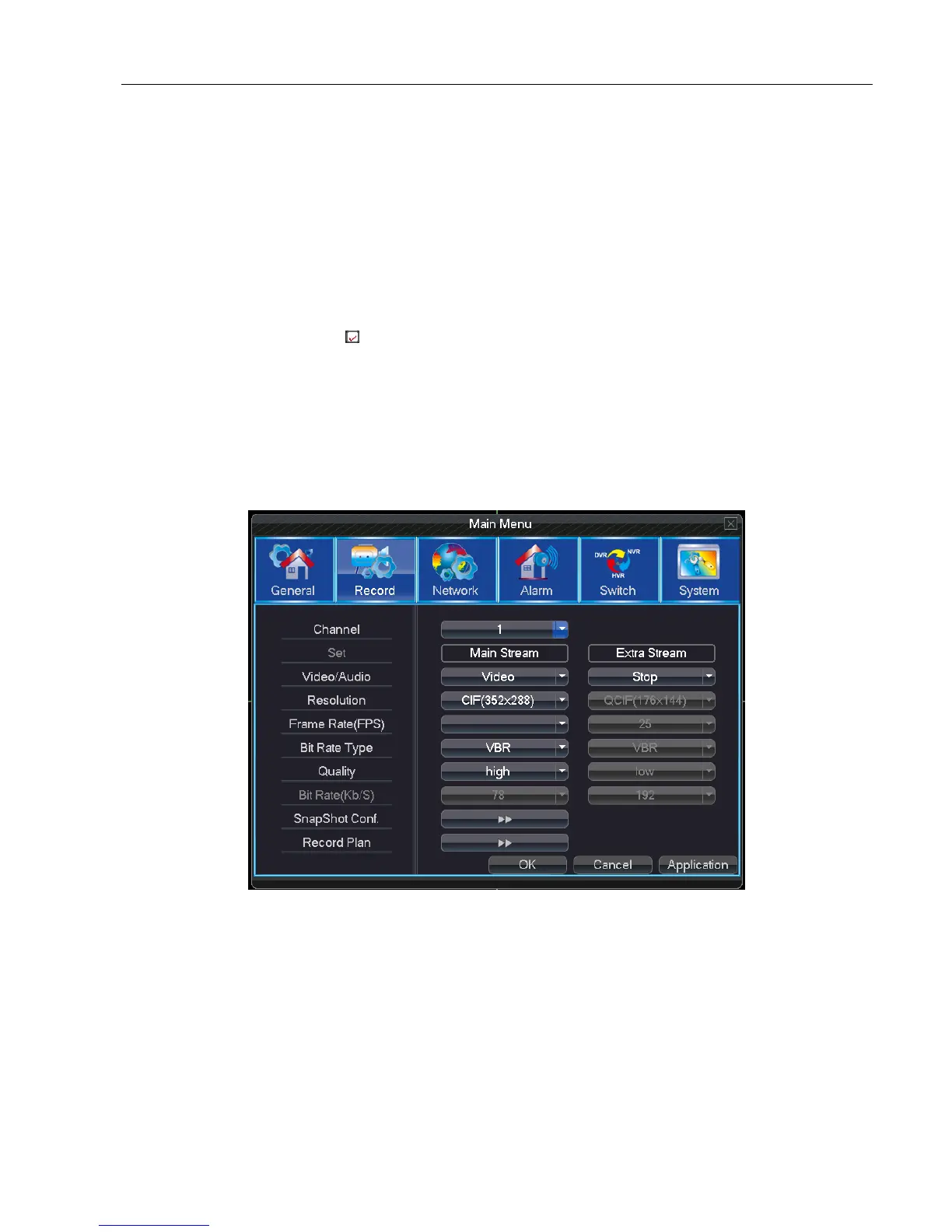
Set recording parameters (main stream) and network parameters (extra stream) of video and audio signal.
Set DVR’s recording plan.
Note:There is at least one read-write hard disk.
4.4 Recording Plan
Channel: Choose the corresponding channel number to set the channel. Select “all ” option to set the entire
channels.
Set: Recording parameters (main stream) and network parameters (extra stream) illustration
Video/Audio: Set video and audio record simultaneously or not
Resolution: Set recording resolution. The Higher resolution, the better recording quality, occupies more HDD
capacity. Conversely, the lower resolution, the worse recording quality, occupies less HDD capacity.
Frame Rate (FPS): Set recording FPS; the higher recording FPS makes the better fluency of recording images and
occupies more HDD capacity. Conversely, the lower recording FPS make the worse fluency of


 To Next Page