Microlab
®
STAR User Manual
610766/02 Page 55 of 225
$GGLQJ/DEZDUH'LUHFWO\WRWKH'HFN
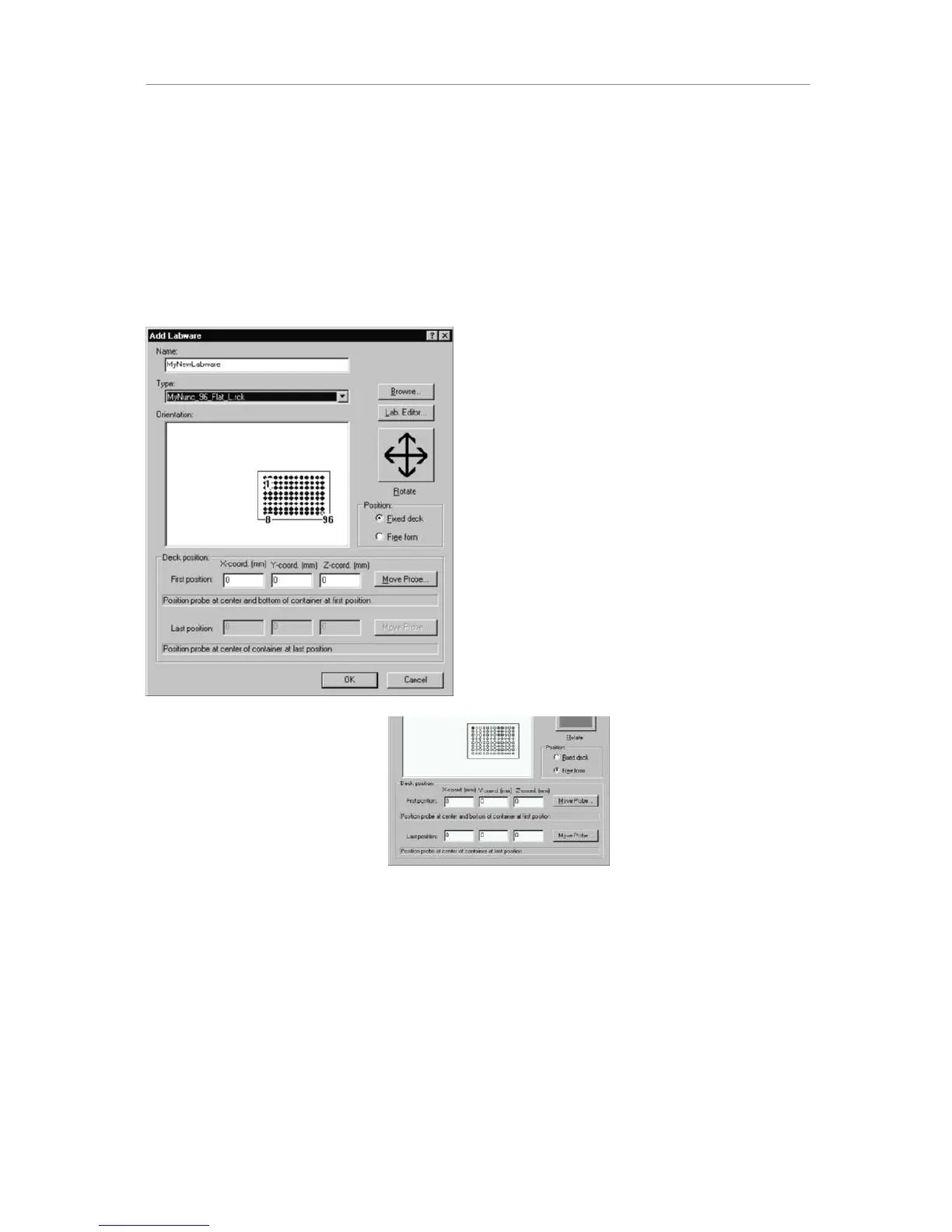
To place labware (e.g. microplates) directly onto the deck (without using a carrier), select
“Add Labware” from the Edit Menu. A dialog window opens up: Select the type of labware
from the library and enter the x,y,z coordinates by hand.
You may enter a name by which the rack will be known on the deck.
In the type field, select the already listed labware item or press Browse to load another
labware item to the list. Click OK. If the labware position falls outside the instrument deck, a
message window opens to inform you.
Use the 'Rotate' button to rotate the labware item in increments of 90 degrees and type the
position in X,Y, and Z coordinates into the input boxes under Deck Position. Click OK.
If the labware item is to be placed at an angle other than 90, 180, 270 or 360 degrees, the
'Free form' mode will have to be used. Here, two sets of coordinates are required.



 To Next Page