11
2.3 HICAPS Home Screen Navigation
Your HICAPS Trinity terminal has a touch screen like an Android smart phone. It responds
to gestures such as tapping and swiping.
• Tap – lightly touch to select or launch items
• Swipe – lightly drag your nger across a screen to swipe. For example, swipe down
from the top of the screen to access the apps panel.
• Touch and hold – touch and hold items to open more menus.
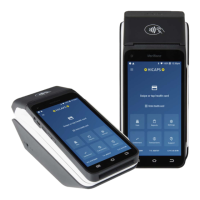
2.3.1 HICAPS Trinity Terminal Home Screen
• Navigation bar – includes indicators for Bluetooth, Wi-Fi and mobile connectivity,
battery charge status and time of day
• Settings menu – provides access to terminal and other settings
• Transaction types – provides access to HICAPS transactions to submit and cancel claims
or to request a quote. Provides access to the payment application and a range of
settings related to payments.
• Support menu – provides access to terminal and system information
• Terminal ID (TID) – the TID is displayed for easy terminal identication
• Software version – The software version is displayed to provide easy identication of
the current version installed on the terminal.
• Back – allows users to go back to a previous screen.
• Home – returns user to the HICAPS application.
• Merchant ID – shows the merchant identication number for the primary merchant on
the terminal.
• Settlement menu – provides access to the current and previous day’s settlements
• Sale – provides access to the payment application for sales and other non-HICAPS
transactions
• Reports – provides access to a range of NAB, HICAPS and transaction reports
• HICAPS application menu – provides access to transactions, settlements, reports,
settings, support and a terminal guide.


 To Next Page