41
STEP 5
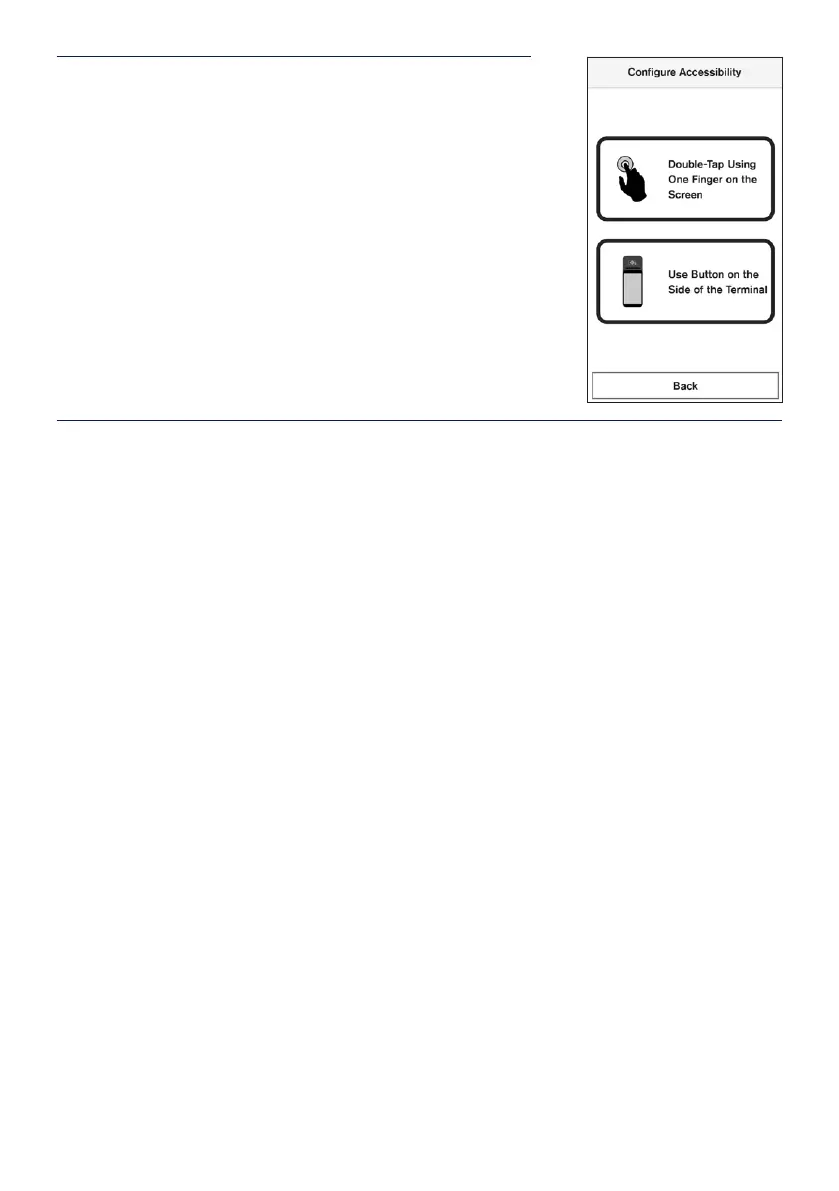
Select the preferred accessibility conguration, either
Double-Tap Using One Finger on the Screen or Use
Button on the Side of the Terminal.
STEP 6
Follow the terminal instructions on how to orient the terminal to enter a PIN. The training
instructions are:
‘Welcome to accessibility mode and PIN entry training. To enable accessibility mode during
a transaction double tap using one nger on the screen when you hear the accessibility
chime. Listen for the chime and try once now. (Chime sounds. Double tap the screen with
one nger to proceed.) Training mode activated,double tap when you hear the chime.
PIN pad has telephone layout with 1,2,3 at the top, and cancel, 0, ok at the bottom of
thescreen.
Tactile bumps around the screen border indicating every column and row of the PIN pad.
Do not guess where the numbers are.
The size of this keypad is dierent from what you are used to and the numbers will not
bespoken.
Only cancel and ok buttons will be spoken and can be used as reference points.
Please note, during PIN entry training only, all digits will be spoken.
To nd digits, start from one of the tactile bumps, and move one nger vertically or
horizontally, until you hear a beep or the words cancel, or ok.
To nd additional digits, move your nger around the keypad and listen for the beeps.
To select a digit, lift your nger, then tap two times using one nger on the screen and
listen for the acceptance sound.
To nish training, navigate to Cancel or OK and double tap using one nger on the screen.’


 To Next Page