Overme Level for Workday
When you work for certain period aer end-work me on workday, you will reach dierent
overme level: overme level 1, overme level 2 and overme level 3 . You can set dierent
pay rate for three overme levels, respecvely.
Pay Rate
Set corresponding pay rates for three overme levels, which can be generally used to
calculate total work hours.
Overme Rule for Non-Workday
You can enable overme rule for non-workday and set calculaon mode.
4.
Click Save.
Congure
Aendance Check Point
You can set the card reader(s) of the access point as the aendance check point, so that the
authencaon on the card readers will be recorded for aendance .
Before You Start
You should add access control device before conguring aendance check point. For details, refer
to Add Device .
Steps
Note
By default, all card readers of the added access control devices are set as aendance checkpoint.
1.
Enter the Time & Aendance module.
2.
Click
Aendance Sengs → Aendance Check Point to enter the Aendance Check Point
Sengs page.
3.
Oponal: Set Set All Card Readers as Check Points switch to o.
Only the card readers in the list will be set as the aendance check points.
4.
Check the desired card reader(s) in the device list as aendance check point(s).
5.
Set check point
funcon as Start/End-Work, Start-Work or End-Work.
6.
Click Set as Check Point.
The
congured aendance check point displays on the right list.
Congure
Holiday
You can add the holiday during which the check-in or check-out will not be recorded.
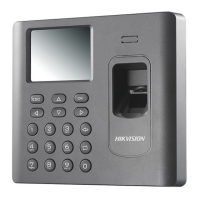
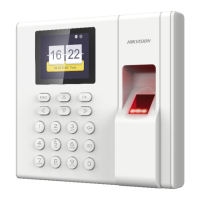
DS-K1A802A Series Fingerprint Time Aendance Terminal User Manual
88


 To Next Page
 Loading...