5.6 Aendance Status
Set aendance mode and choose aendance status. You can set the aendance status as check in,
check out, break out, break in, overme in, and overme out according to your actual situaon.
5.6.1 Set Auto Aendance
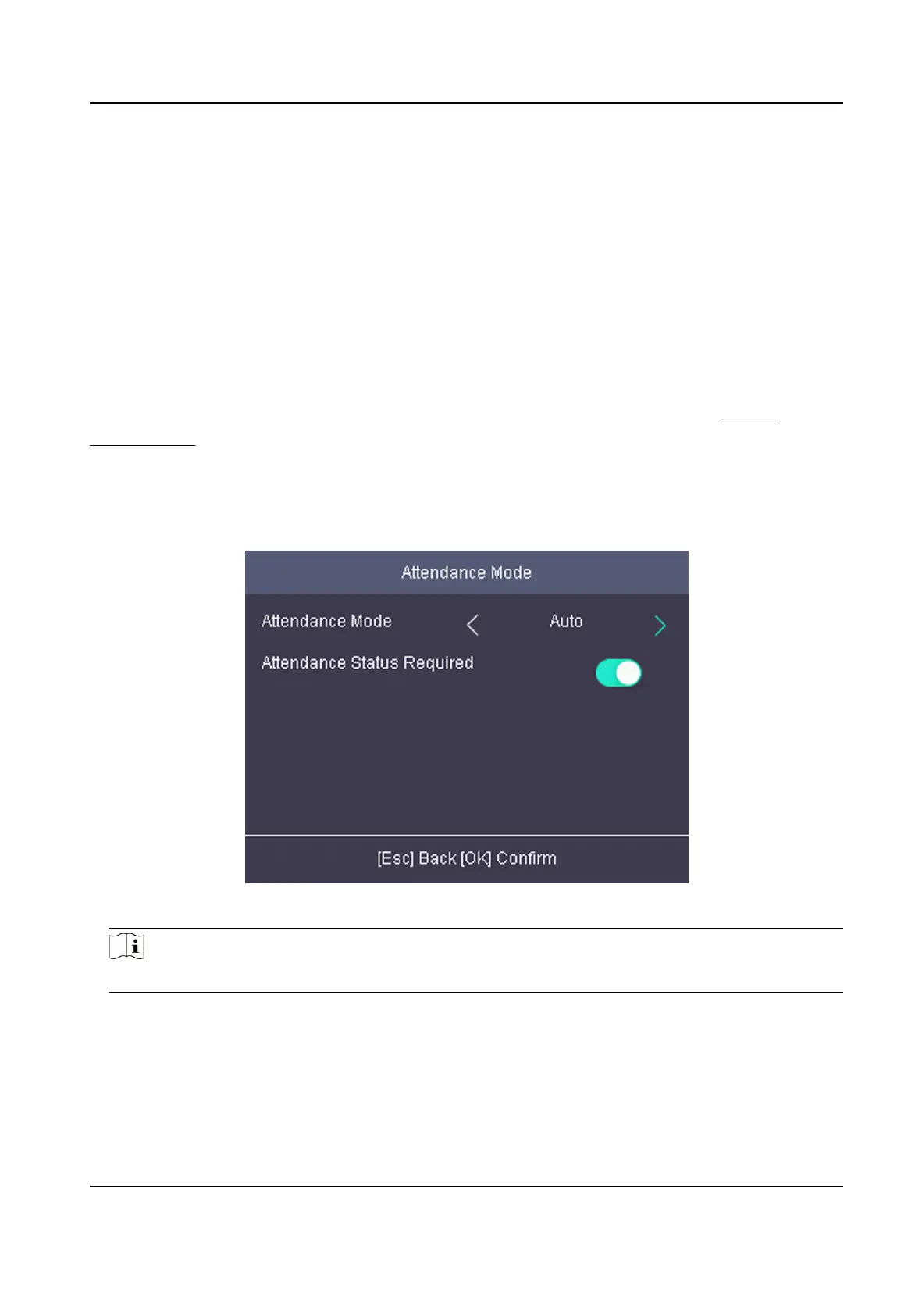
Set the aendance mode as auto, and you can set the aendance status and its available schedule.
The system will auto change the aendance status according to the congured parameters.
Before You Start
Add at least one person, and set the person's
authencaon mode. For details, see Person
Management .
Steps
1.
Move the cursor and select System →
A. Status to enter the Aendance Status page.
2.
Move the cursor and select Aendance Mode and set the aendance mode as Auto.
Figure 5-5 Auto Mode
Note
Make sure the aendance status is enabled. By default, it is enabled.
3.
Press ESC and save the aendance mode.
4.
Move the cursor and select Shortcut Key and
dene the shortcut key's aendance status and
schedule.
DS-K1A802A Series Fingerprint Time Aendance Terminal User Manual
22


 To Next Page
 Loading...