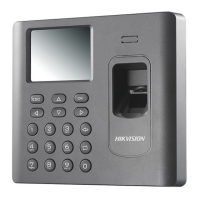
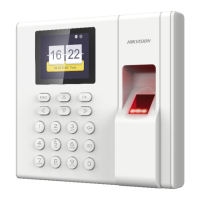
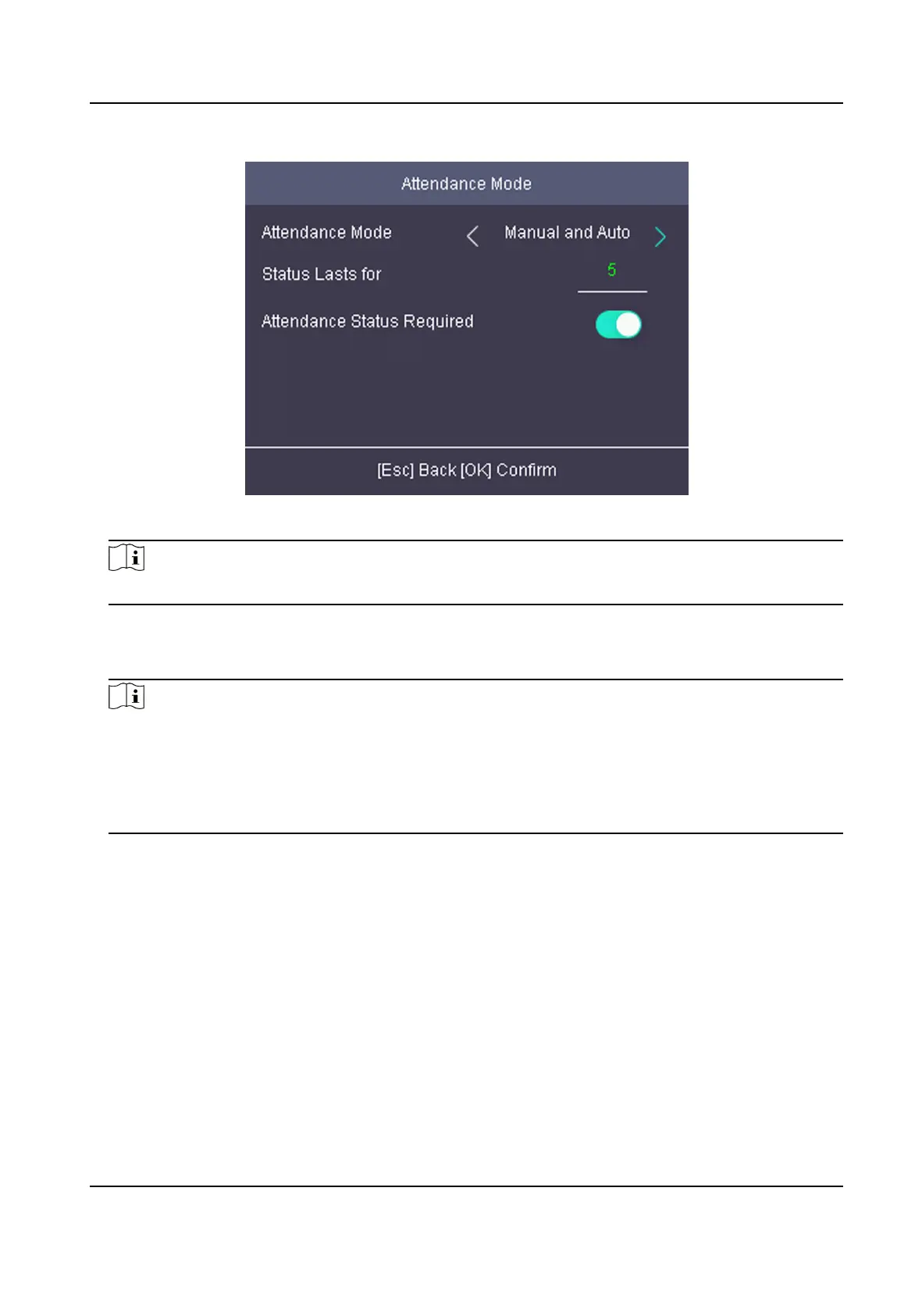
Figure 5-7 Manual and Auto Mode
Note
Make sure the aendance status is enabled. By default, it is enabled.
3.
Press ESC and save the aendance mode.
4.
Move the cursor and select Shortcut Key and dene the shortcut key's aendance status and
schedule.
Note
The aendance status will be valid within the congured schedule. For example, if set the Up
key as check in and the Down key as check out, and set the check in's schedule as Monday
08:00, and check out's schedule as Monday 17:00, the valid person's authencaon before
17:00 on Monday will be marked as check in. And the valid person's
authencaon aer 17:00
on Monday will be marked as check out.
5.
Press ESC and save the sengs.
Result
Enter the inial page, the current aendance mode will be displayed on the page. If you do not
select a status, the authencaon will be marked as the congured aendance status according to
the schedule. If you press the key on the keypad, and select a status to take
aendance, the
authencaon will be marked as the selected aendance status.
5.6.4 Disable
Aendance Mode
Disable the aendance mode and the system will not display the aendance status on the inial
page.
DS-K1A802A Series Fingerprint Time Aendance Terminal User Manual
25


 To Next Page
 Loading...