20
©2017 Hill-Rom Services, Inc. ALL RIGHTS RESERVED.
205278 rev 2 13-SEP-2017 ENG – US
Home Screen & Help Menu
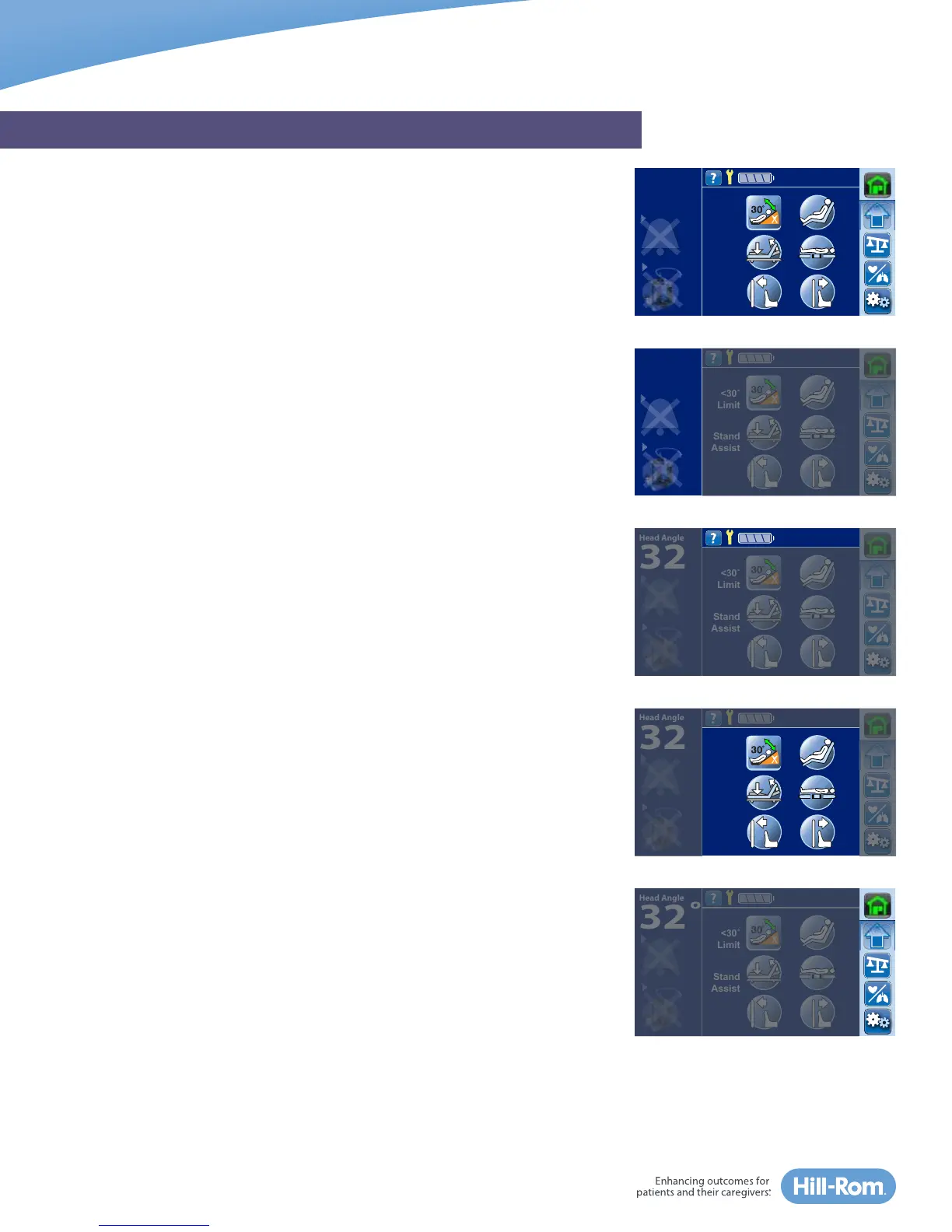
The Home Screen is divided into four distinct areas where you can either
determine bed status or access special functions including:
1. Bed Status Indicators
2. Information Indicators
3. Special Functions
4. Navigation Menu
Bed Status Indicators section provides information such as:
• Digital Head-of-Bed Angle
• Bed Exit On/Off Status
• Bed Scale has been Zeroed
• Foley Position Limit On/Off Status
To see more details associated with each Status indicator, touch the
applicable indicator.
Information Indicators section includes:
• The “Help (?) Menu” to access step-by-step instruction for many bed
functions and features including “Zero Bed” and “Bed Exit.”
• A service wrench icon that will illuminate only when the bed needs service.
• Battery Charge Level shows the battery’s charge in increments of 25%.
The indicator flashes yellow when the charge is low. When the bed is
unplugged and the battery reaches a low condition, it will triple beep every
2-minutes.
In the center section, you will find Special Function Controls such as Head
Angle <30° limit, Chair Position, Foley Position Limit, Stand Assist, Bed Flat
and FlexAFoot™ Bed Length Adjustment.
The far-right is the Navigation Menu and displays icons to navigate controls
for Bed Alerts, Scale, and if equipped with Centrella™ MAX surface – Surface
Controls, and Settings/Preferences. Use the up and down arrows if you do not
see the desired control. At any time, you can press the Home control to return
to the Home screen.
GRAPHICAL CAREGIVER INTERFACE (GCI)® TOUCHSCREEN
Head Angle
32˚
<30˚
Limit
Stand
Assist
Head Angle
32˚
<30˚
Limit
Stand
Assist
Head Angle
32˚
<30˚
Limit
Stand
Assist
Head Angle
32˚
<30˚
Limit
Stand
Assist
Head Angle
32˚
<30˚
Limit
Stand
Assist



 To Next Page