30
©2017 Hill-Rom Services, Inc. ALL RIGHTS RESERVED.
205278 rev 2 13-SEP-2017 ENG – US
Settings & Preferences Bed Features
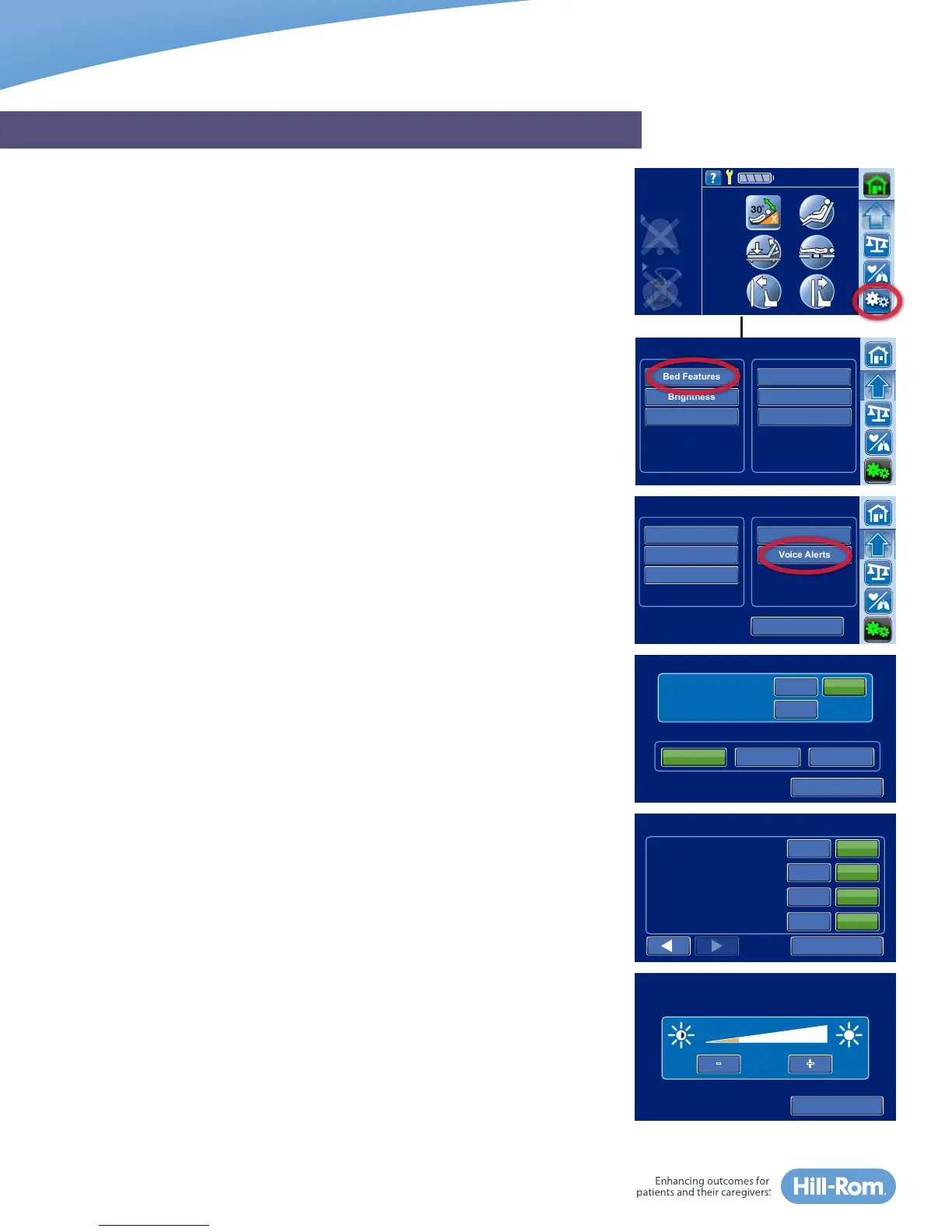
To access the Settings/Preference controls, select the Settings Menu control
on the bottom of the Navigation Menu. Use the down arrow if you do not
see the Settings Menu control.
On the left side of the Settings Menu, you can change settings by following
the on-screen instructions for Bed Features such as: SafeView®+ System,
Siderail Lights, Siderail Protocol, USB Charging Port, and Voice Alerts. You can
also adjust the touchscreen brightness and set the Foley Position Limit.
NOTE:
• When the scale is Zeroed for a New Patient, all settings will return to the
facility’s default settings.
• Not all bed models are equipped with all these features
• The list on the right side is intended as service information for facility-
authorized maintenance and service technicians.
Verbal Safety Prompts On/Off & Language Options
Beds equipped with the verbal safety prompts feature provide guidance to
the patient or caregiver. You may select English, Spanish or French.
To access the verbal safety prompt settings, press the Settings Menu control
in the Navigation Menu of the home screen, press Bed Features, then press
Voice Alerts.
You have three options:
• All Alerts Off —turns off all voice alerts, except the “Brake not Set” alert can
never bed turned off.
• All Alerts On —turns on all voice alerts.
• Individual Alerts Select— allows you to customize the voice alerts.
Select on/off as desired, press Accept to lock in changes, then press the back
arrow to return to the previous screen.
Select the patient’s language and press Accept.
Screen Brightness of the GCI Touchscreen can be adjusted to accommodate
patient light-sensitivities at night.
GRAPHICAL CAREGIVER INTERFACE (GCI)® TOUCHSCREEN
Brightness
Siderail Lights
Head Angle
32˚
Bed Features Bed Info
Settings/Preferences
Brightness Bed Service
Service Connect
<30˚
Limit
Stand
Assist
Foley Limit
Brightness
Service Connect
Back
Bed Features
USB
Voice Alerts
SafeView
Rail Protocol
Siderail Lights
Info
On
Accept
Voice Alerts
Select
All Alerts
Individual Alerts
OnOff
Patient Language
Spanish FrenchEnglish
(”Brake Not Set” always on)
OnOff
OnOff
OnOff
OnOff
“Please don’t get up!”
“Care-Team called.”
“Function unavailable.”
“Call Light not connected”
Voice Alerts
(”Brake Not Set” always on)
Accept
Screen Brightness
+-
Accept



 To Previous Page