BASIC
Version 1.0, 02/2015. Copyright 2012 Hitron Technologies
65
Version 1.0, 02/2015. Copyright 2014 Hitron Technologies
65
Hitron CGNVM User’s Guide
3.5.1 Adding or Editing a Port Triggering Rule
To add a new port triggering rule, click Add in the Basic > Port Triggering
screen.
To edit an existing port triggering rule, select the rule’s radio button in the Basic
> Port Triggering screen and click the Edit button.
NOTE: Ensure that Enabled is selected in the Basic > Port Triggering screen in
order to add or edit port triggering rules.
The following screen displays.
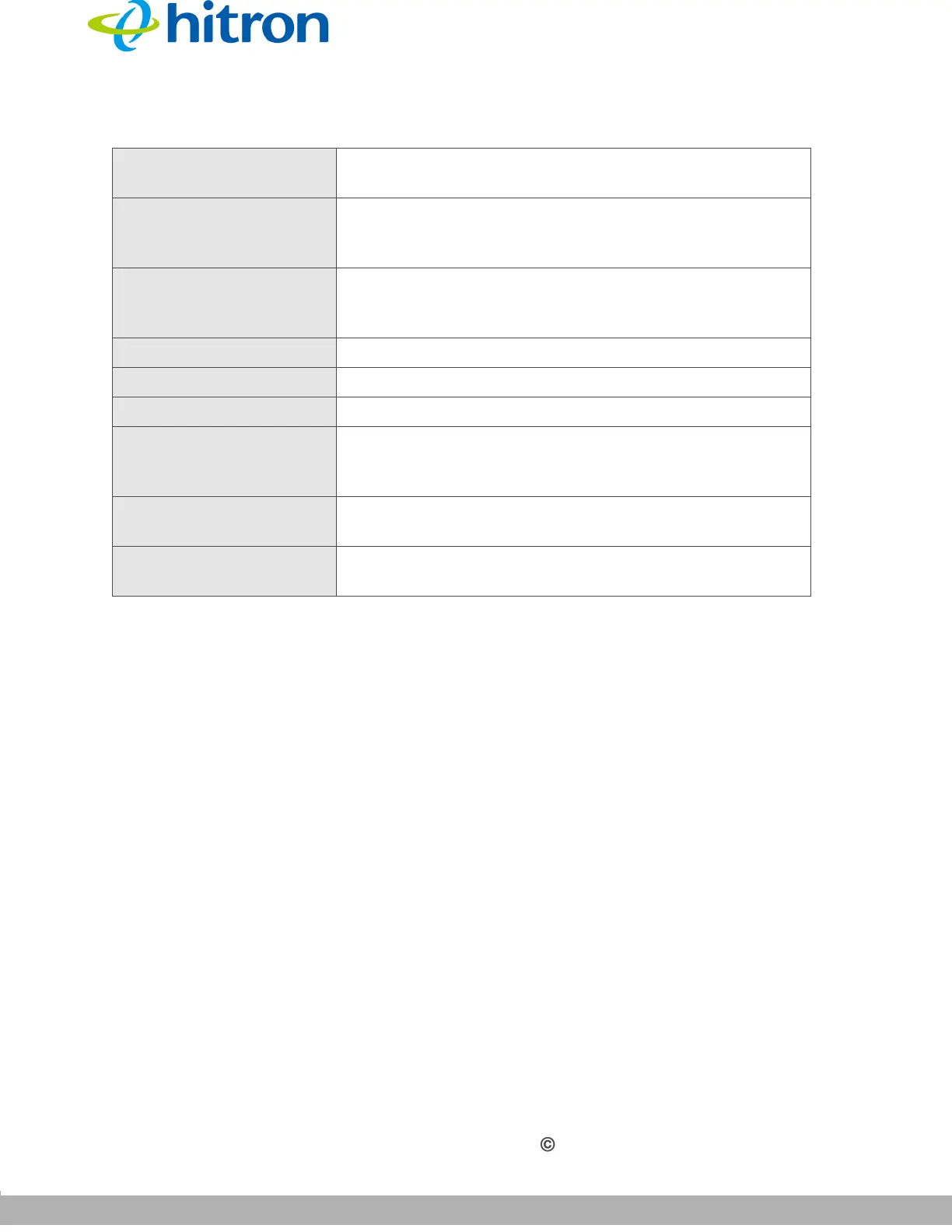
Protocol This displays the protocol of the port triggering rule
(TCP, UDP or Both).
Timeout (ms) This displays the time (in milliseconds) after the
CGNVM opens the Target ports that it should close
them.
Twoway Status Usually a port triggering rule works for two IP
addresses; when a rule is enabled, other IPs will also be
allowed to use the rule as a trigger.
Status Use this field to turn the rule On or Off.
Manage Click this to make changes to the rule.
Action Use this to delete the rule.
Add Rule Click this to define a new port forwarding rule. See
Adding or Editing a Port Forwarding Rule on page 62 for
information on the screen that displays.
Save Changes Click this to save your changes to the fields in this
screen.
Help Click this to see information about the fields in this
screen.
Table 18: The Basic: Port Triggering Screen (continued)


 To Next Page