Continued
275
uuDisplay AudiouClock Setup
■
Import clock wallpaper
1. Connect the USB flash drive to the USB port.
2 USB Ports P. 259
2. Select Clock.
u If Clock is not displayed on the shortcut area, select All Apps.
3. Select Settings.
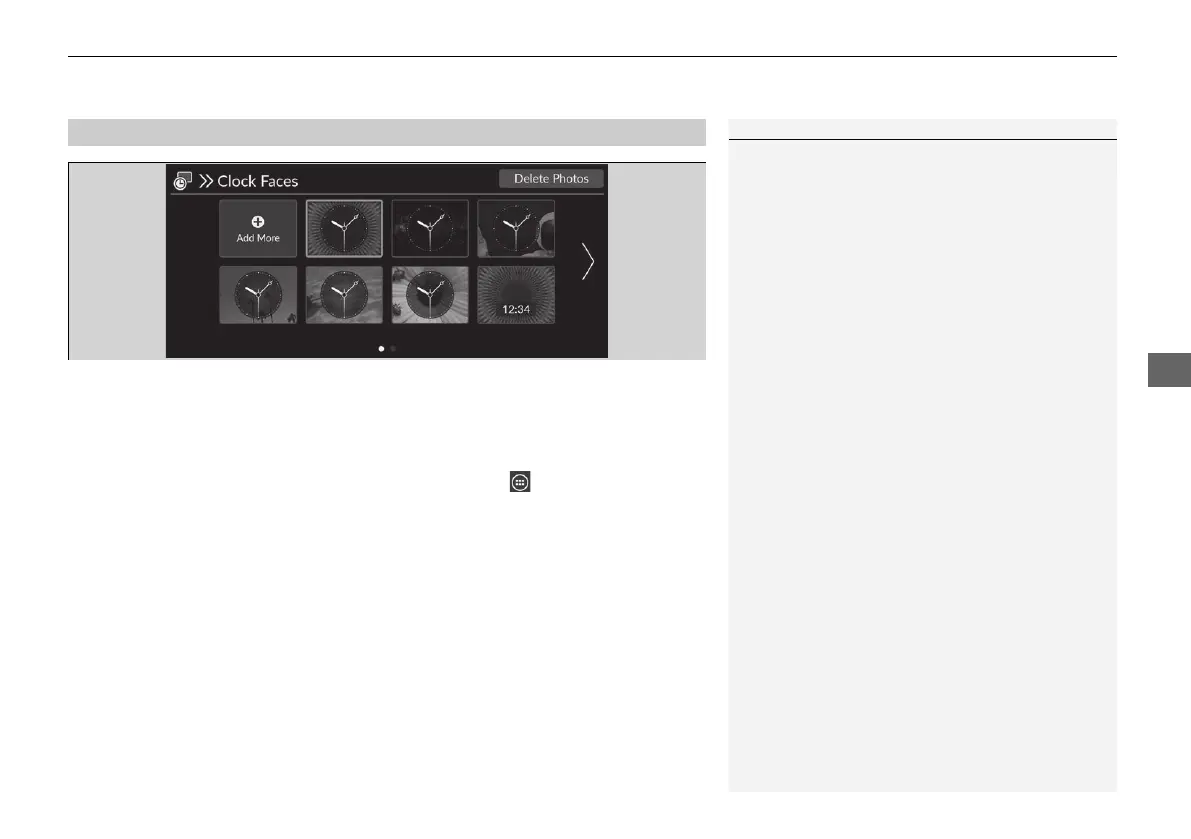
4. Select Clock Faces.
5. Select Add More.
u The image of the pictures stored in the USB flash drive are displayed on the list.
6. Select a desired picture to import.
u Multiple pictures can be selected at the same time.
7. Select OK.
u The selected pictures are displayed.
8. Select Transfer.
u It will return to the clock wallpaper setting screen.
■
Clock Wallpaper Setup
1Clock Wallpaper Setup
• When importing wallpaper files, the image must be
in the USB flash drive's root directory.
Images in a folder cannot be imported.
• The file name must be less than 64 bytes.
• The file format of the image that can be imported
is BMP (bmp) or JPEG (jpg).
• The individual file size limit is less than 10 MB.
• If the USB flash drive does not have any pictures,
the message appears.
• Up to 11 pictures can be imported.
• The maximum image size is 4,096 x 2,304 pixels. If
the image size is less than 1,280 x 720, the image
is displayed in the middle of the screen with the
extra area appearing in black.
20 2EX JSS (KE KG)-32TYF6000.book 275 ページ 2020年3月6日 金曜日 午後6時58分







 To Next Page