Honeywell | 55
8 Configuring CloudLink 5G Modem
8.8 Factory Reset
To perform a factory reset:
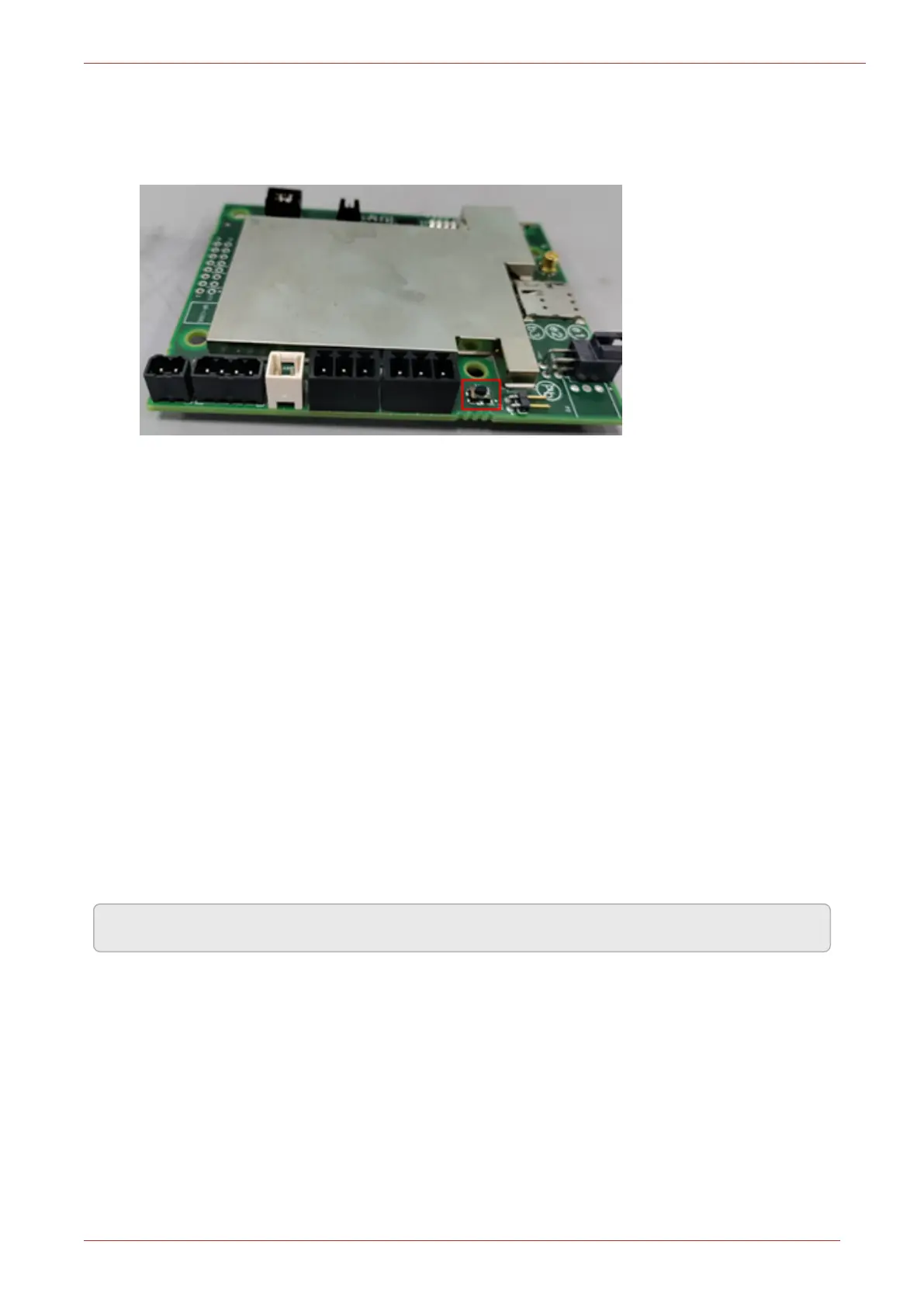
1. Push button/switch located near Configuration Port.
Figure 8.1 - Factory Reset Switch
2. Hold the switch and connect the Power Supply.
3. Continue to hold the switch for another 10 seconds.
4. Release the switch.
5. During this process, all LEDs blink serially thrice (i.e., First: LED 1 blinks green > Second: LED
2 blinks green > Third: LED 3 blinks green > Fourth: LED 4 blinks red, and this sequence
repeats three times) indicating configuration is getting reset.
Long pressing the Reset to Default switch button and then powering up the CloudLink 5G will not
erase the custom configurations which were done at factory before shipment. It will start func-
tioning on power up using the customer configured parameters which got configured at factory
before shipment.
Types of factory reset:
a. Hard Reset: Pluggin out the External or Battery connector will reset the Modem manually.
b. Soft Reset: Through MasterLink Desktop Application, i3137 value when selected as Modem
Reset from the drop-down list then, Modem can be reset.
Note: Site IDs must be restored using serial interface. These Site IDs must me non-zero value.
8.9 Time Sync
'Time Sync' page provides a user configurable option to enable/disable auto time synchronization of
the connected device with your PC. Alternatively, time can be synchronized manually by clicking on
Sync.



 To Next Page