5.1 Edit DSD Presets
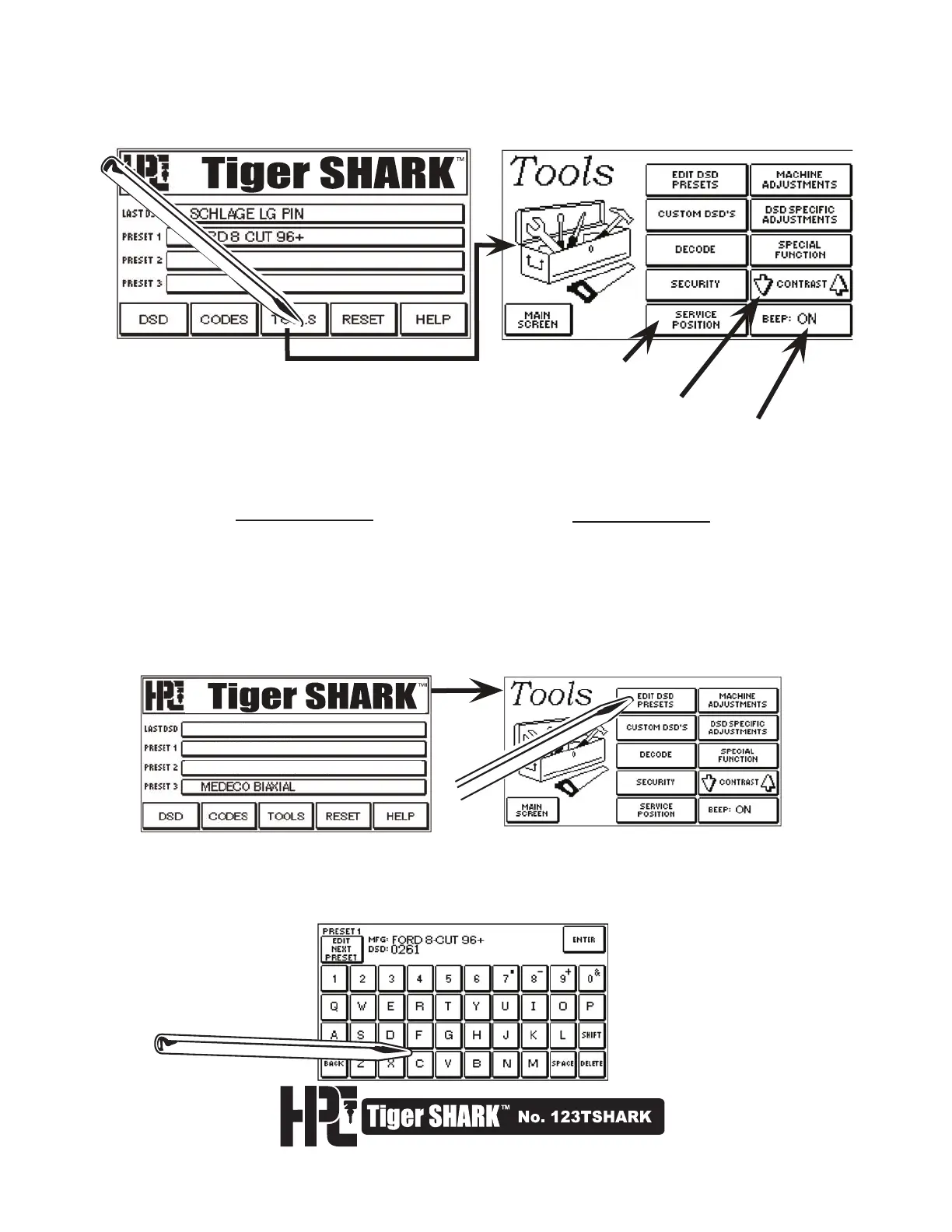
Moves the carriage to allow
more room for easier access.
Adjusts the screen contrast.
Turns the beep tone on or off.
The other buttons are explained in these sections:
The Tools section provides the means to make adjustments, update, maintain, and customize your
Tiger SHARK
™
Machine. Select TOOLS to display the Tools Menu. Choosing MAIN SCREEN at any
time will return you to the Tiger SHARK™ Main Menu.
5.1 Edit DSD Presets
5.2 DSD Specific Adjustments
5.3 Custom DSDs
5.4 Machine Adjustments
5.5 Decode
5.6 Special Function
5.7 Security
1. When your machine arrives new, the main screen will display Preset 1, Preset 2, and Preset 3 as blank.
Programming your own Presets will allow you to proceed directly to the bitting screen, bypassing the search
process. Generally, you will set these presets to your most frequently cut DSDs. These Presets are not to be
confused with the LAST DSD at the top of the main screen. After you have cut your first key by DSD with
your machine, the last DSD cut will be recorded and can be used in the same manner as Presets. The last
DSD will change accordingly to the last DSD key you cut. To edit Presets, select EDIT DSD PRESETS from
the Tools Menu.
2. The Preset 1 Edit Screen will be displayed. If the DSD Number is known, simply type it in next to
DSD: and select ENTER. This will automatically fill in the correct manufacturer description for the DSD
you have entered.


 To Next Page