4. Open the Captures folder.
5. Press the Trigger while pointing at the Select button.
6. Select each of the files that you want, or select all files.
7. Select the Copy button.
8. When prompted, confirm the destination storage—storage card or USB drive—where to
copy the files to.
Files will be copied to the root folder of the external storage.
With the File browser, you can also copy files from external storage to the headset. Files can
only be copied to the Downloads folder on the headset.
Installing apps on the headset
After you've purchased apps or retrieved free apps on the VIVEPORT Store, your apps will appear
in the Library. You'll then need to download and install them on the headset.
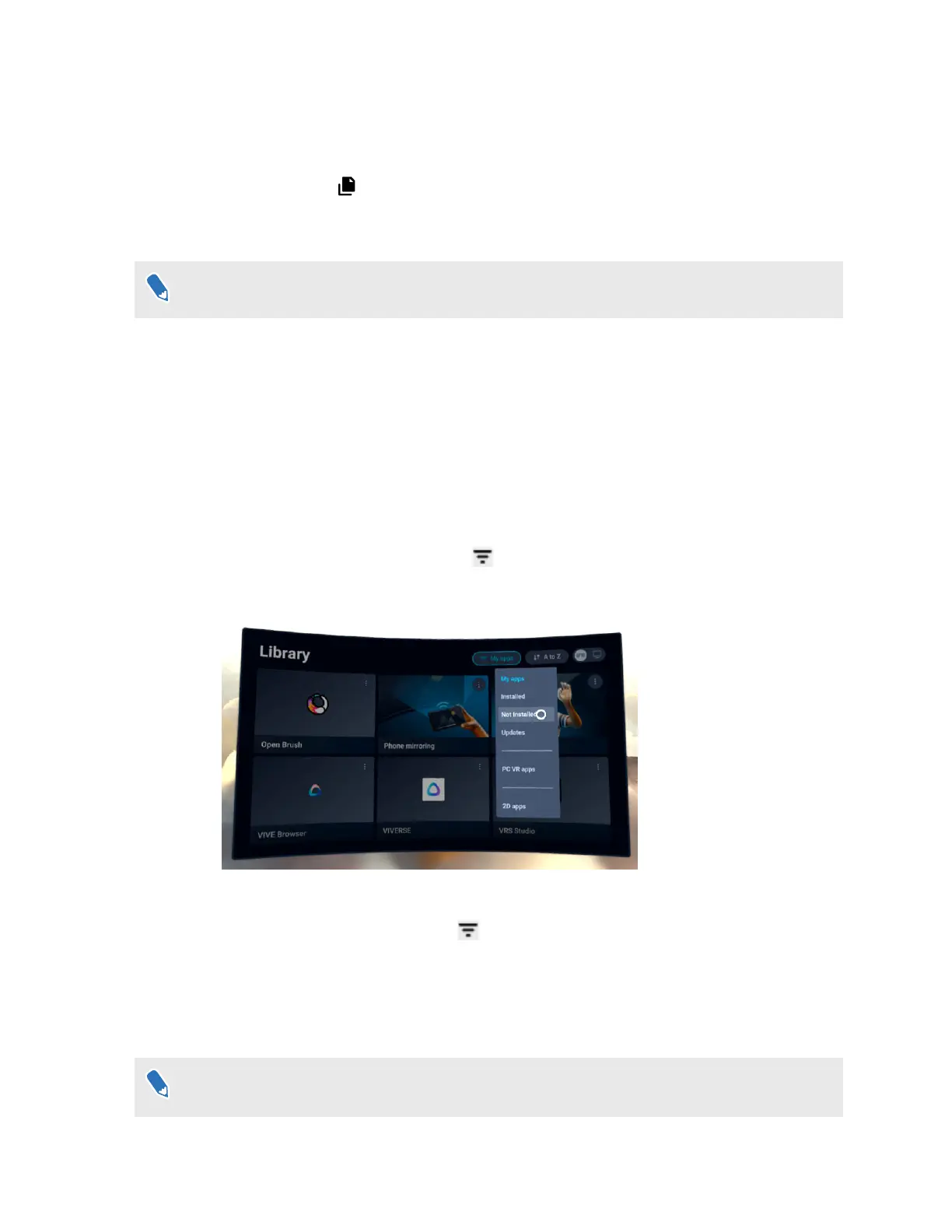
Here's how to download and install an app:
1. In the Library, select the filter button
in the upper right.
2. Select Not installed.
3. Select an app to download and install it.
To view and launch installed apps, select , and then select Installed.
Installing APK files on the headset
You can install VR apps and Android mobile apps on the headset using APK files.
Apps installed using APK files may not run properly if they are not compatible with the
headset.
Here's how to install an APK file:
48 Managing screenshots, files, and apps


 To Next Page