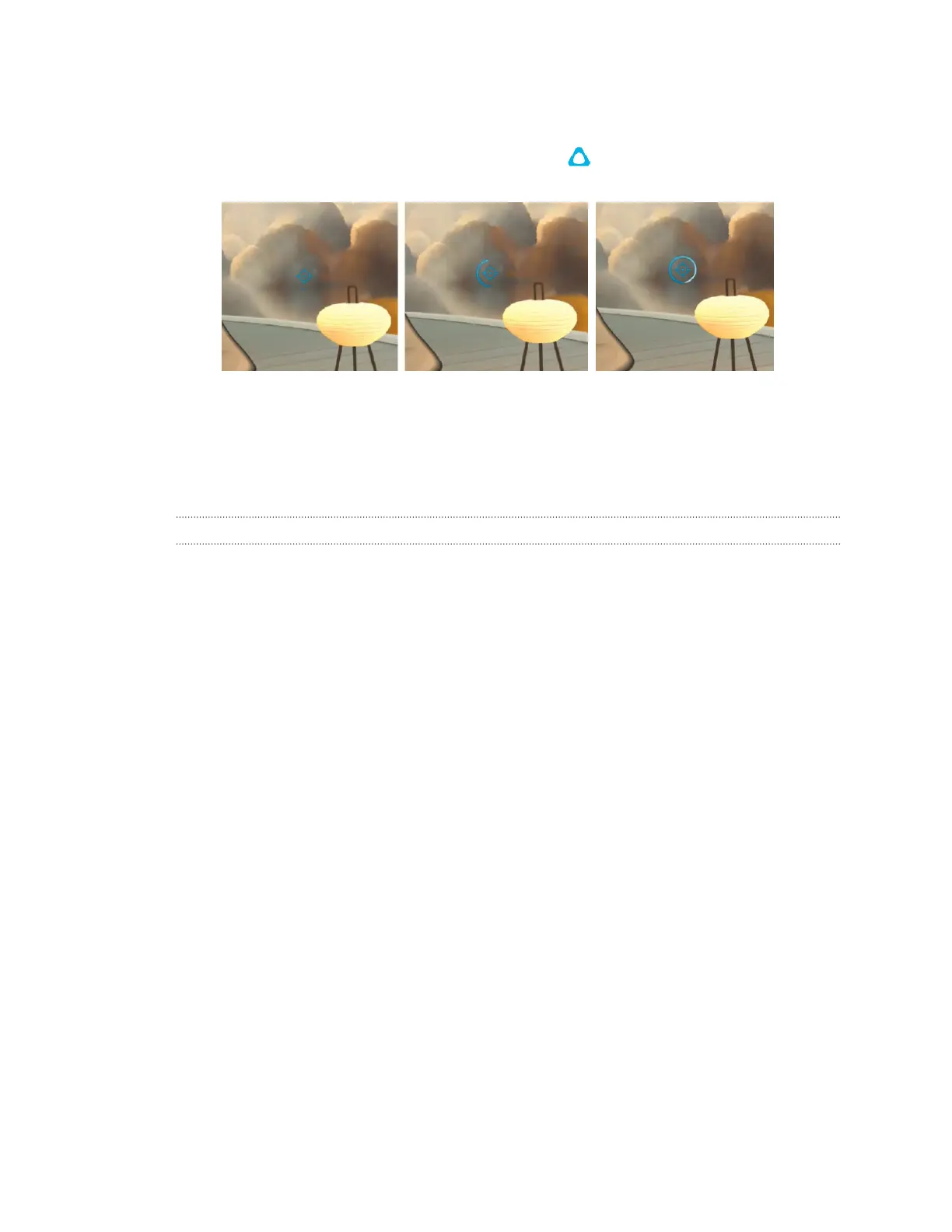
Using the VIVE button:
1. Adjust your position so that your headset is facing forward in your real environment.
2. To reset your view, press and hold the VIVE button on your right controller. When the
entire reset view icon appears, release the button.
The screen will briefly turn black, and then your view will be realigned with your real-world
orientation.
Mixed reality
Using mixed reality on VIVE Focus Vision
Here's how VIVE Focus Vision currently incorporates mixed reality:
§ Easily switch between real and virtual environments.
Use the headset button on the left side of the headset to quickly switch between
passthrough and VR modes. See Viewing your surroundings on page 37.
§ See your real surroundings in the home environment.
From the Lobby, go to Settings, select General, and then turn on Use passthrough as
Home background. You can then see your real surroundings in the background while
browsing through apps, changing settings, viewing screenshots and videos, and more.
§ Play games with mixed reality content.
There are a growing number of mixed reality games available for VIVE Focus Vision which
allow you to interact with virtual objects in the real world. Check out these games in the
VIVEPORT
™
Store.
§ Use MR room setup to auto-detect or manually define physical objects—such as
walls and tables—that can be used by mixed reality apps.
For details, see Setting up a mixed reality environment on page 37.
36 Getting started


 To Next Page