1. In the headset, go to Settings and select Connectivity, and then select Pair next to
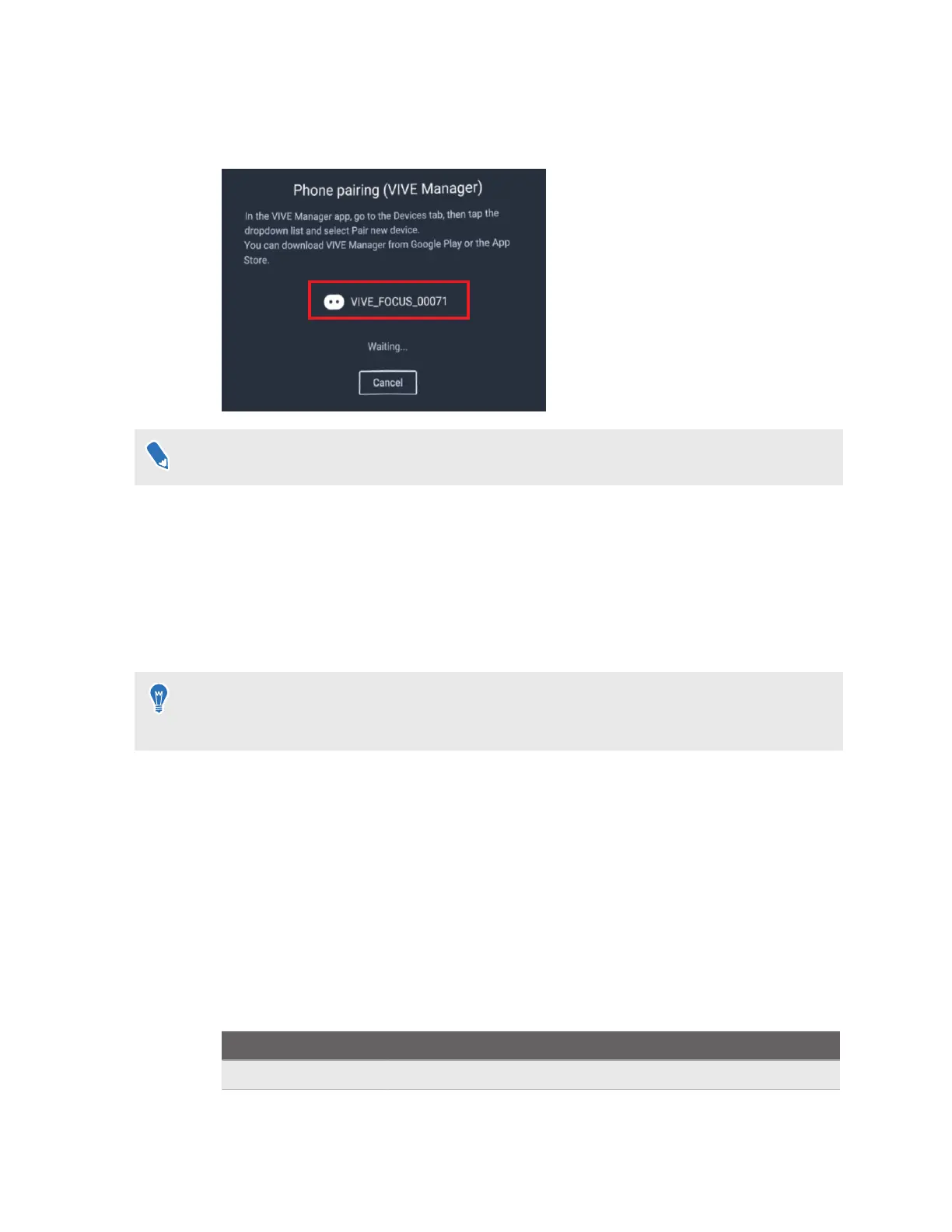
Phone pairing (VIVE Manager).
A dialog box will appear, showing a device number.
The device number will be used to create the device name for your headset in VIVE Manager.
2.
Launch VIVE Manager on your phone.
3. Tap the Devices tab.
4. Tap the down arrow to open the devices dropdown menu and select Pair new headset.
5. On the Welcome screen, select VIVE Focus Vision and set up the new headset.
6. When you see the Pair VIVE Focus Vision screen and the front headset LED flashes
white, press the headset button.
You can also check if the pairing code on the
Pair VIVE Focus Vision screen matches the
one displayed in your headset. Then press the headset button.
7. Follow the onscreen instructions in VIVE Manager to finish setting up the headset.
Setting up parental controls
Use parental controls to monitor and manage the time your child spends in using the headset.
Here's how to set up and turn on parental controls:
1. Launch VIVE Manager on your phone.
2. Tap the Devices tab.
3. Tap Parental controls, and then set the following:
Option
Description
Allowed apps Choose the apps your child can access.
53 Using VIVE Manager


 To Next Page