Mirroring your phone screen to VIVE Focus Vision
You can mirror your phone screen to VIVE Focus Vision so you can use your phone without taking
off the headset. You can navigate your phone, launch mobile apps, and view photos and videos in
VR.
§ Phone mirroring is only available for Android phones.
§ To use phone mirroring, your phone must support Miracast. You can also stream DRM-
protected content to the headset as long as your phone supports HDCP 2.2 or later.
To check your phone's compatibility, see Phones compatible with VIVE Focus Vision on page
62.
§ Make sure to pair VIVE Manager with your headset if you haven't done so. For details, see
Pairing VIVE Manager with a new headset on page 52.
Before mirroring your phone screen, make sure your headset is connected to VIVE Manager and
your phone screen is on and unlocked. Your phone's Bluetooth and Wi-Fi must also be turned on.
Here's how to mirror your phone screen to the headset:
1. Put on your headset.
2. In the Library, select Phone mirroring.
3. When you see the Invitation to connect dialog box, select Accept.
Your phone screen will be displayed in VR.
4. Aim the beam anywhere on your phone screen to interact with it just as you'd normally do
on your phone.
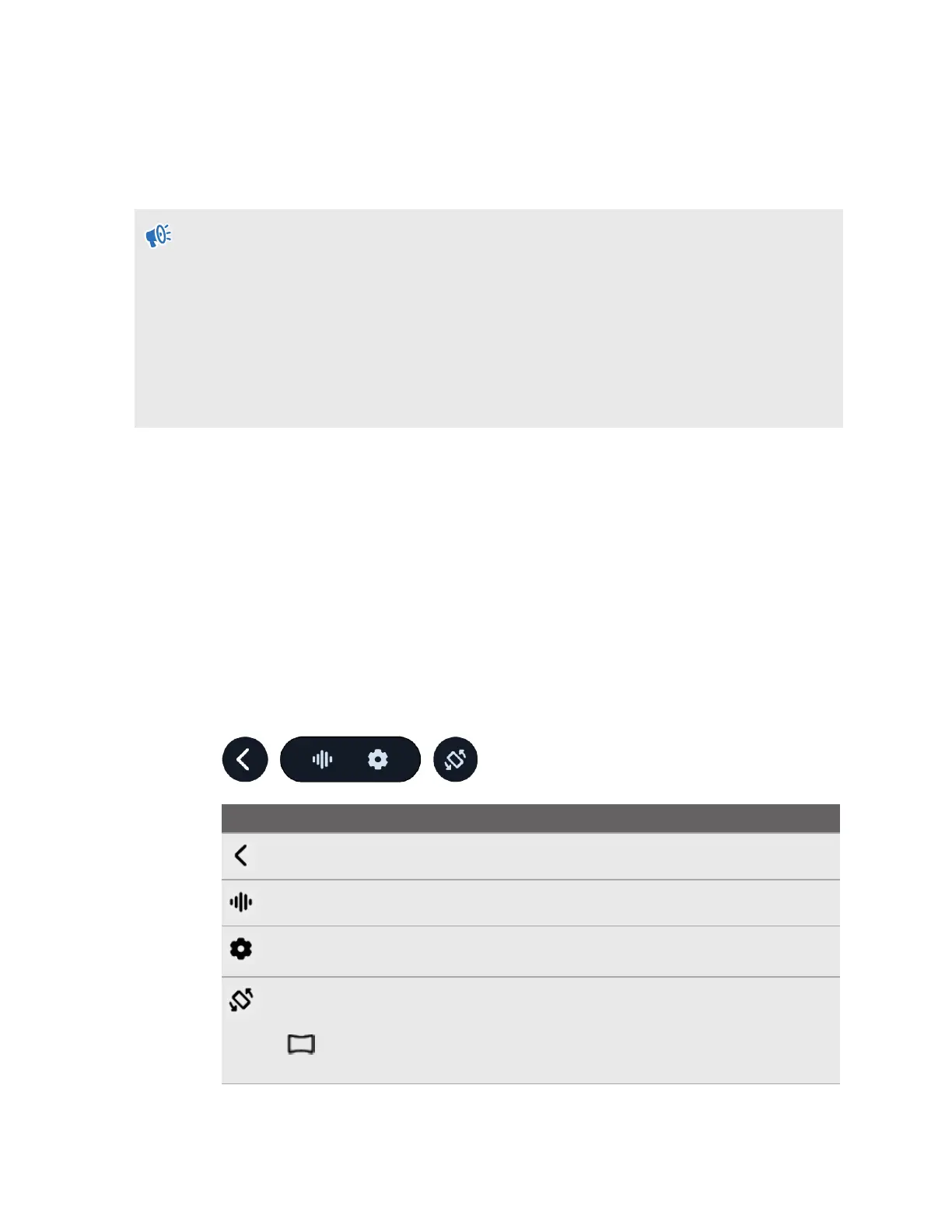
5. Use the toolbar below the phone screen to do the following:
Option
Description
Go back to the previous screen.
Open your phone's voice assistant (for example, GoogleAssistant
™
).
Change phone mirroring settings. For details, see Changing phone mirroring
settings on page 61.
Switch the screen orientation between portrait and landscape.
After switching to landscape orientation, you'll see the Curved screen button
on the toolbar. You can select the button to change between a curved and
flat screen.
59 Sharing and streaming content


 To Next Page