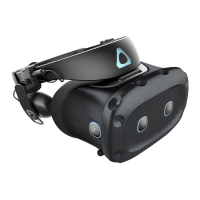
How do I try out beta features on VIVE Focus Vision?
To try out beta features, just enable them on your headset. There's no need to install additional
beta software.
1. Go to Settings Advanced, and then select Beta features.
2. Enable the beta features you want to try out. You can disable them at any time.
What is eye-gaze targeting?
Eye-gaze targeting tracks what you're looking at on a screen and highlights the item. You still
need to use your hands or controllers to select the item.
Eye-gaze targeting is currently available as a beta feature. To use this feature, you need to
have eye tracking enabled on the headset.
Here's how to enable eye-gaze targeting:
1. From the Lobby, select Settings.
2. Select Advanced Beta features.
3. Turn on Eye-gaze targeting.
To use eye-gaze targeting, stare and aim at an item with your eyes. To select the item, press the
trigger on your controller or pinch your thumb and index finger together.
To avoid obstructing eye tracking and gaze targeting, don't raise your hands or controllers
while gazing at something.
What are touch controls?
Touch controls allow you to interact with system screens by directly touching them with your
finger, like a virtual touchscreen. You can also use controllers to interact with system screens
when touch controls are on.
Touch controls are currently available as a beta feature.
Here's how to enable touch controls:
1. From the Lobby, select Settings.
2. Select Advanced Beta features.
3. Turn on Touch controls.
If you have a screen open—such as the system dashboard's Library or Settings screen—it
will appear up close in front of you.
Here's how to use touch controls:
With your finger:
95 Solutions and FAQs


 To Next Page