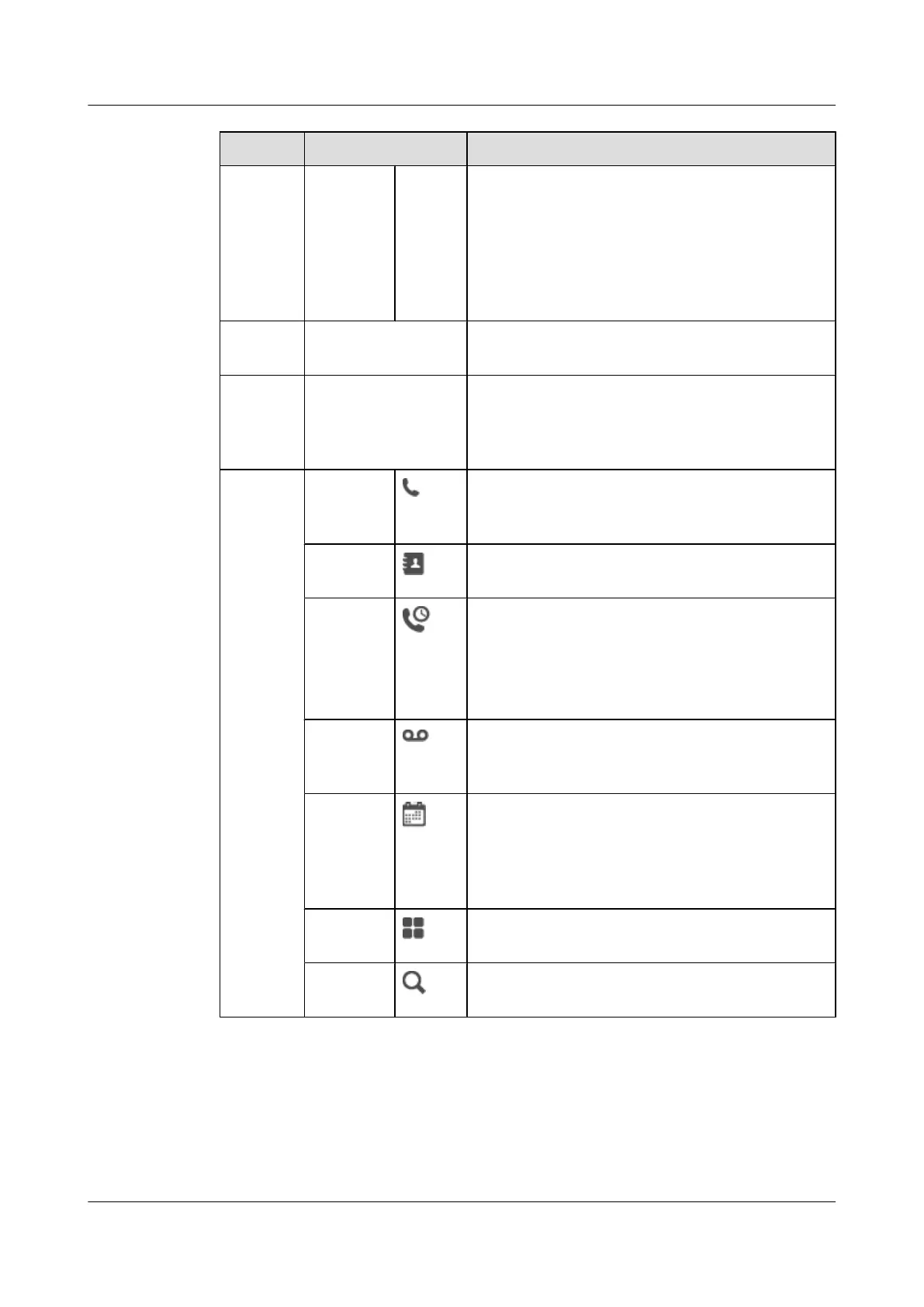
Layout Details Description
Number
area
In the
rightmo
st
portion
of the
status
bar
Swipe down in this area to display information about
the registered number.
Display
area
- Displays the screen wallpaper, phone widgets, and
other application icons.
Home
screen
scroll
indicator
- Displays the current screen. By default, eSpace 8950
supports five screens. The third screen is the home
screen.
Shortcut
operation
area
Keypad Tap the keypad, enter the number, and then place a call.
If you are not logging in to the IP phone, you can only
place emergency calls.
Contacts Tap to enter the My Contacts tab by default. You can
switch to the Groups or CorpDir tab.
Call
history
l A number on the icon indicates the number of
missed calls. For example, 3 indicates that there are
three missed calls.
l Tap to enter the All tab by default. You can switch
to the Missed tab.
Voicemail A number on the icon indicates the number of unread
voice messages. For example, 3 indicates that there are
three unread voice messages.
Conferenc
e
Tap to enter the conference list screen. On this screen,
you can check conference records, join a conference,
and create a conference.
NOTE
This icon is not available in the UC2.X network environment.
Applicatio
ns
Tap to enter the APPLICATION tab by default. You
can switch to the CALL WIDGET or WIDGET tab.
Search Tap to search the Internet or eSpace 8950 for the
information you want to know.
Changing a Wallpaper
Tap and hold the home screen. The Choose wallpaper from screen is then displayed. On this
screen, choose any of the following options:
l Wallpapers: View and select a system built-in wallpaper.
eSpace 8950 IP Phone
User Guide
1 Getting Started
Issue 03 (2014-10-16) Huawei Proprietary and Confidential
Copyright © Huawei Technologies Co., Ltd.
10



 To Next Page