1.3 Home Screen
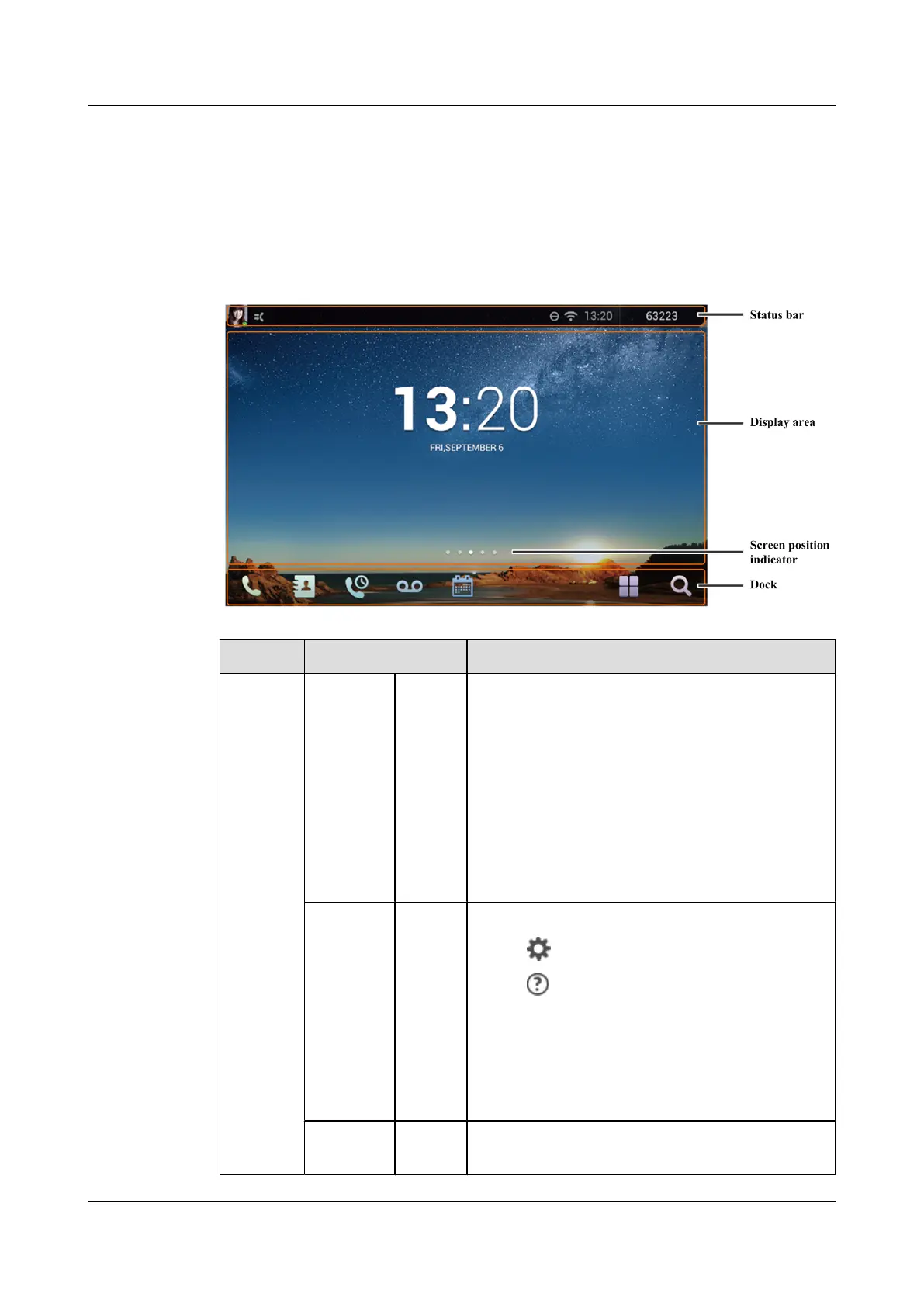
Figure 1-2 shows the home screen of eSpace 8950.
Figure 1-2 Home screen
Layout Details Description
Status bar User
informatio
n
Profile
picture
Displays a user's profile picture and status. Swipe down
in the profile picture area. On the screen that is
displayed, you can see user details, access the online
help, set a user status, and log out the phone.
l In the IMS+UC network environment, the user
status is displayed in the lower right corner of the
profile picture area.
l In the UC2.X network environment, the user status
is not displayed in the lower right corner of the
profile picture area.
Notificatio
n icons
In the
middle
of the
status
bar
Swipe down in this area, and then you can:
l Tap to access the settings screen.
l Tap
to open the online help screen.
l Tap the corresponding icon to enable or disable
Bluetooth, enable or disable Wi-Fi, and set the
screen brightness.
l View notifications such as missed calls, download,
upgrade, and third-party applications.
System
status
- Displays the phone time and status, for example,
network, alarm, and do not disturb (DND).
eSpace 8950 IP Phone
User Guide 1 Getting Started
Issue 03 (2014-10-16) Huawei Proprietary and Confidential
Copyright © Huawei Technologies Co., Ltd.
9



 To Next Page