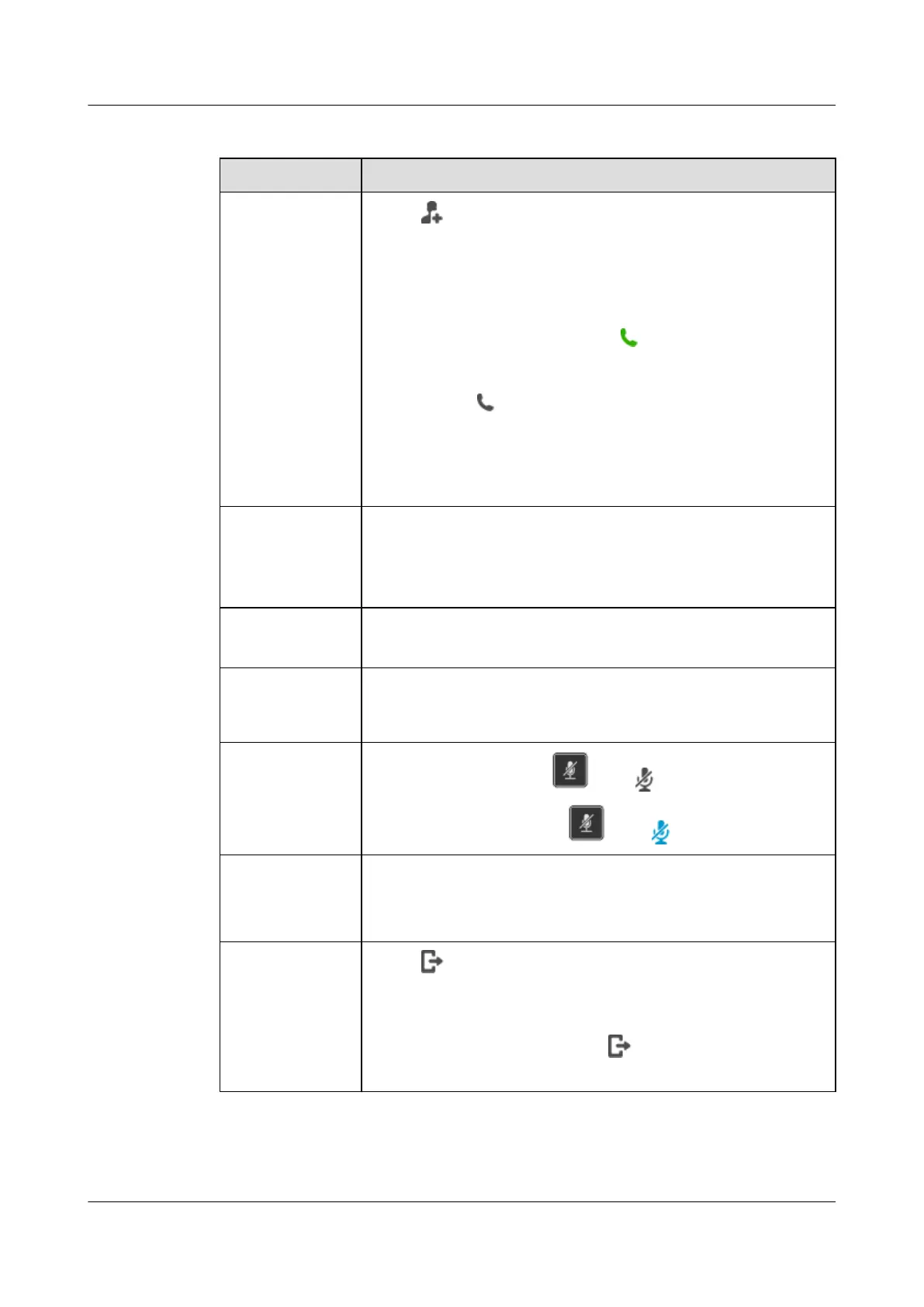
Table 25-2 Local conference management
If You Want to... Then...
Add a participant
1. Tap .
NOTE
If you have set Conference on hold when adding participants on the phone
web page, the current call is placed on hold when you enter the dialing screen.
If you have set Conference unhold when adding participants, other
participants are not affected when you enter the dialing screen.
2. Enter the number of a user and tap
.
NOTE
You can select contacts on the favorites list, contact list, or call history tab,
and then tap
.
3. Tap Join when the user answers the call.
NOTE
A local conference supports audio conversation among a maximum of six
parties.
Mute a participant 1. Tap the profile picture of a participant.
2. Tap Mute.
NOTE
To unmute a participant, tap Unmute.
View the details of
a participant
1. Tap the profile picture of a participant.
2. Tap Details.
Change the display
sequence of a
participant
1. Tap a participant in the participant list.
2. Tap Replace and tap the replacing participant.
Mute or unmute
yourself
l To mute yourself: Press or tap while on a call.
l To unmute yourself: Press or tap while in the mute state.
Delete a participant 1. Tap the profile picture of a participant.
2. Tap Delete.
3. In the dialog box that is displayed, tap OK.
End a conference
1. Tap .
2. In the dialog box that is displayed, tap End.
NOTE
l The conference initiator can tap
to end the conference.
l Participants can tap Hang Up to quit the conference.
eSpace 8950 IP Phone
User Guide
25 Conferences
Issue 03 (2014-10-16) Huawei Proprietary and Confidential
Copyright © Huawei Technologies Co., Ltd.
72



 To Next Page