eSpace IAD
Troubleshooting
3 Common Troubleshooting Methods
Huawei Proprietary and Confidential
Copyright © Huawei Technologies Co., Ltd.
3.5 Using the PING Command
By running this command, you can check the status of the network connection.
The example for running theping command is as follows:
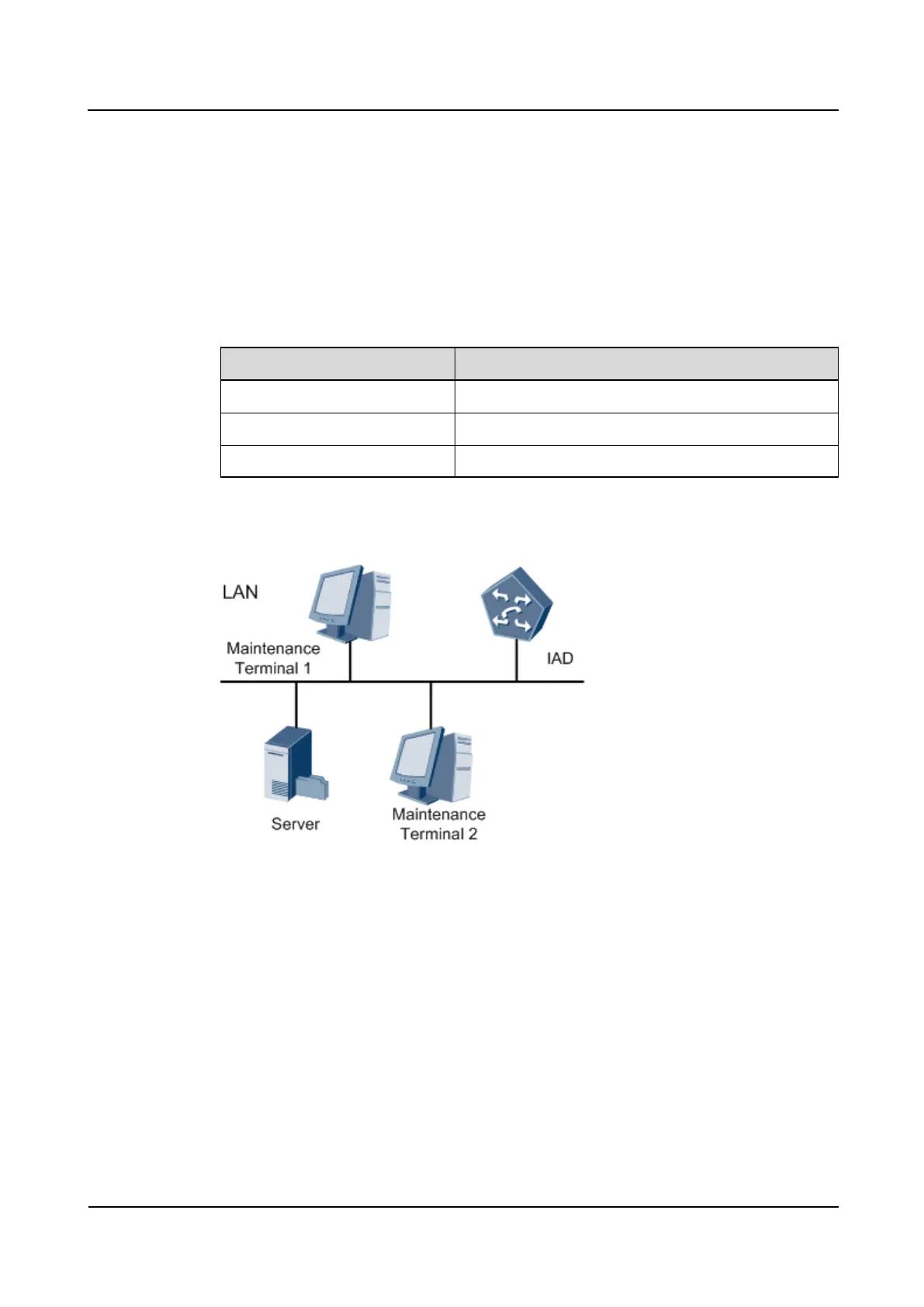
The IAD maintenance network port is connected with the maintenance terminal 1 and 2
through LAN. The IP addresses of the three equipment are shown in Table 3-1 and the
networking status is shown in Figure 3-7.
Table 3-1 Example for Using the PING Command
Figure 3-7 Networking of the Example for Using the PING Command
Problem description: When a user uses maintenance terminal 1 to log in to the IAD through
Telnet, sometimes the connection fails. However, the connection between maintenance
terminal 2 and the IAD through Telnet is normal.
The troubleshooting method is as follows:
1. Use terminal 2 to log in to the IAD through serial port or Telnet.
2. Run the ping command to check the connection between the IAD and maintenance
terminal 1. The operation is as follows:
TERMINAL>ping 172.21.50.51
PING 172.21.50.51: 56 data bytes, press CTRL_C to break
Request time out
Request time out
Request time out
Request time out








 To Next Page