14
Open/Close Times
TIP: The use of Open/Close Times for scheduling is optional and can be useful in
applications where the business operation hours are likely to change periodically and more
than one schedule is to be used. Each schedule can be set to reference an Open/Close
time rather than having to re-set the discrete times when the schedules need to change.
Set the Open/Close Times to schedule events based on standard facility operating hours.
Four unique Open/Close Time schedules are available and each can accommodate
numerous events. For example, when changes in facility operations occur, such as
lengthened open hours, the Open/Close Time settings can be conveniently re-programmed
and the new hours will be applied to all the events tied to that particular Open/Close Time.
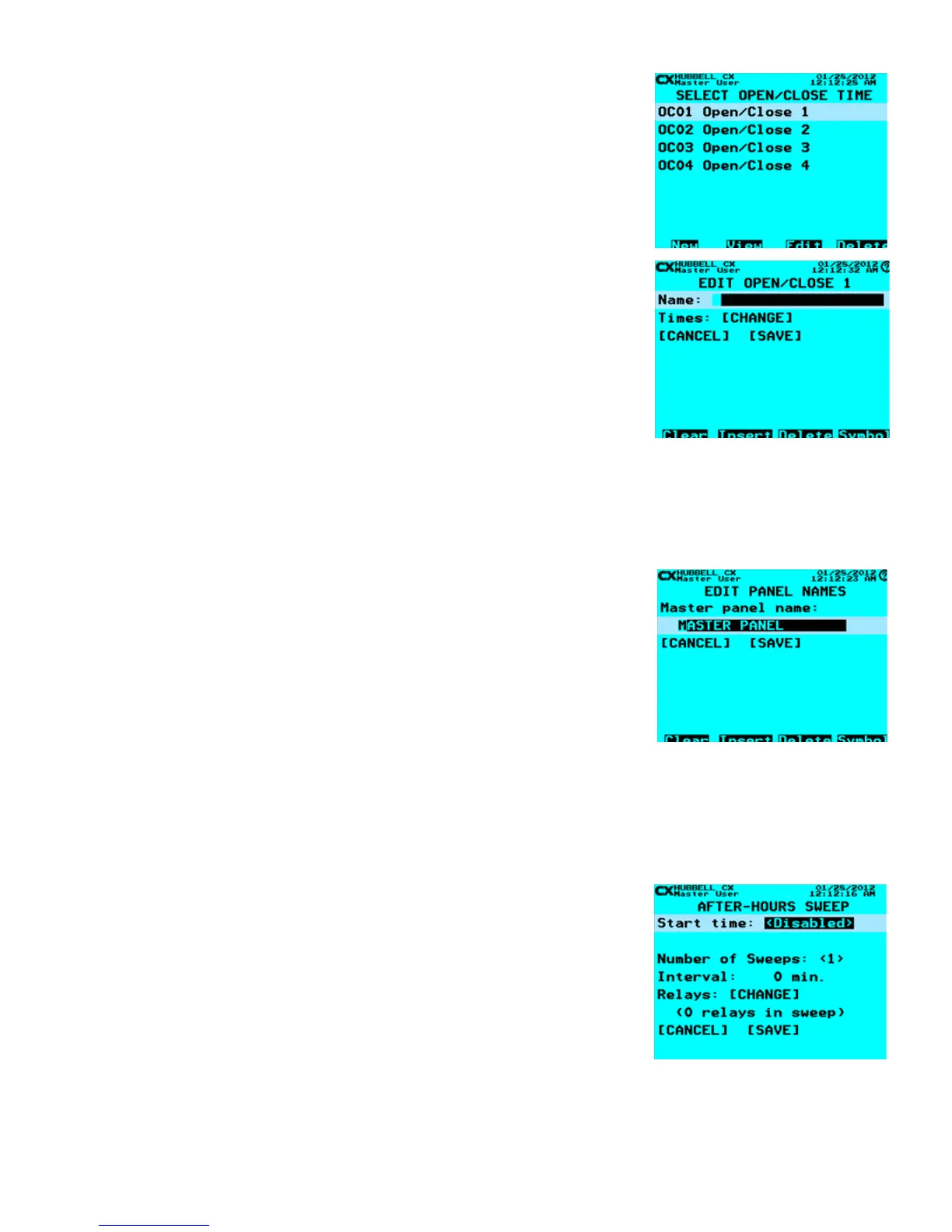
• From the Main Menu, use the navigation arrows to select System Settings >
Open/Close Times. Press ENTER.
• Select Open/Close - Highlight one of the Open/Close 1-4. Press ENTER or
you may use the function keys as described in “Function Keys” section at the
beginning of the Programming Section of this manual.
• Name Open/Close - Use the Function keys and the alphanumeric keypad to edit
the Open/Close name. Refer to “Function Keys” section at the beginning of the
Programming Section of this manual.
• Select Times: [CHANGE] > ENTER to change the Open/Close Times. Refer to
“Schedules” section for instruction to enter various ON and OFF times. When nished, scroll down to highlight SAVE.
Press ENTER to save your changes.
Panel Names
Master panels and Secondary panels are better managed if they are named. Use Panel
Names to give meaningful names to the Master and Secondary panels.
• From the Main Menu, select System Settings > Panel Names. Press ENTER.
• Name Panel – Use the Function keys and the alphanumeric keypad to edit
the Panel name. Refer to “Function Keys” section at the beginning of the
Programming Section of this manual.
• When nished scroll down to highlight SAVE. Press ENTER to save your changes.
After-Hours Sweep
After-Hours Sweep is an optinal feature that turns off (sweeps off) controlled lighting at a user-selected start time to assure that
zones are eventually OFF. This function allows 1-4 sweeps in succession with an interval of 1-120 minutes. Any relay can be
selected to participate in After-Hours Sweep. Note that after hour sweeps should be reserved for special applications. Properly
programmed shedules will negate the need for sweeps. *If a motion sensor is controlling a Relay or Group selected to participate
in the After-Hours Sweep and the relay is in the ON state indicating that the room is occupied, the sweep will turn off the relays
unless a Blink event occurs.
• From the Main Menu, select System Settings > After-Hours Sweep. Press
ENTER.
• For the Start time, use the left and right arrows to choose Clock and set the clock
time to begin the sweeps, or choose one of the 4 Close Times. (Refer to “Open/
Close Times” section). If you chose a close time, use the arrow keys to scroll
down to Offset. The Offset is the time either before or after the close time at which
to begin the sweep(s). Note that with the F2 Function key, you can select +/-
offsets (- means before the time and + means after the time shown).
• Set Number of Sweeps to 1, 2, 3, or 4. This is the number of times to sweep the
facility.
• Set the Interval from 1-120 minutes. This is the time between successive sweeps.
• For Relays, select [CHANGE]. Use the F4 function key to select or deselect the relays to participate in the After-Hours
Sweep. Press ENTER when all relays are selected.
• When nished scroll down to highlight SAVE. Press ENTER to save your changes.
Edit Open/Close
Edit Panel Names
Set After-Hours Sweep


 To Next Page