15
Blink Alert
The Blink Alert function allows the user to dene a warning period of up to 15 minutes prior to a schedule OFF event. Occupants
are alerted to the impending OFF event by 2 blinks of the lights. The user can issue a manual override command to extend the
schedule OFF event by 1-120 minutes by activating a switch that is mapped to the same relay or group associated to the schedule
OFF event. The manual override must be initiated during the warning period. The user may also manually turn OFF the lights after
the Override was initiated by activating the switch again, thus canceling any pending new blink warn and extended Schedule OFF
event.
Important Functionality NOTES:
The Override Switch and the Schedule OFF event MUST be mapped exactly to the same
Relay or Group for the Extension of the impending OFF to occur.
The switch MUST be activated during the Warning Period
The Switch MUST be set as an ON/OFF Toggle
The Relay must be dened as a Blink Relay in the Relay Function Section. System
Settings>Relay Functions
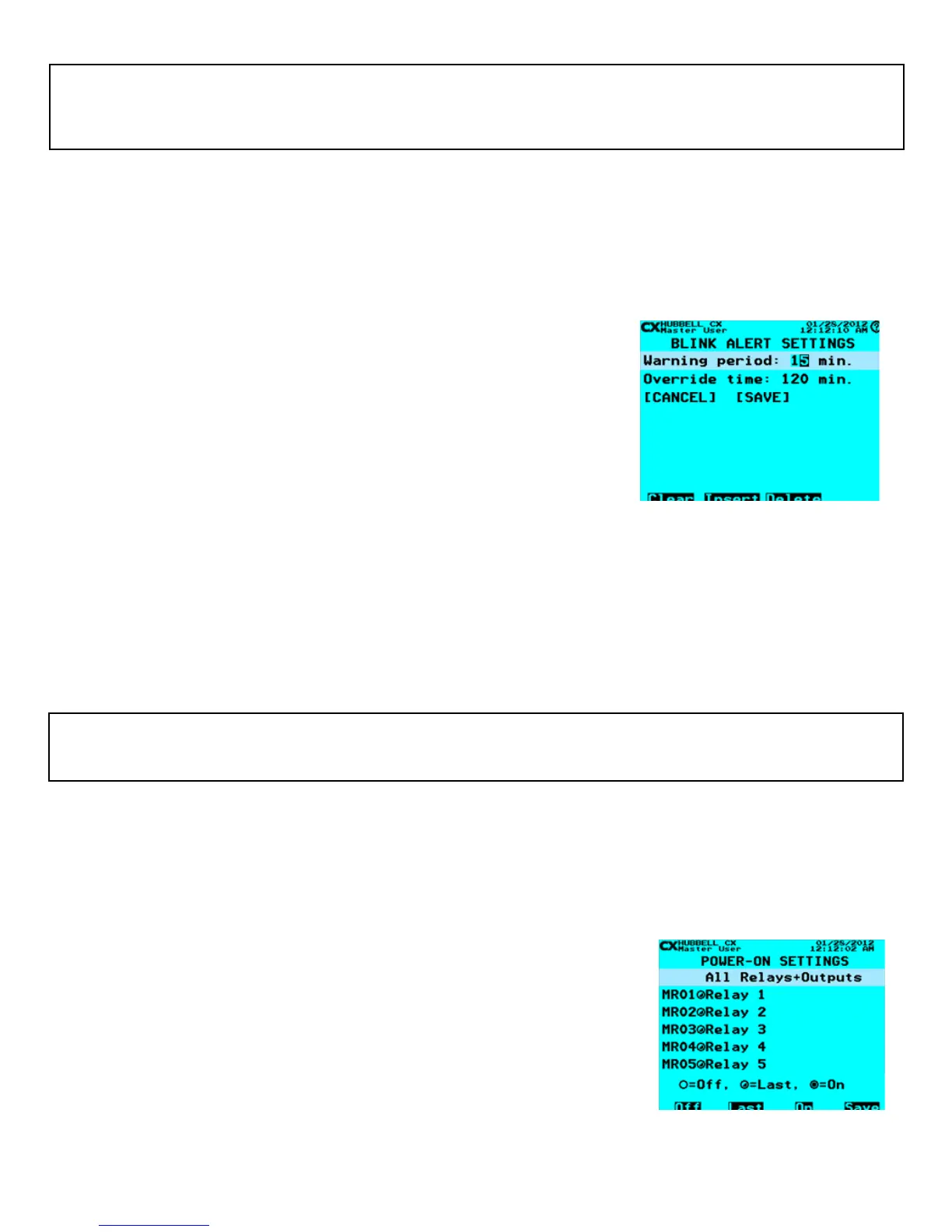
• From the Main Menu, select System Settings > Blink Alert. Then press ENTER.
• Set the Warning period from 1-15 minutes. The schedule OFF event occurs at the end of the Warning period.
• Set the Override time from 1-120 minutes. This extends the scheduled OFF event by the Override time.
• When nished scroll down to highlight SAVE. Press ENTER to save your changes.
If the lights are still ON at the end of the Override time the system will initiate another warning blink and allow another Override to
occur. This Override process will repeat until the ON event of the schedule occurs. The ON event will cancel any impending OFF
initiated by the override switch. If a Timer Switch is used during an Off Sweep/Schedule blink alert, the Timer Switch will be ignored
and the load will turn off according to the Schedule. The Blink Override will only work with a Momentary Toggle Switch Input to
extend the time. Blink Alerts only work with Schedules.
CX Programming TIP:
The Start Time: <Clock> selection will perform sweeps at the selected time 365 days per year. To execute After-Hours Sweeps on selected Days,
use the Close Time function. Since Open/Close Times can be developed based on all of the CX Panel Schedules functionality, then Close Time can
be any or all days of the week.
Blink Alert Settings
CX Programming TIP:
Additional OFF Only Schedules can be added and mapped to the same relay or group to “Re-Start” the After-hours Override functionality where
users may return after all other occupants have left and an impending OFF has already occurred
If the Override time elapses without the switch being activated the impending schedule OFF will be executed. The override switch
will then behave as a normal ON/OFF toggle.
Power-On Settings
Power ON Settings dene the state of each relay at restoration of power following an outage. The relays can be assigned a state
of OFF, Last, or ON. The Last setting returns the relay to the state in which it was in prior to the outage. Relays will be changed to
ON or OFF when power is returned when these settings are chosen. Additionally, for relays set as Last and controlled by ON/OFF
schedules, the CX Panel will check the current time and apply the ON or OFF state based on
the programmed the schedule.
• From the Main Menu, select System Settings > Power-on Settings. Then press
ENTER.
• Use the arrow keys to scroll to a relay, and then use the Function keys to set any
relay to either OFF, ON or Last. Note the icons, which represent the 3 states.
• When nished scroll down to highlight SAVE. Press ENTER to save your changes.
NOTE: Relays initiate Power-on State when power returns, NOT when power is lost.
Power-on Settings



 To Next Page