119
AutoChart LIVE
CUSTOMIZE THE VEGETATION DISPLAY SETTINGS
T
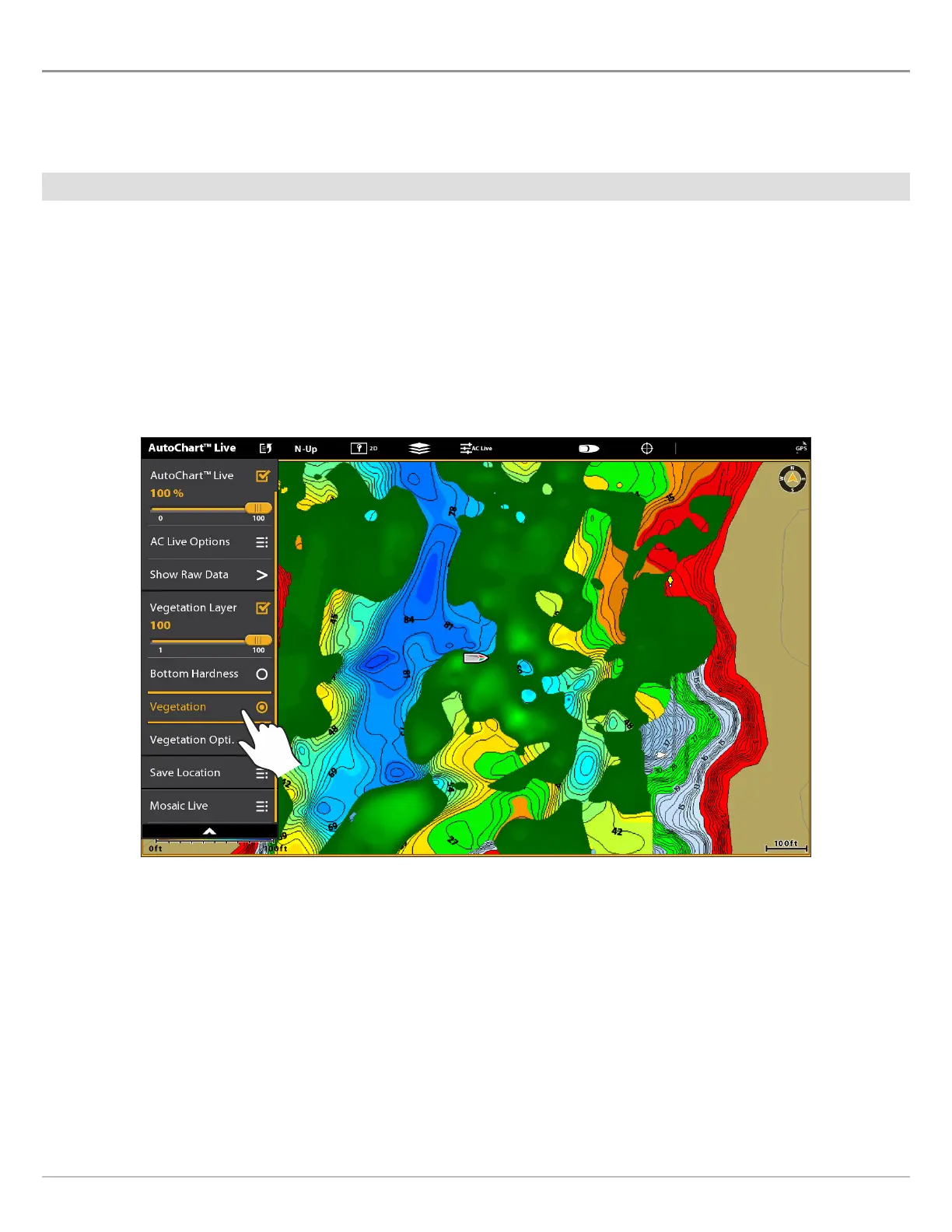
he Bottom Layer is displayed on top of the AutoChart Live map and can be displayed as bottom hardness or vegetation. Vegetation
s
hows the sonar returns interpreted as vegetation on the Chart View. Both bottom hardness and bottom vegetation cannot be
d
isplayed at the same time in Chart View.
Show/Hide Vegetation
Show Vegetation
1. From the AutoChart Live menu, select Hardness Layer or Vegetation Layer. Tap, or press the ENTER key, to add a check mark
to the box.
2. Select Vegetation.
3. Adjust the Transparency: Press and hold the slider, or press and hold the ENTER key, to adjust the setting.
Hide Vegetation
1. From the AutoChart Live menu, select Vegetation Layer. Tap, or press the ENTER key, to remove the check mark from the box.
Displaying the Vegetation Layer (Map Source: Humminbird)


 To Next Page