18
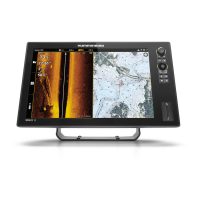
SOLIX Control Head
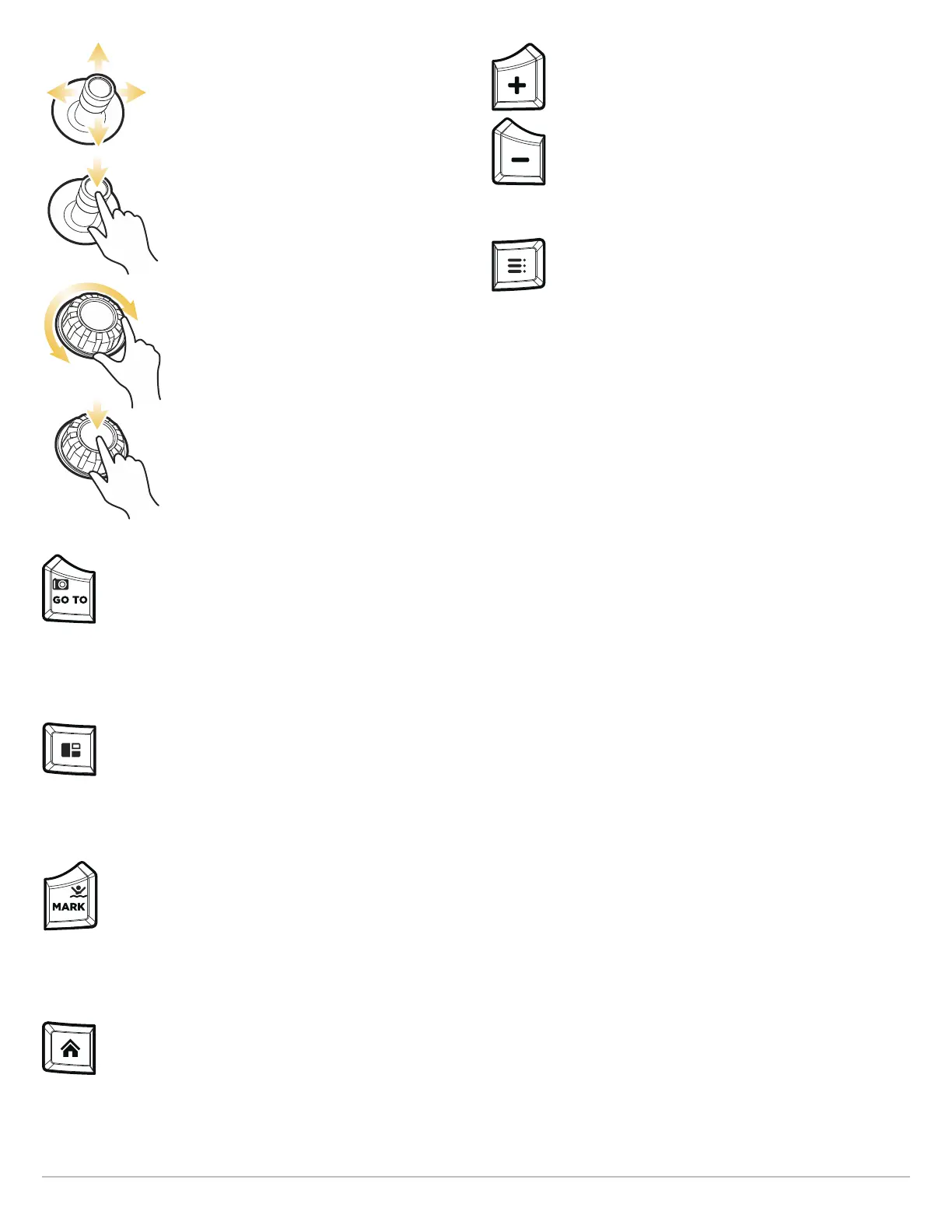
JOYSTICK
Move the Joystick to select a view, tool, or
menu. Press the Joystick to open your
selection.
The Joystick is also used to move the cursor
across the view, pan 2D/3D chart views, and
select menu options and dialog box
information.
Press the Joystick to mark a Route Point.
ROTARY DIAL
Turn the Rotary dial to adjust menu settings.
Turn the Rotary dial in Sonar Views to adjust
the sensitivity. Turn the Rotary dial in Chart
View to zoom in and zoom out.
Press the Rotary dial to open the Views
X-Press Menu.
GO TO/SCREEN SNAPSHOT KEY
Press this key once to open the Go To menu for
navigation functions. See Routes for details.
Press and hold this key to save the screen image. See
Images Tool for details.
PANE KEY
Press the PANE key to open the View Options menu or
to select a pane in a multi-pane view. The selected
pane is highlighted in yellow. See Views for details.
MARK/MAN OVERBOARD KEY
Press and hold this key to start Man Overboard
Navigation. To mark waypoints, press this key twice.
See Man Overboard (MOB) and Introduction to
Navigation for details.
HOME KEY
Press the HOME key to display the Home screen. The
Home screen allows you to access Settings, Alarms,
Views, and Tools for the control head. See The Home
Screen for details.
ZOOM IN (+)/ZOOM OUT (–) KEYS
Press the individual ZOOM keys to change the scale
of the view. For a closer view, press the ZOOM IN (+)
key. For a wider view, press the ZOOM OUT (-) key.
Press and hold the ZOOM OUT (–) key to Zoom out all
the way.
MENU KEY
To open the X-Press Menu for the on-screen view and
operation mode, press the MENU key once. To open
the Main Menu (Settings tool), press the MENU key
twice. To return to the last-used Settings tool tab,
press and hold the MENU key. See The Menu System
for details.


 To Next Page