201
Images Tool
S
ort Screen Snapshots
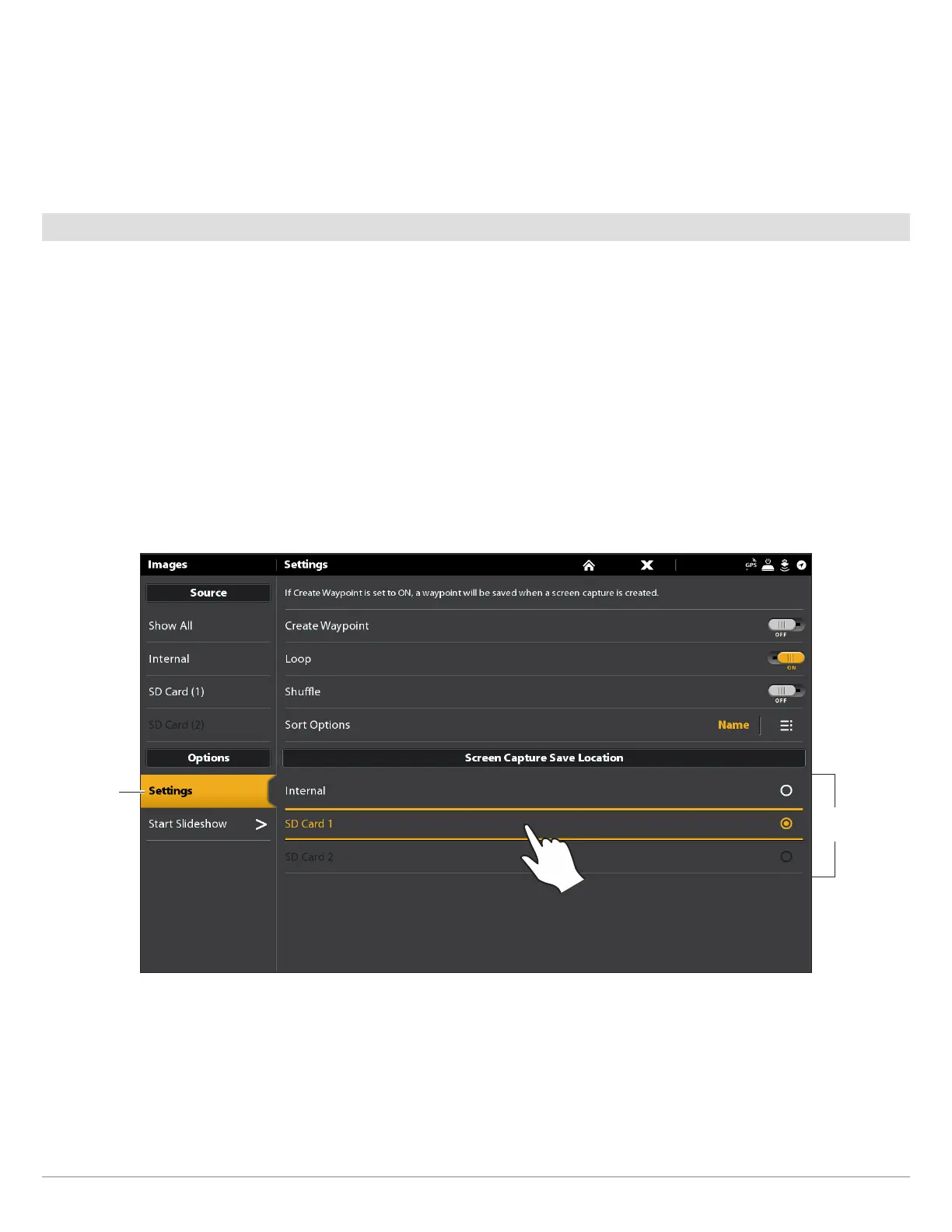
1. From the Images tool, select Settings.
2. Select Sort Options.
3. Select a sort option to sort by Name, Date, or File Type.
To view the images from newest to oldest, select Reverse Order. Tap the on/off button, or press the ENTER key, to turn it on.
Screen Snapshot Settings
Screen snapshots are automatically saved to the control head as JPG files. To save screen snapshots to an SD card, set up the save
location in advance. If you turn on Create Waypoint, each time a screen snapshot is taken, the waypoint position will be saved.
Save Screen Snapshots to an SD Card
1. Install an SD card into a control head port.
2. Press the HOME key.
3. Select the Images tool.
4. Select Settings.
5. Under Screen Capture Save Location, select an installed source. (left port = SD Card 1 or right port = SD Card 2; Default =
Internal control head)
Selecting a Save Location
select
settings
choose a save
location


 To Next Page