Installation and Maintenance Manual
17
Basics of Using the Smart Touch Controller System
Read this page if you are unfamiliar with using the Smart Touch Controller.
You must learn to navigate and change menu settings within the Smart Touch Controller before an
installation can be completed or any control settings or function changes can be made.
Until a new operator has been configured, the controls are not functional and the display is
locked in the menu mode until the User Class 1-4, and Left or Right hand use have been
selected. See the next page for instructions on how make these settings.
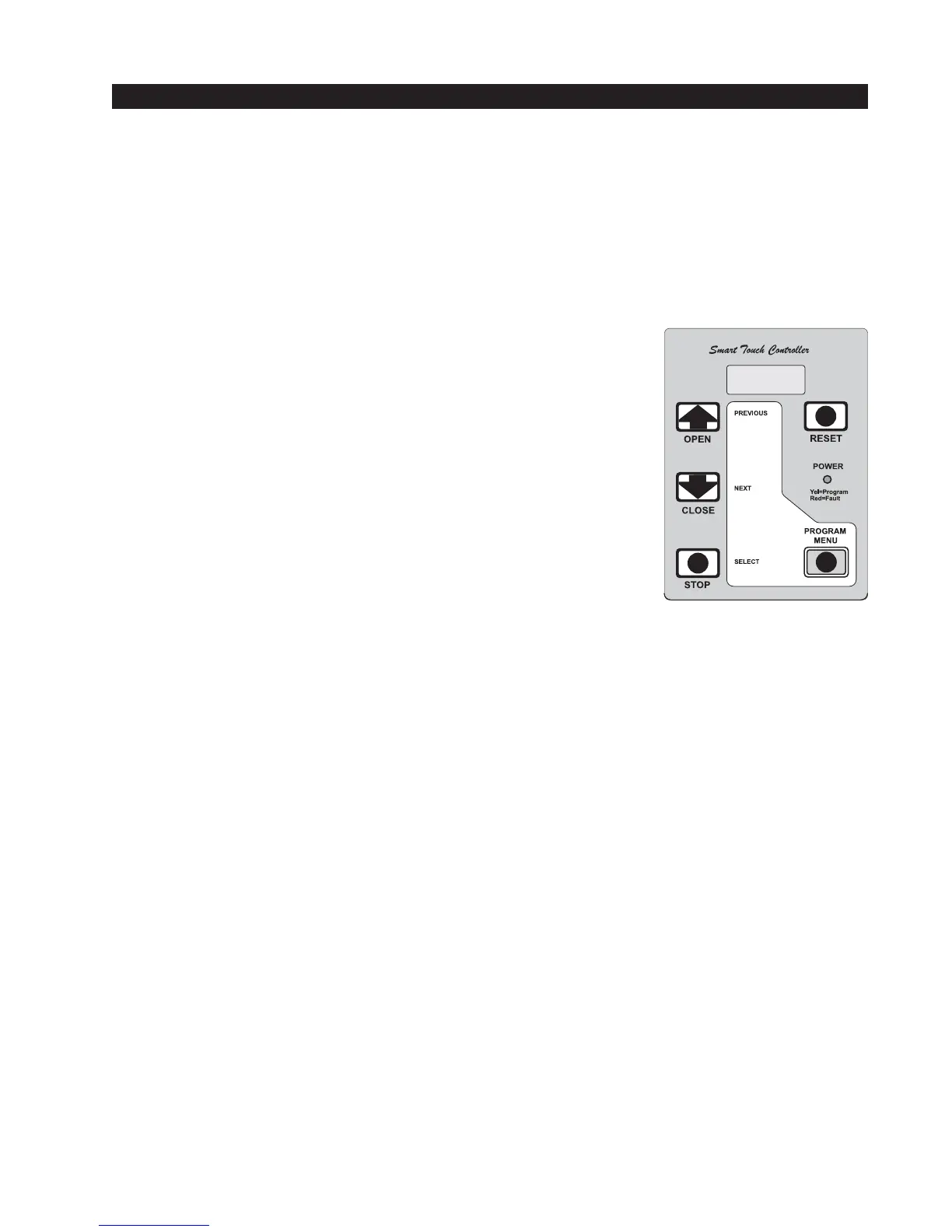
1. There are five buttons on the membrane switch pad that provide
control of everything. The Open, Close and Stop buttons serve as a
three-button control station, but in the Menu Mode, they become Previ-
ous, Next and Select buttons. The Program Menu button is used to
both enter and exit the Menu Mode. The Reset button clears all Errors
and Faults that may occur and returns the control to its normal function-
ing state.
2. When in a Menu Mode, changes to be made to a Menu setting are
accomplished by pressing the Previous, Next and Select buttons in the
following sequence:
a. Press the Next button to move forward through the list of menu
items that are available, as shown on pages 22 and 23, or press
the Previous button to move back to an item that you recently passed.
b. Press the Select button if you wish to make a setting change to a menu item. The menu item will
flash to indicate that its setting is ready to be changed.
c. Press Next to move forward or Previous to go back to an earlier setting choice.
d. When you have located the setting that you want to use, press the Select button and the pro-
gram will accept the change and stop blinking.
e. The Program Menu button does not allow an exit to Run Mode while a selection is still blinking.
Press the Select button to stop the blinking, then you may exit to Run Mode.
f. Pressing the Next or Previous buttons when the menu item is not blinking will move to the next or
previous menu item.
g. When done, press Program Menu to exit to the Run Mode.
3. Once configured, the operator will be in the Run Mode. From the Run Mode, to gain access the
User Menu or the Installer Menu, follow these steps:
a. Note that the Program Menu button will not function unless the gate is at rest and no open or
close inputs are active. Verify system status by pressing the LED button to disclose any active
inputs. There also must not be any Alerts, Faults or Errors. Press the Reset button to clear the
system if necessary.



 To Next Page