Installation and Maintenance Manual
22
Smart Touch Controller User Menu Functions
Initial Power Up - When power is turned on, the display will disclose the software revision:
Display Revision Number 2s delay Displays software version Number, ex. [h3.02]
System Data and accessing the User Menu Settings:
If the gate is stopped in the Run Mode, pressing of the Menu button accesses the User Menu. After
the menu button is pressed, the LCD will scroll the system data in the table below. The scrolling
display stops at the close timer setting, which is the beginning of the User Menu. To exit the Menu
Mode, the display must not be blinking, then simply pressing the Menu button will return the display
to the Run Mode and re-enable the controls. The menu mode will also automatically return to the
Run Mode if there is no activity for two minutes.
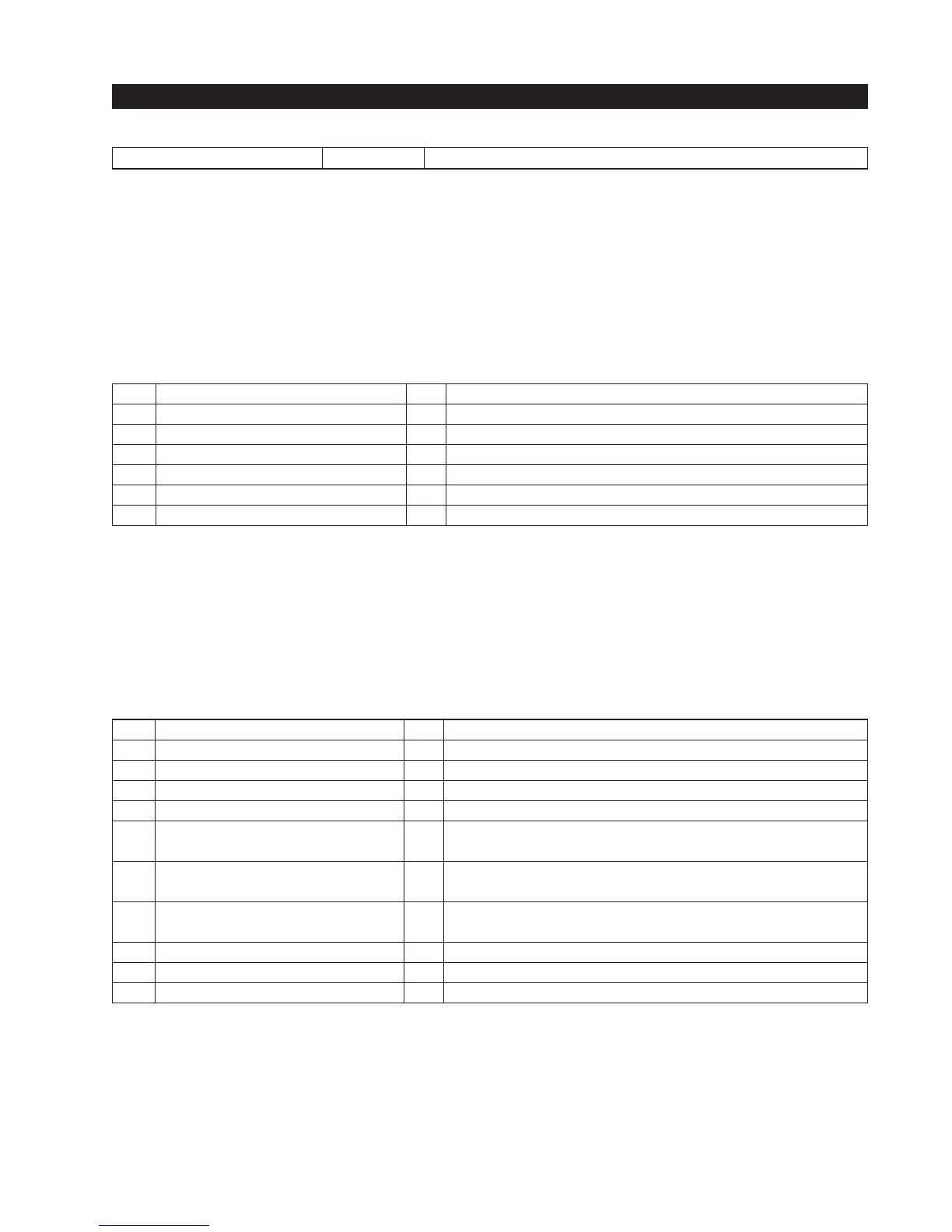
Data Displayed in Scroll Time Description
S1 [SLAu] or [LEAd] 2s SLAVE Operator or LEAd Operator (master)
S2 [ot 1] Gate type (1-5) 2s Operator type: 1 =HSG, 2 =HRG, 3 HVG, 4 =HTG
S3 [_rh_] or [_Lh_] Hand setting 2s Displays hand configuration [_rh_] or [_Lh_]
S4 [uC _] UL usage class (1-4) 2s Installer setting of usage class: type 1-4
S5 [d___] 24VDC Buss Voltage 2s Actual VDC buss voltage
S6 [CC__] Life cycle counter 2s High digits of 6 digit life cycle counter
S7 [____] Life cycle counter 2s Last 4 digits of 6 digit life cycle counter
Read through the options available in the User Menu and the Installer Menu on the next page and
you can see that the functions of this gate operator can be configured to suit most any specific
need. Once you have learned to navigate the menus, as described in #2 on page 17, and how to
change a setting, the full range of features and choices of the Smart Touch Controller are available
to use. The User Menu contains the basic configuration items and the Installer Menu contains the
more advanced menu items.
User Menu Options Default Description
U1 [Ct 0] Close timer setting 0 0 = Close timer off or 1 - 99 seconds
U2 [hC 0] Momentary Close 0 0 = momentary, 1 = Constant hold Close PB required
U3 [ho 0] Momentary Open 0 0 = momentary, 1= Constant hold Open PB required
U4 [AP 0] Power loss function 0 0 - 3 (0=Type A, 1 = B, 2 = C, 3 = D) See page 56
U5 [ro 0] Radio control option 0 0 = Open only, 1 = Adds close ability when full open
U6 [bF 2] Warn before operate 2 0 =off, 1 = Buzzer alerts 3 seconds before + in motion,
2 =Buzzer alerts 3 secs before + 2 seconds in motion
U7 [FA 0] Forced open Alert and 0 0 = OFF, 1 = sound buzzer (2 pulses/sec) if forced
automatic gate reposition open for more than four seconds, time out in 30 Sec
U8 [dA 0] Drift Closed Alert and 0 0 = OFF, 1 = sound buzzer (2 pulses/sec) if drift
automatic gate reposition closed and cannot reopen within four seconds.
U9 [PE 0] Photo Eye Align Mode 0 0= off, 1 = on (auto off when close limit triggered)
U10 [CL 0] Clock set (24 hour type) 0 0= display, 1= set mins, 2= set hours, 3= day, 4= month
U11 [Ld 5] LCD Contrast set 5 1 - 9 = Adjusts contrast of the display
These Notes Refer to the Menu Above:
S1 Appears only if the operator is configured as a master or a slave unit
U1 Close timer setting does not appear when set for constant contact close function
U4 Power loss function only appears if factory has provided DC battery type operator
U6 We strongly advise never disabling the Warn Before Operate buzzer.



 To Next Page