86
3. Tap the Add Account button. An empty information form
displays, tap each field to input the appropriate information.
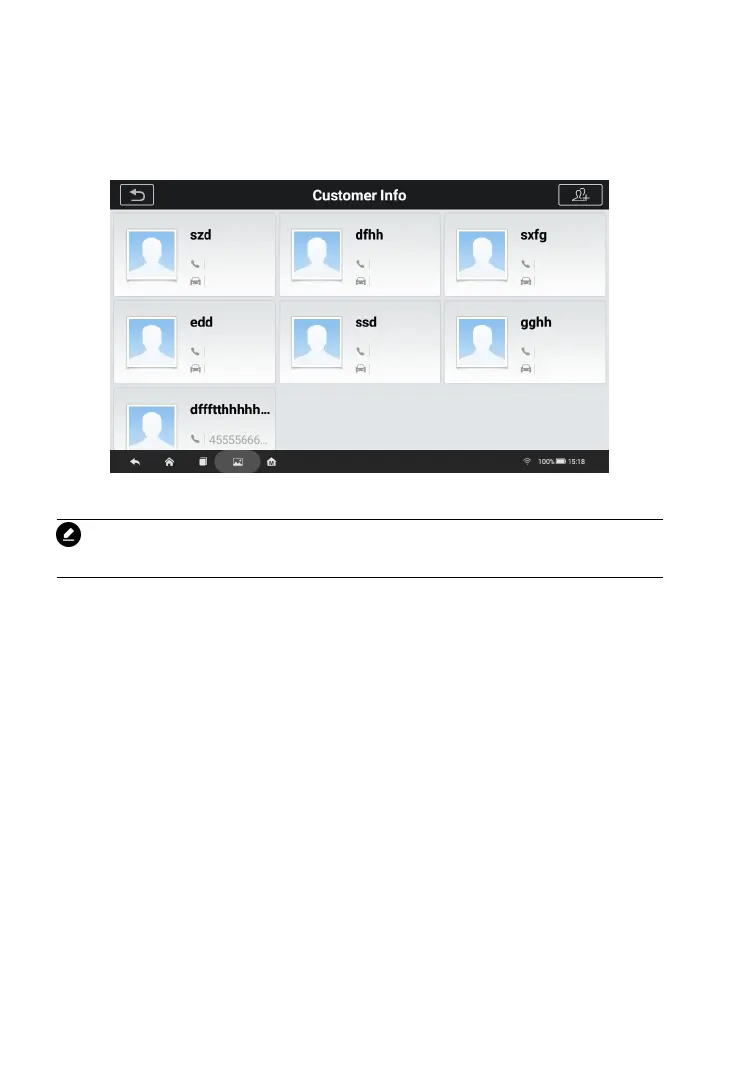
Figure 8-2 Sample Customer Info Sheet
NOTE
Required fields are noted.
4. If a customer adds or changes vehicles, tap Add New
Vehicle Information, and input the vehicle information. Tap
5. Tap the Save button in the upper right corner to save the
updated workshop information table, or click the back
button in the upper left corner to exit without saving.
To edit a customer account
1. Tap the Shop Info application on the CR MAX Job Menu.
2. Select Customer Manager.
3. Select a customer account by tapping the corresponding
name card. A Customer Information sheet displays.
4. Tap on the input field that needs to be altered or
supplemented, and enter updated information.






 To Next Page