88
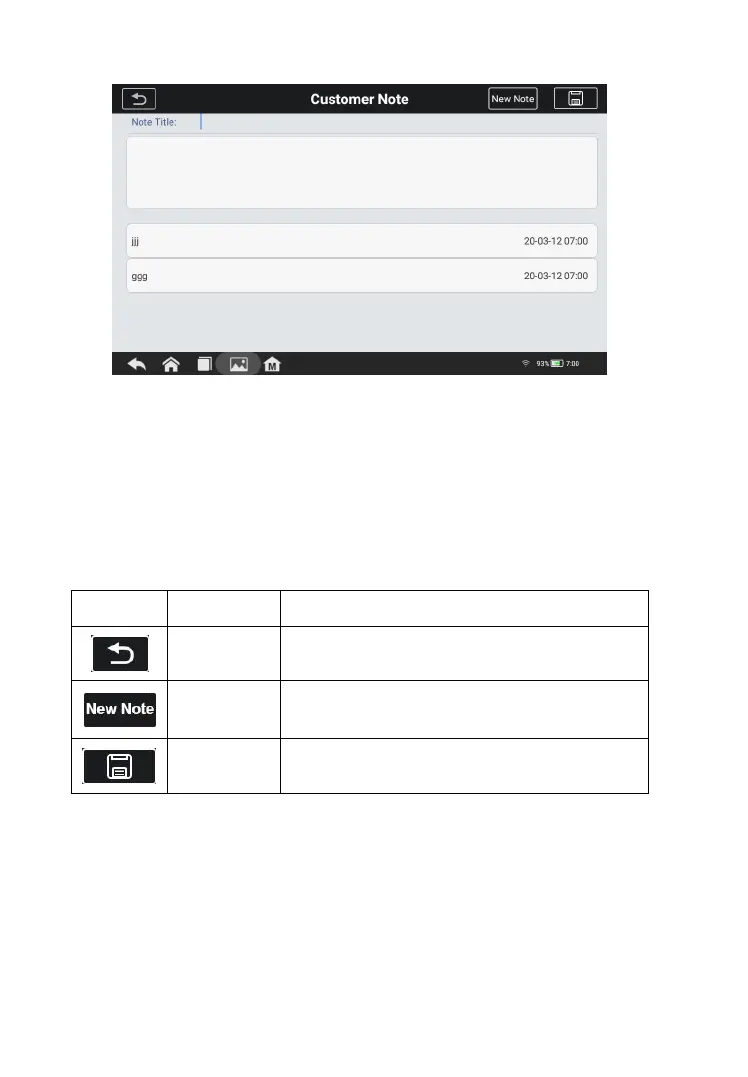
Figure 8-3 Sample Customer Notes Screen
1) Functional Buttons – navigates and performs various
2) Main Section – displays the note list on the left column
and the detail information of the selected note displays
Table 6-2 Function Buttons in History Notes
Cancel the current operation and return
to the previous screen.
Tap this button to quickly clear the
information and create a new record
To add a note in Customer Notes
1. Access Customer Notes. An edit window displays.
2. Tap on the Title bar to input a note title.
3. Tap on the blank space below to edit a text note or remark.
4. Select the new note button at the top to clear the current








 To Next Page