Import / Export Function
158
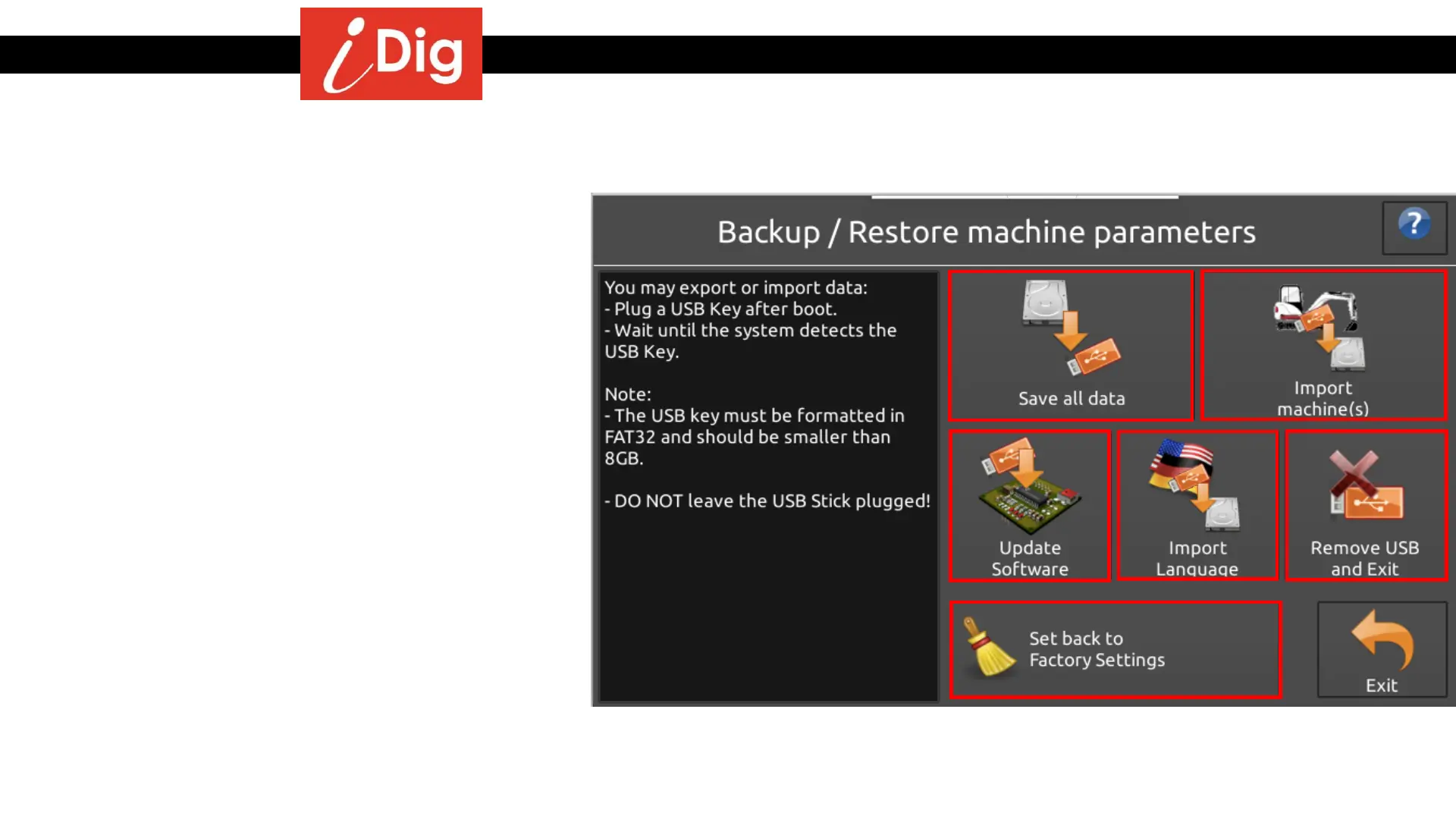
When the USB stick activates the icons on the screen will
illuminate. At that time you may:
• Save all Data – A new folder and file will be created on
the USB stick titled “iDig Touch Calibration Data”. Be
careful not to overwrite an existing file on the USB stick
with the same name.
• Import Machine(s) – The system lists the compatible files
found on the USB stick that you can import. Refer to next
page for instructions.
• Update Software – You may update the system firmware
using an .aes file available from your iDig Dealer. Place
this file onto the USB stick in a folder called “update”.
Click on the “Update Software” button. The new software
will be copied to the Control Box. The update will be
automatically performed at the next system startup
without losing any customized setting or machine/bucket
data.
• Import Language – You may correct the text of your local
language. Refer to your iDig Dealer for more information.
• Remove USB and Exit – ALWAYS safely remove the USB
stick before exiting this screen.
• Set Back to Factory Settings – Returns the system to the
original factory settings and erases all customized settings
and machine data. There is an additional warning screen
to confirm that you want to complete this function.


 To Next Page