Import / Export Function
159
From the “Backup / Restore Machine Parameters” screen
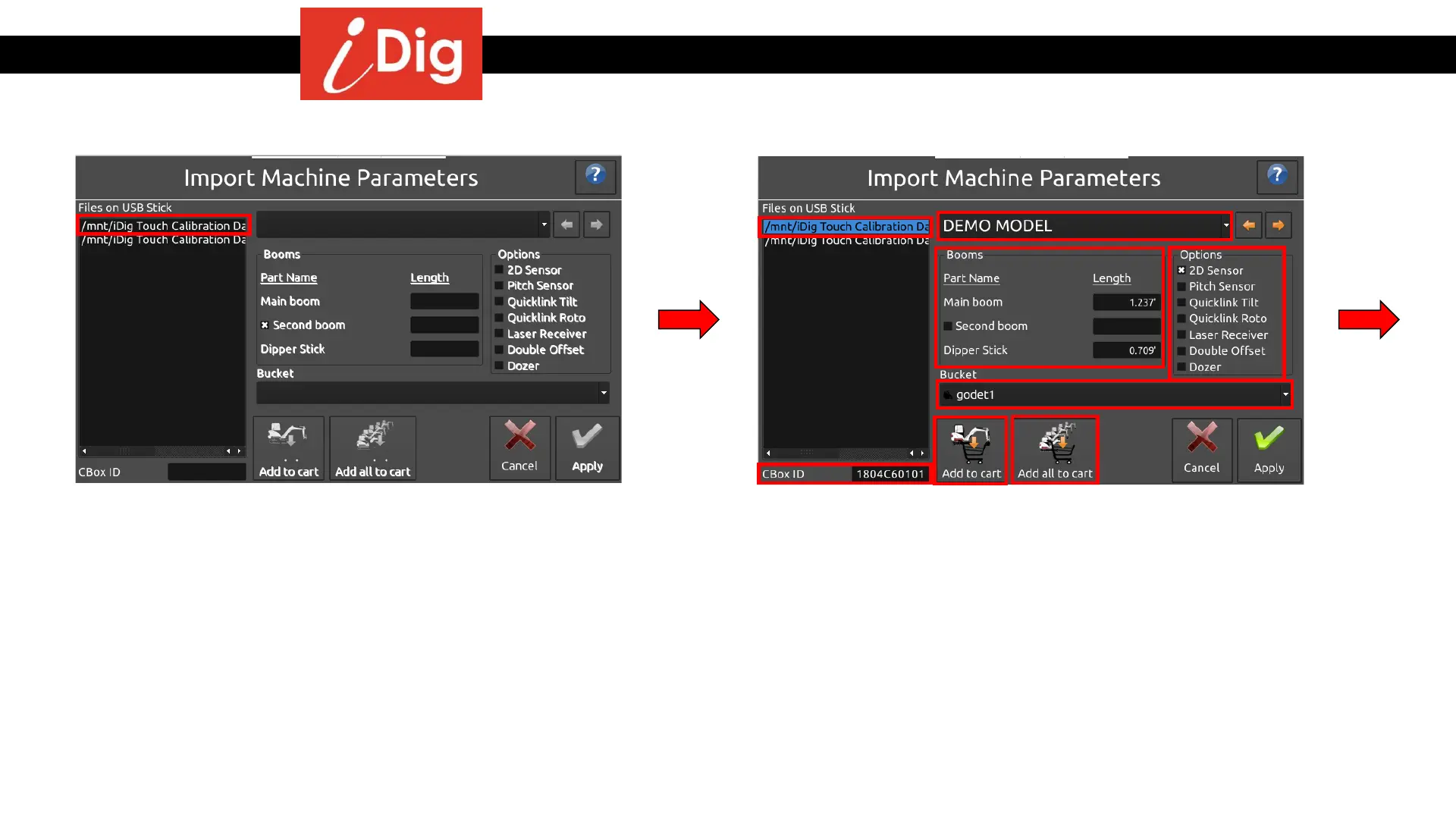
click on “Import Machine(s)” which will bring you to this
screen.
• Files on USB Stick – Here you will see a list of available
“iDig Touch Calibration Data” files. Click on the
machine(s) that you’d like to import.
Import Machine Data
• Once you have selected your machine it will be highlighted in blue. If you intend to
import that machine, click on "Add to Cart". Select other machines from the drop
down menu if you intend to import more. Don't forget to add them to the cart.
• CBox ID – Indicates the serial number of the Control Box assigned to that machine.
• Booms – Shows the lengths for the Main Boom and Dipper Stick associated with
that machine.
• Options – Shows additional Sensor(s) and Functions.
• Bucket – Used to help identify the machine. When you click on “Add to Cart” you
add the machine and all buckets attached to that machine.
• If there are multiple machines and buckets click on “Add All to Cart”.


 To Next Page