12
PC INSTALLATION AND CONNECTION (CONTINUED)
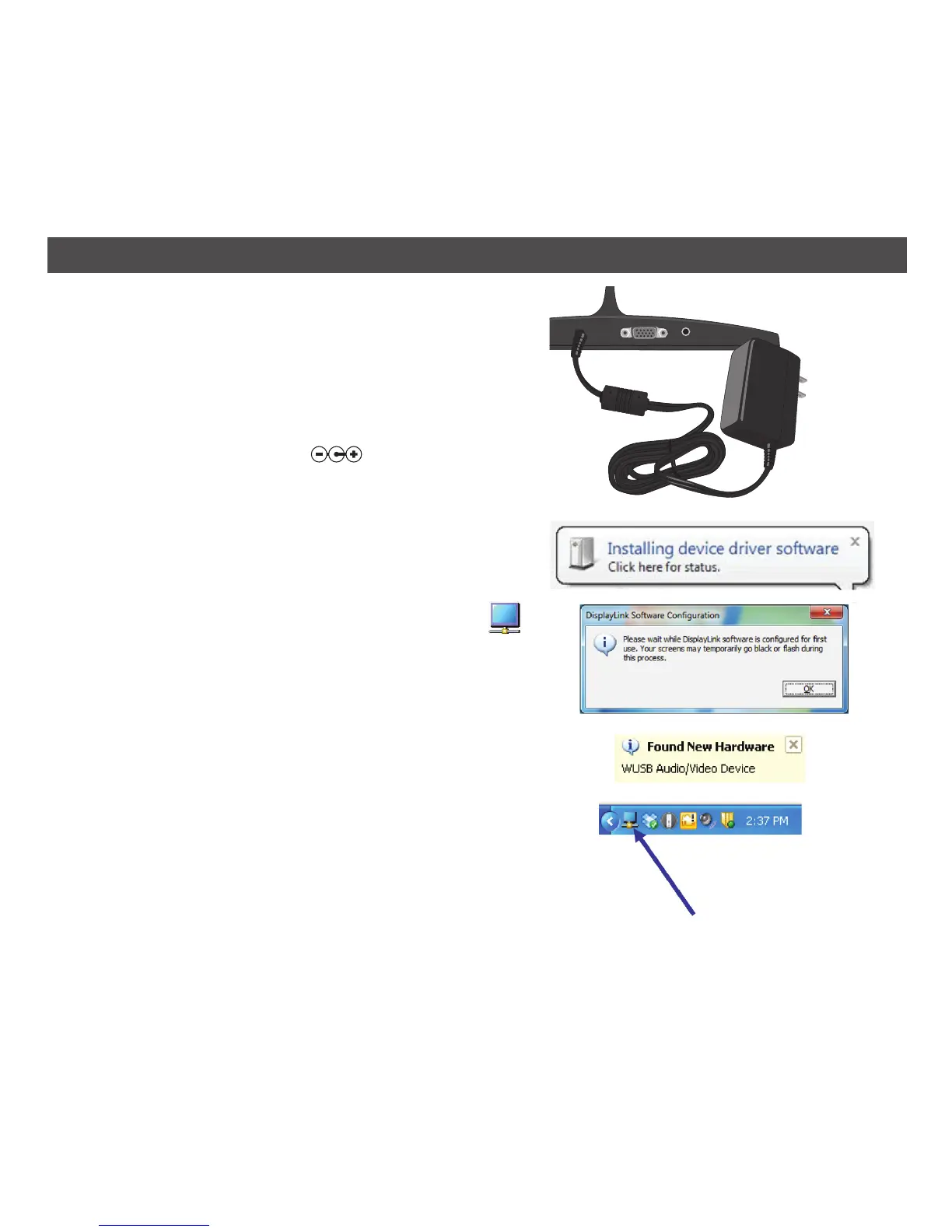
8. Insert the small end of the AC adapter into the DC
jack (located on the rear of the unit). Connect the
other end to a wall outlet having 120V AC, 60 Hz.
NOTES:
• Remove both the DC plug and the AC-IN plug to
disconnect the AC adapter when not in use.
• Only use the supplied AC adapter which has the
following specs: DC 5V
9. After Connecting to AC, the computer will display
the Installing Device Driver Software message and
the Window User’s Account Control window will
open. DisplayLink will automatically configure the
unit and then the image will appear on the TV.
Found New Hardware and the Remote Monitor
indicator will appear in the Windows taskbar.
NOTE: On some computers you may have to restart
the computer to use the DisplayLink-enabled device.
10. The Link™ Wireless A/V extender will launch in
Extended mode. The Extended mode will extend your
monitor to the right by default. For more information
on Extended Mode see the Operation section of this
user manual for your specific operating system.
NOTE: If a monitor is not attached, you may not be
able to find the cursor on your screen; it may be lost
on the missing screen. Try moving your mouse around
right, left, up and down to relocate the cursor.
TO
AC JACK
Found New Hardware


 To Next Page