Setting the Others
40
OWNER'S MANUAL
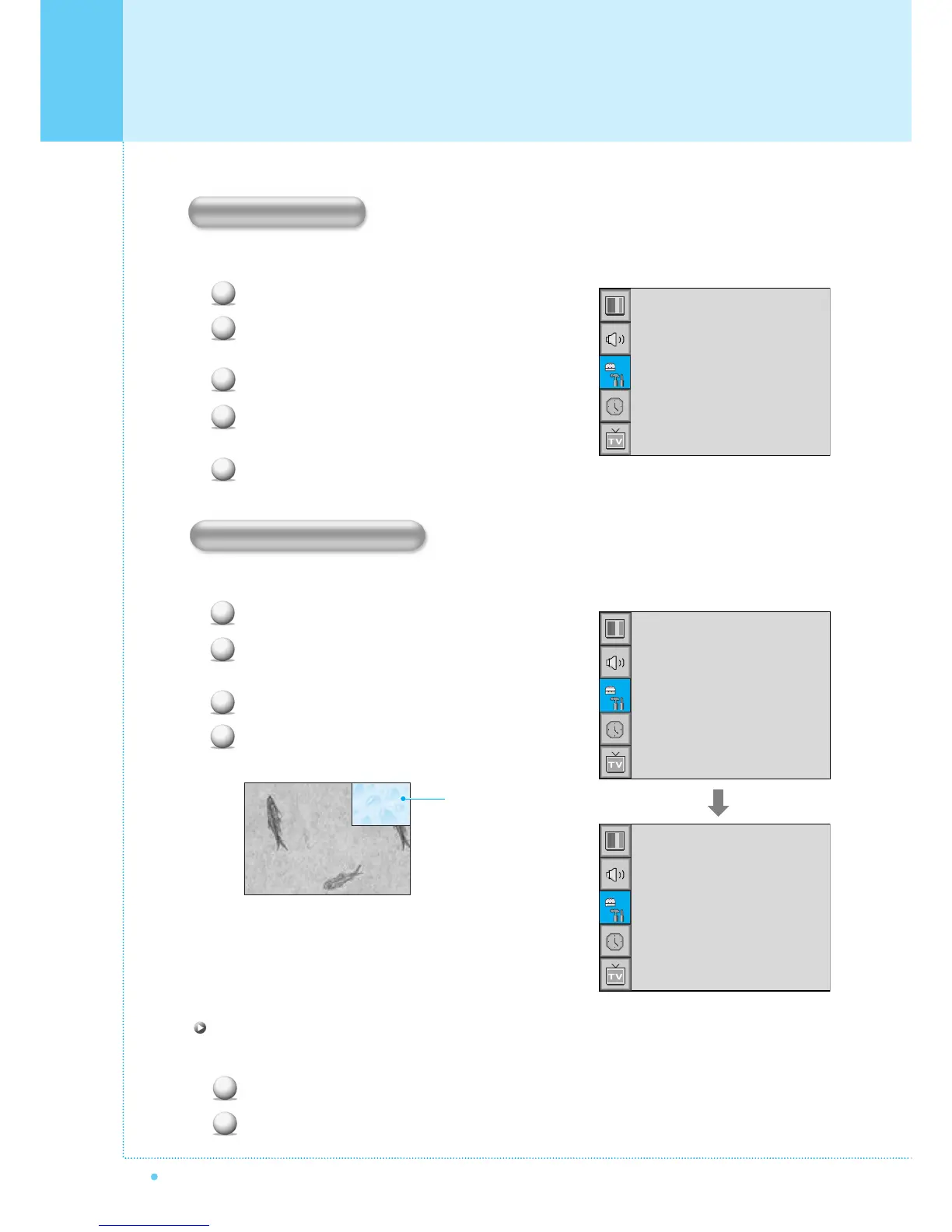
Adjust the transparency of the OSD menu. There are 8 step from OFF to 7.
Press Menu/set button to display the main OSD menu.
Select the SET UP main menu with CH+/CH-
button on the remote control.
Press Menu/Set to enter the sub menu.
Select Translucent and press VOL+ button to enter the
¥ parts. Then the cursor moves into the ¥ parts.
Adjust with CH+/CH- button and press EXIT button.
You can watch two channels or sources at the same time. And set up PIP size and position.
Press Menu/set button to display the main OSD menu.
Select the SET UP main menu with CH+/CH- button
on the remote control.
Press Menu/Set to enter the sub menu.
Select PIP and press Menu/Set to enter the sub menu.
Then the PIP sub menu appear.
1
2
3
4
PIP Window
Trucelant
PIP
V-Chip
Caption
Advanced
¥OFF
¥OFF
Size
Source
Picture Swap
Position
¥SMALL
PIP (Picture In Picture)
1
2
3
4
5
Trucelant
PIP
V-Chip
Caption
Advanced
¥OFF
¥OFF
Translucent
Size in PIP (Picture In Picture )
Change the size of the PIP window. There are 3 sizes: SMALL, Large, Twin.
Select Size and press VOL+ button to enter the ¥parts. Then the cursor moves into the ¥parts.
Adjust size function with CH+/CH- button and press Menu/Set button.
1
2



 To Next Page